STEPPERONLINE currently offers three hardware versions of the T-series closed-loop stepper drives: V3.0, V4.0, and V4.1. For V3.0, open-loop mode must be configured via PC software. For V4.0 and V4.1, open-loop mode can be configured directly on the drive using the DIP switch.
The following procedure uses the CL57T (V4.1) as an example.
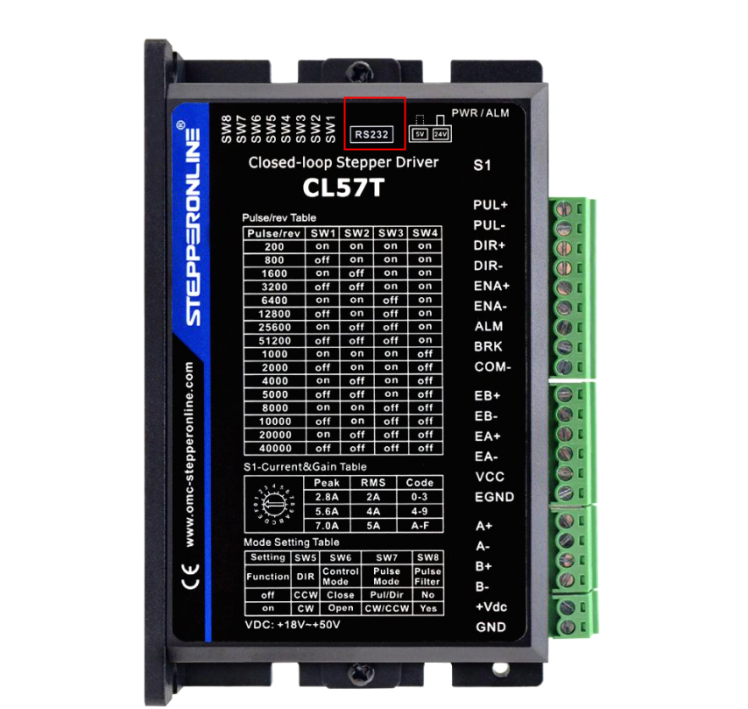
1. Version 3.0 (Software Configuration)
- Connect the drive to your computer using an RS-232 and USB cable. Power on the drive, launch the configuration software, and select the correct COM port. You can verify the port number in Windows Device Manager.
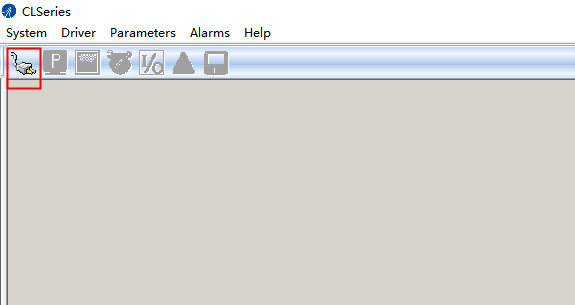
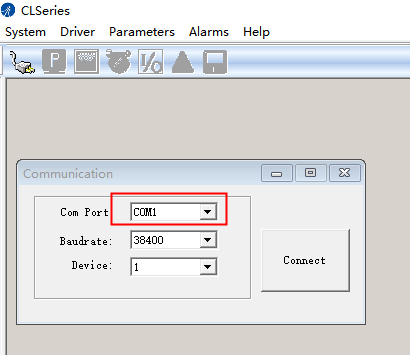
- Click Connect.
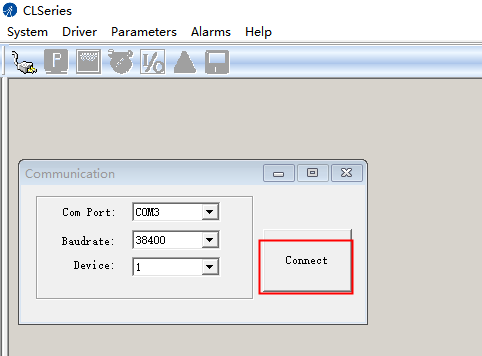
- Once connected, click Parameters, then click Read to load the current parameters from the drive.
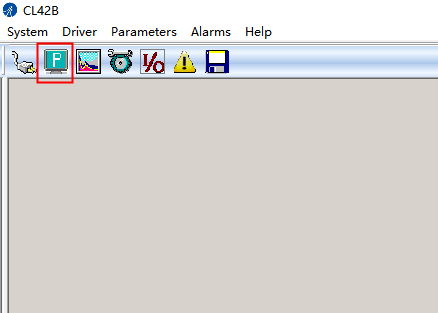
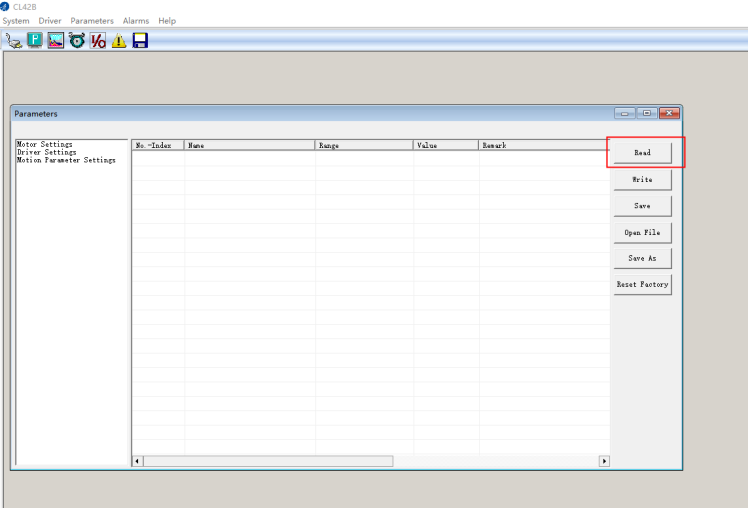
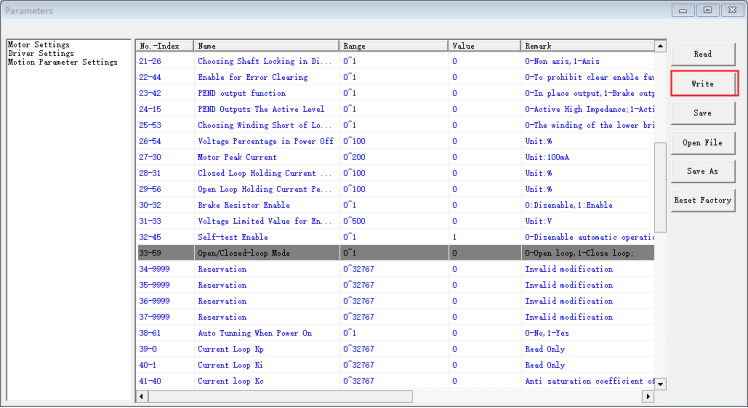
- Scroll down to locate the Open/Closed Loop Mode parameter. A value of 0 indicates open-loop mode; a value of 1 indicates closed-loop mode.
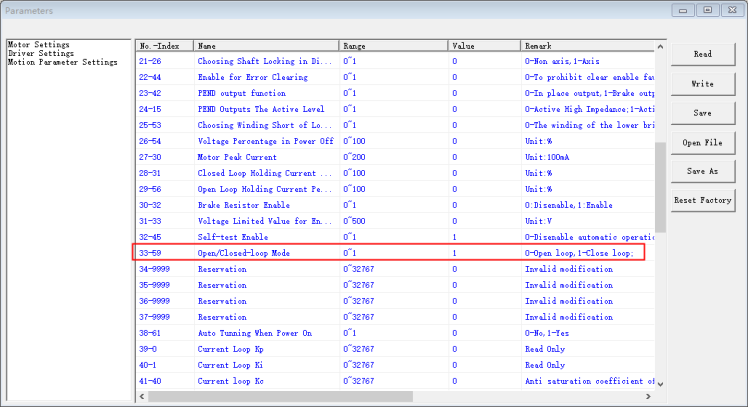
- Change the value to 0, then click Write.
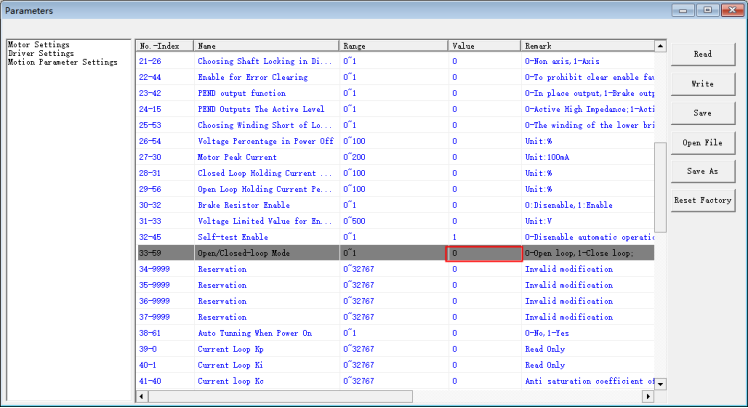
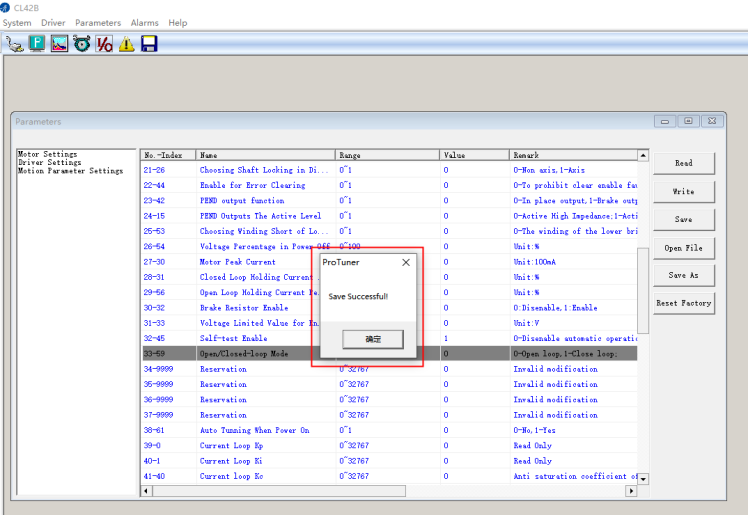
- Wait for the "Saved successfully" prompt, then click Save to store the parameters permanently to the drive.
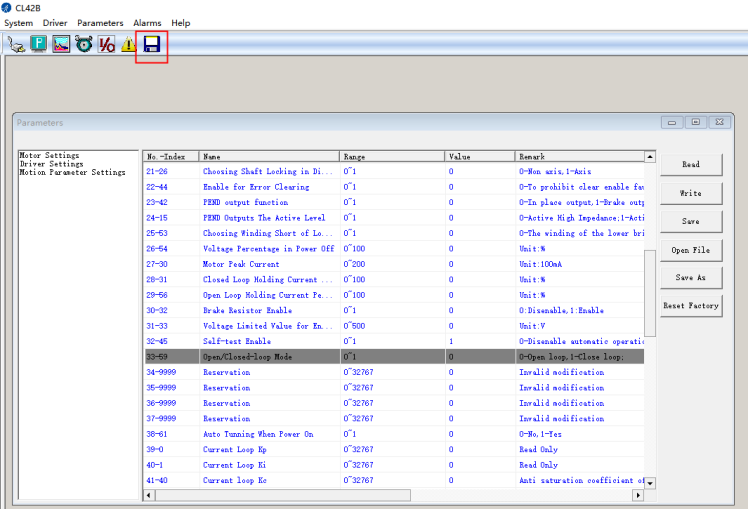
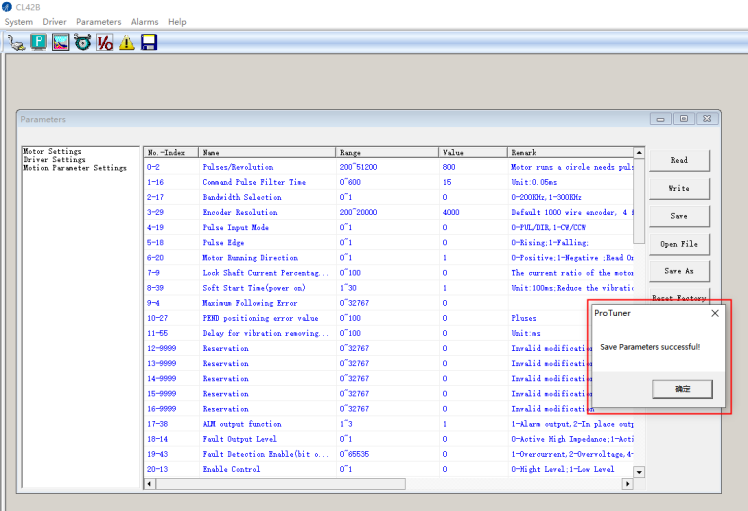
- A "Save parameters successfully" message confirms the settings have been written to the drive.
- Power cycle the drive to verify that open-loop mode is now active.
Note: The same procedure applies to adjusting other drive parameters via the software.
2. Version 4.0 / 4.1 (DIP Switch Configuration)
Locate DIP switch SW6 on the drive housing:
- OFF — Closed-loop mode (default)
- ON — Open-loop mode
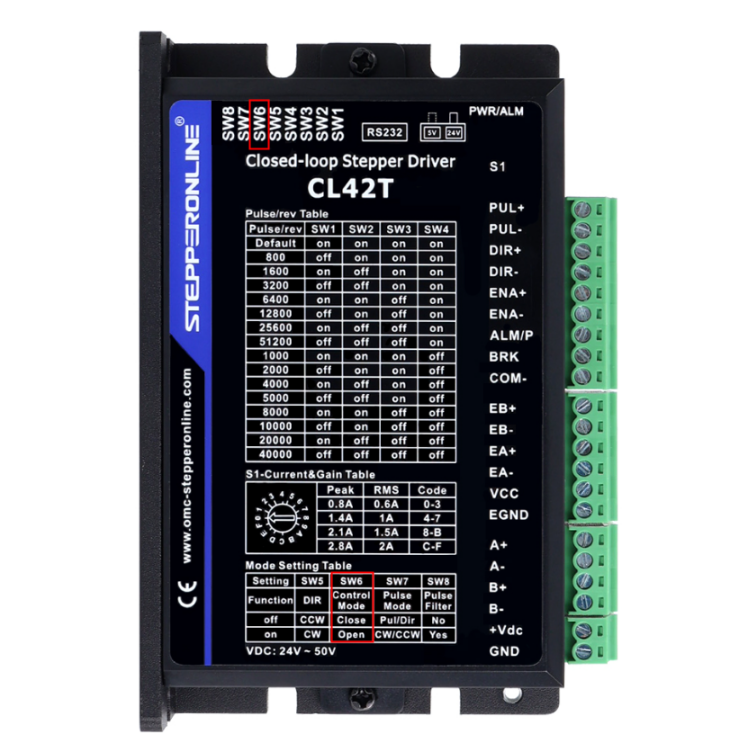
After changing the SW6 position, power cycle the drive for the new mode to take effect.