This article provides a detailed explanation of how to adjust the main parameters of the drive using MotionStudio_V2.3.2. Currently, among the products sold by our company, the CL57TE and DM860TE drives can be configured and tested with MotionStudio_V2.3.2 for parameter setting and motor trial operation.
Please prepare the following:
- Drive
- Power supply
- RS232 configuration cable
- USB-to-RS232 adapter (if required)
- MotionStudio_V2.3.2 software
(Download link: https://github.com/StepperOnline/Tunning-Software/blob/main/MotionStudio_V2.3.2.zip)
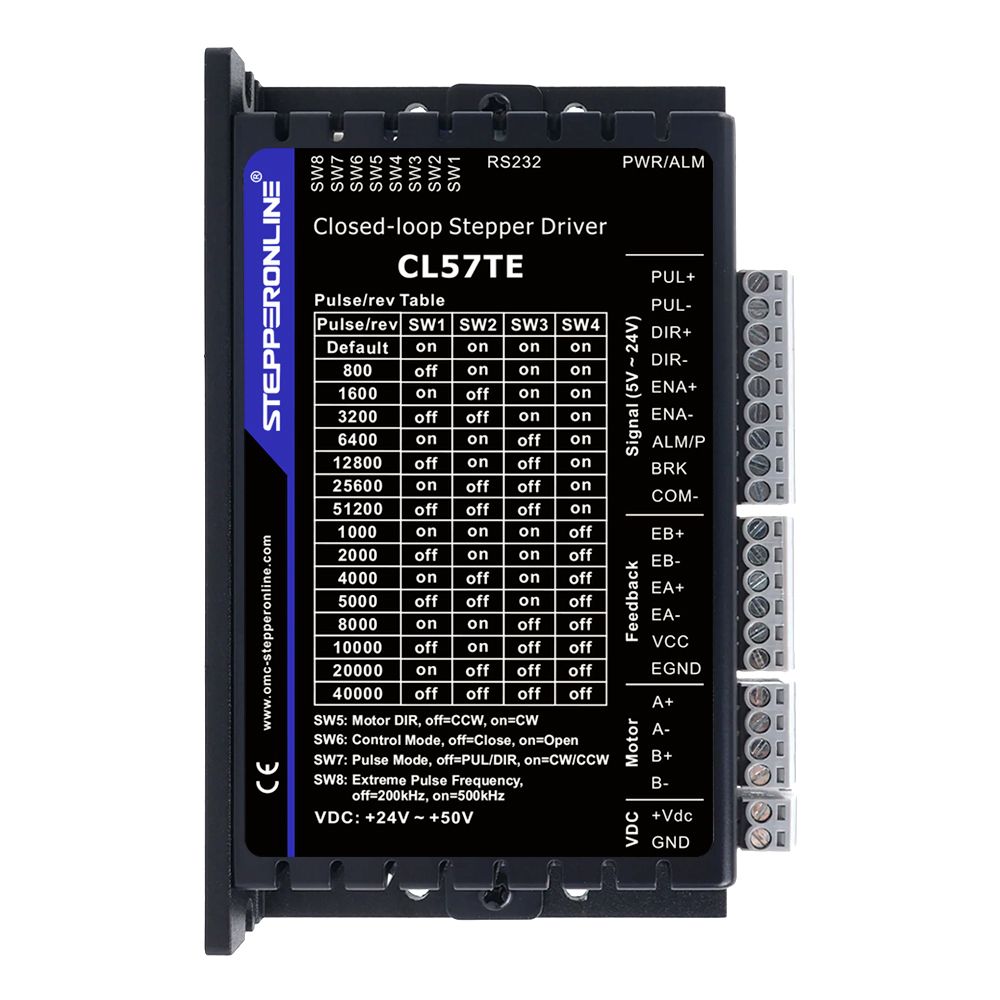
This guide uses the CL57TE drive as an example.
Note: The CL57TE drive has a DIP switch labeled "DEF" (Default). Set this switch to the ON position before adjusting parameters via software. If this switch is not set correctly, parameter changes will not be saved.
Connection Steps:
- Take the RS232 configuration cable included with the drive and insert it into the drive's RS232 configuration port.
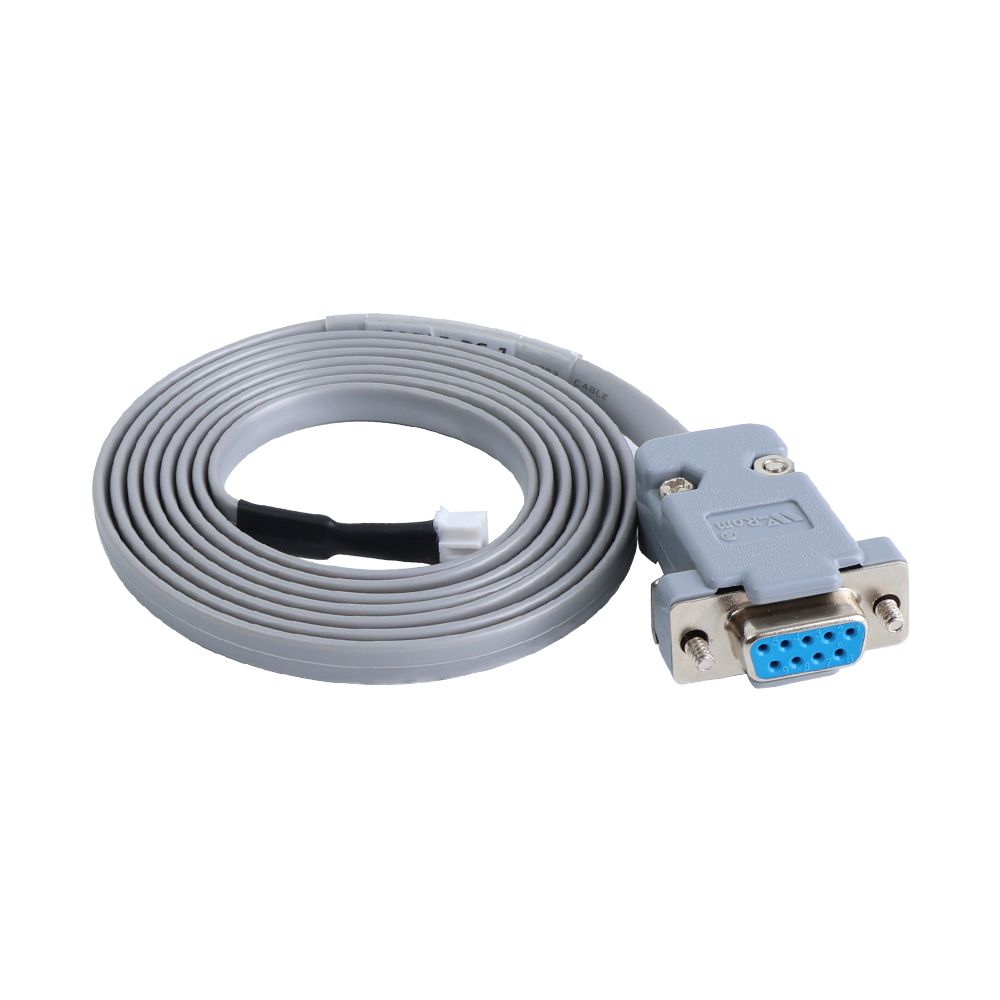
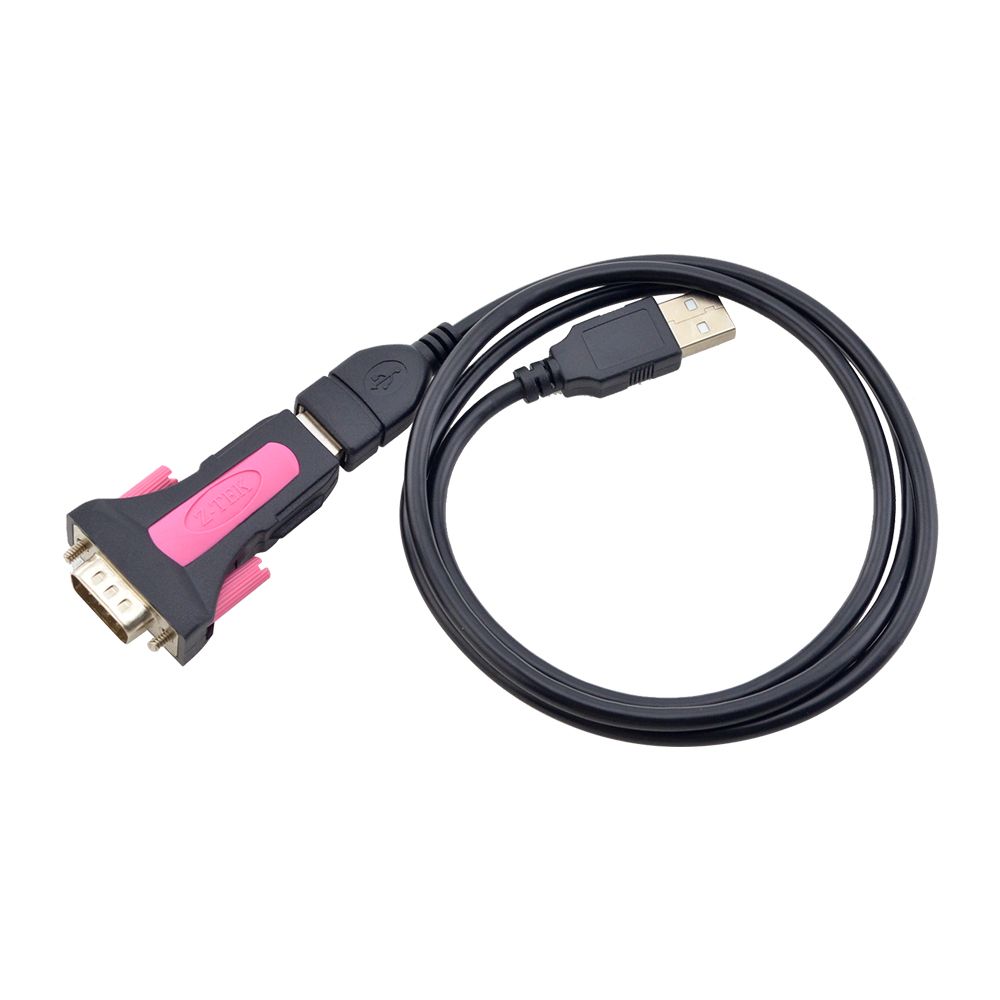
- Prepare a USB-to-RS232 adapter cable and connect one end to your PC and the other end to the RS232 configuration cable.
(This cable must be purchased separately. If your PC has a built-in RS232 port, you can directly connect the configuration cable to the PC without the adapter.)
Here is the purchase link: https://www.omc-stepperonline.com/en-gb/usb-2-0-to-serial-rs232-adapter-with-1m-cable-converter-c006
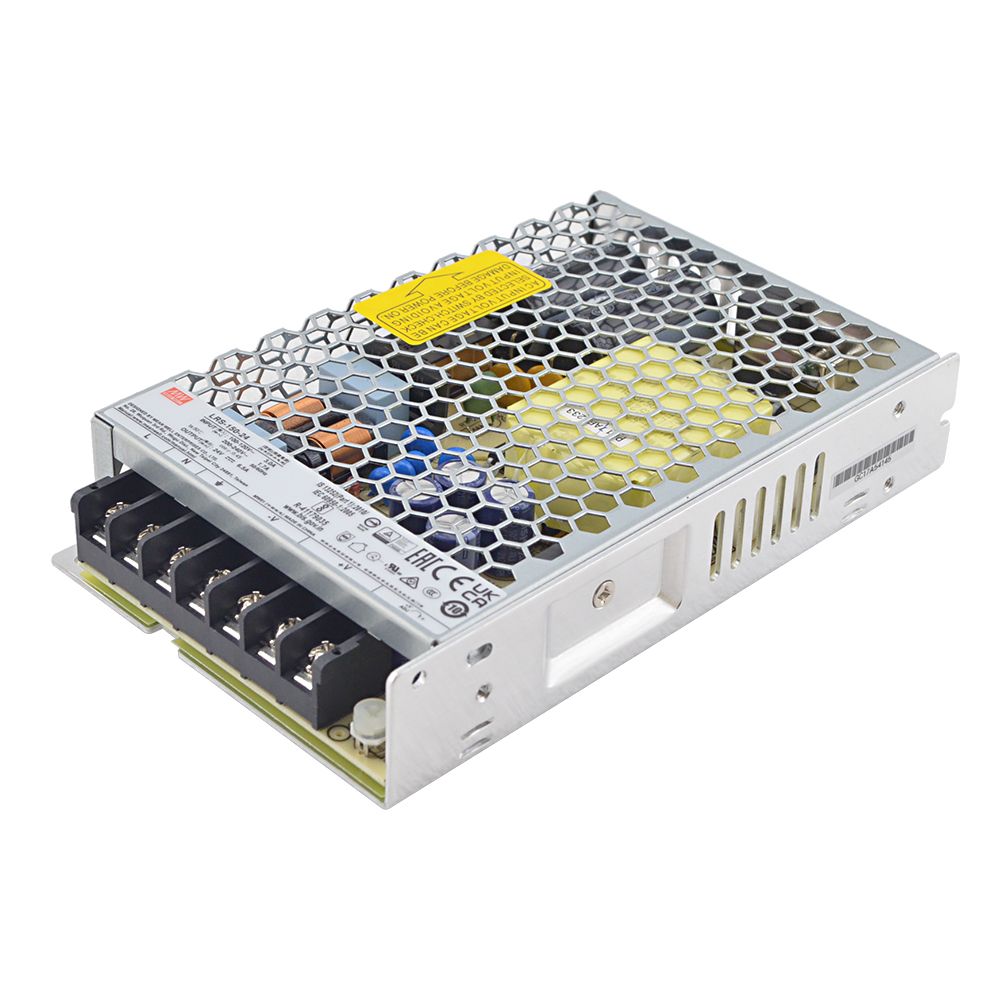
- Prepare a DC power supply to power the drive.
(Ensure the voltage is within the drive's input range.)
Software Setup:
- Click "Communication" in the software.
- Select RS232 mode and choose the correct serial port.
- Click "Connect".
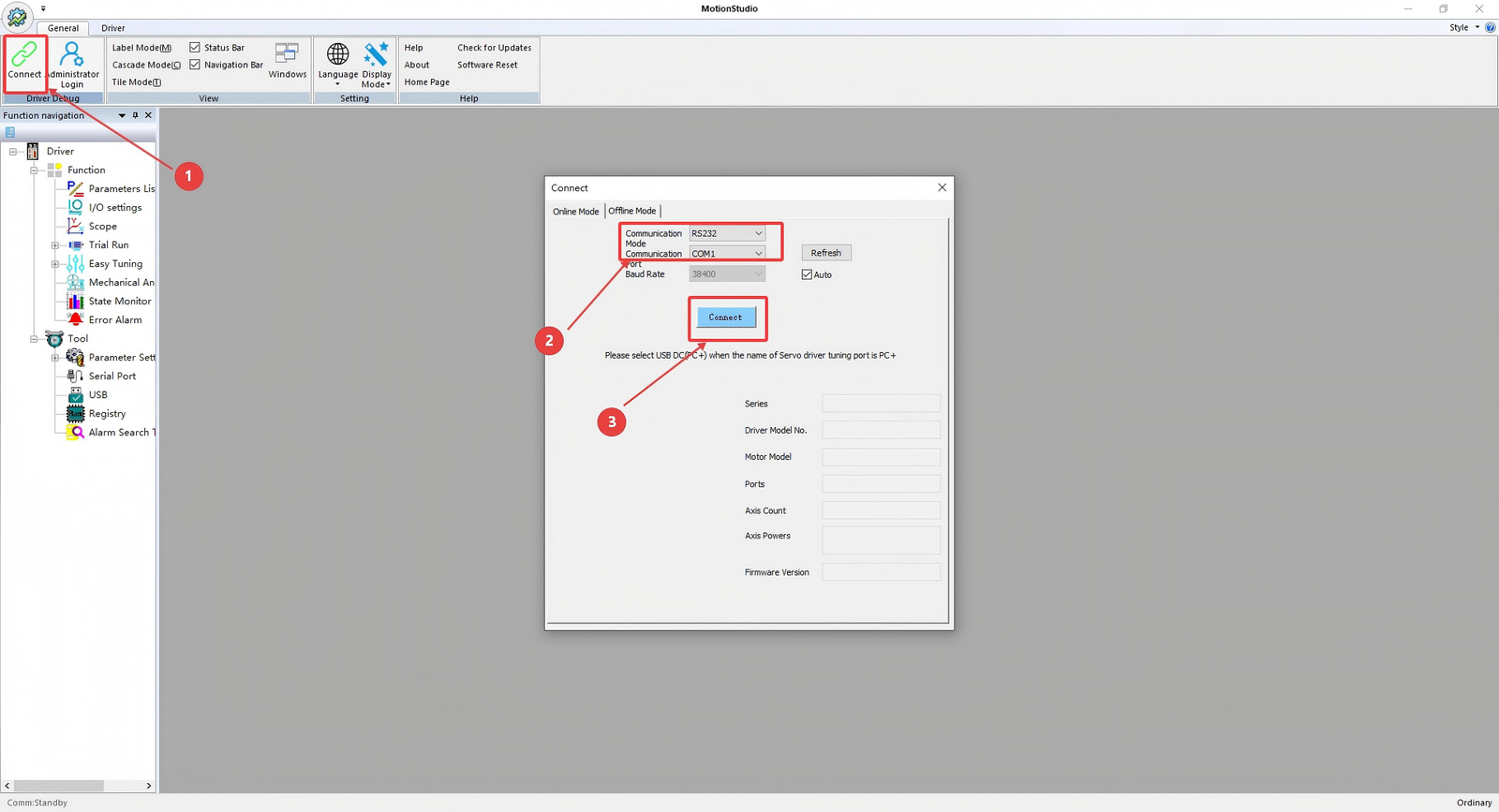
Once successfully connected, the interface will display as shown below.
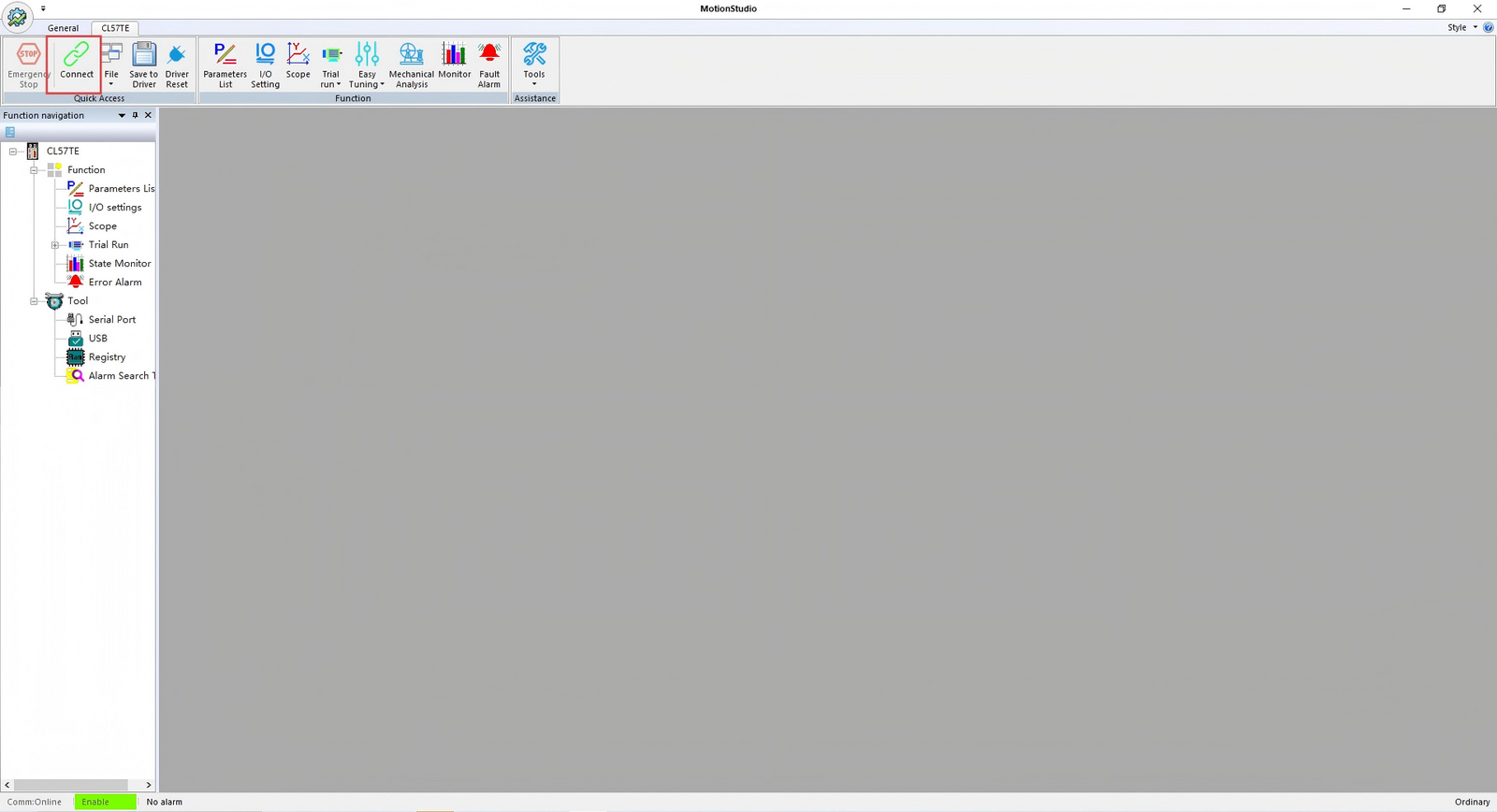
After clicking "Connect", the interface will indicate normal communication, and the status bar will show the corresponding drive model.
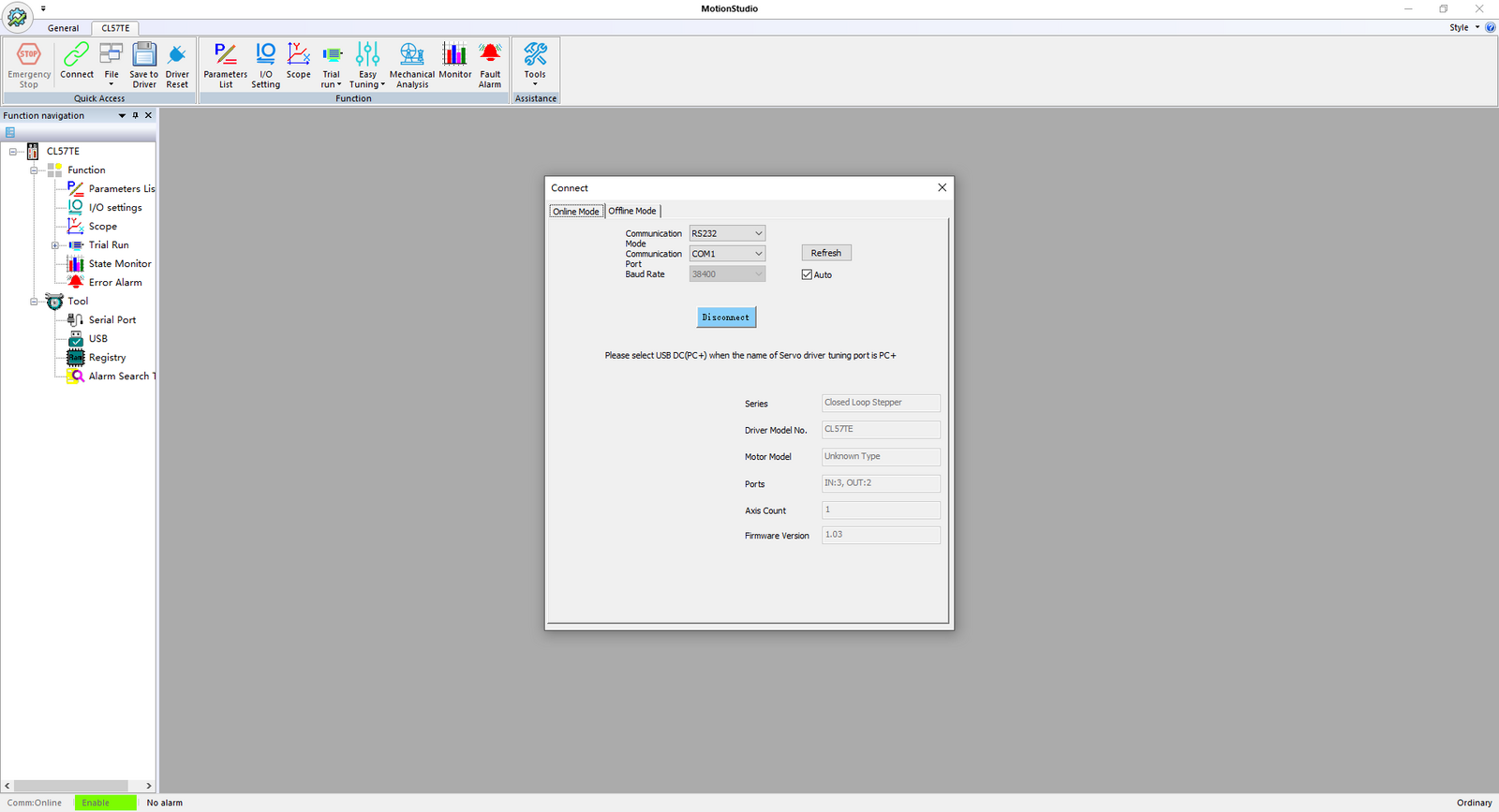
With everything set up, we can now proceed to the main operations.
Modifying Peak Current of the Drive
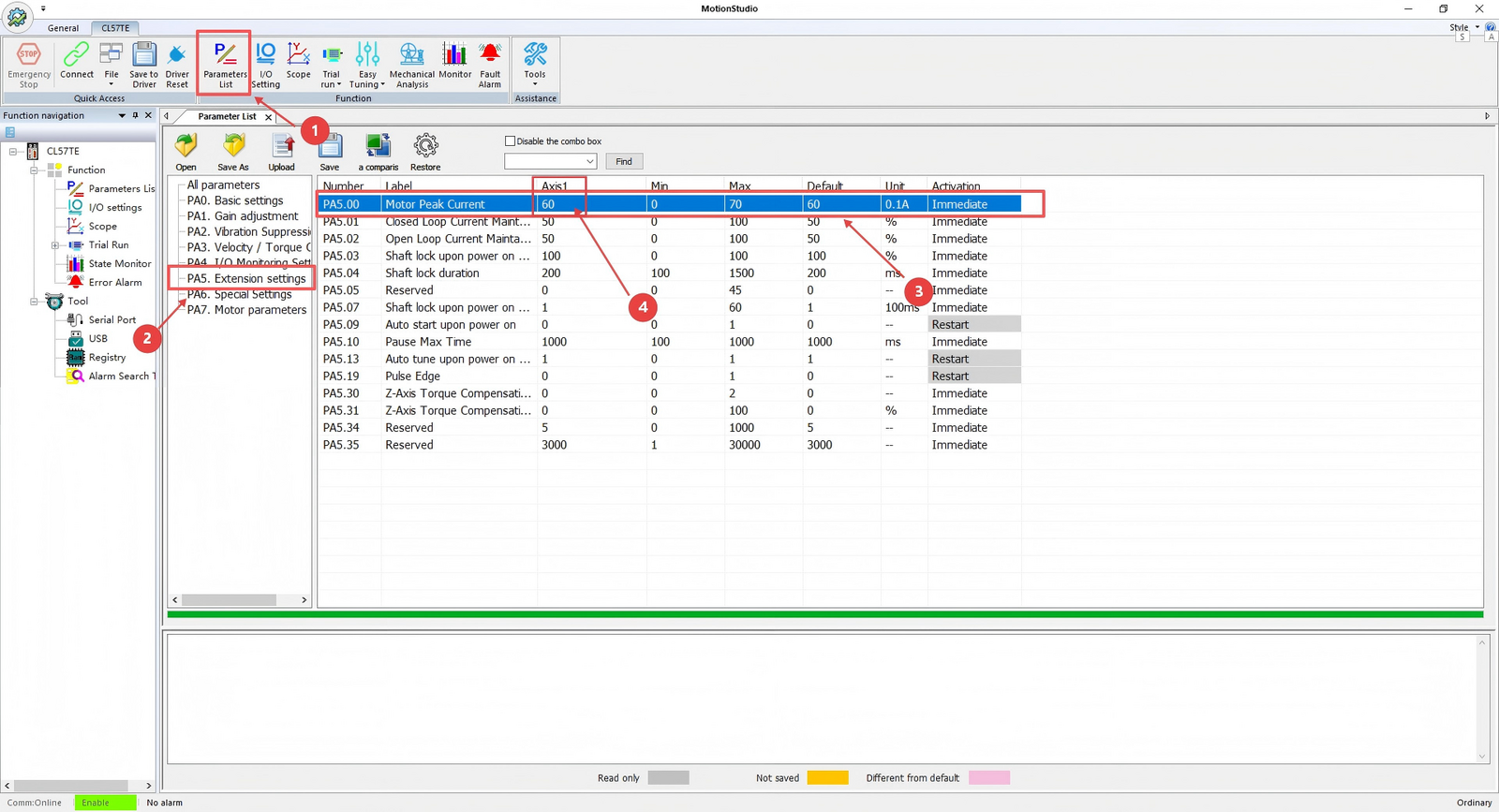
- Click "Parameters List."
- Click "Extension Settings."
- Find "Peak Current."
- Modify the value as needed by clicking on the numeric field.
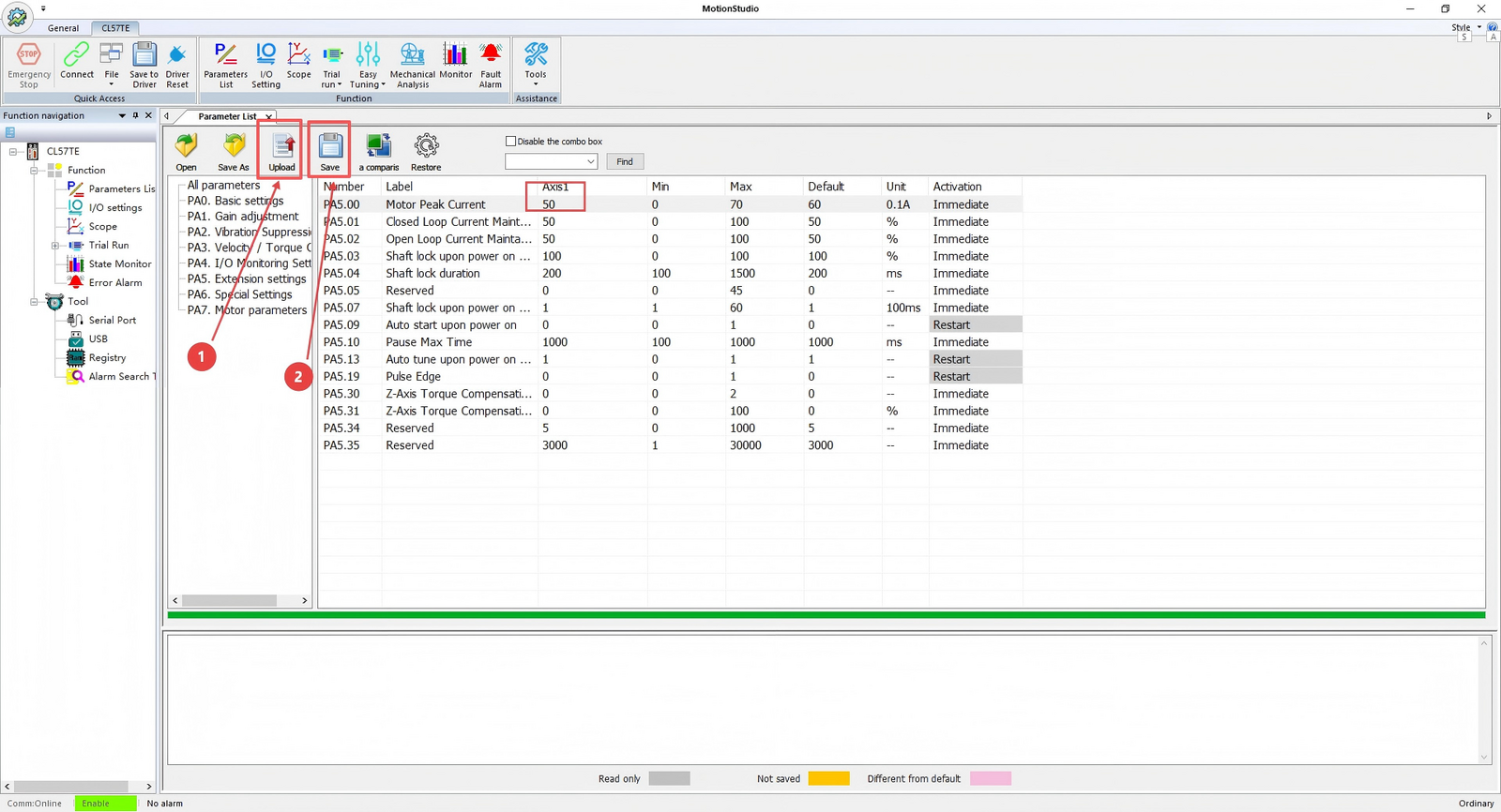
After adjusting the current:
- Click "Download" (or "Write to Device").
- Click "Save."
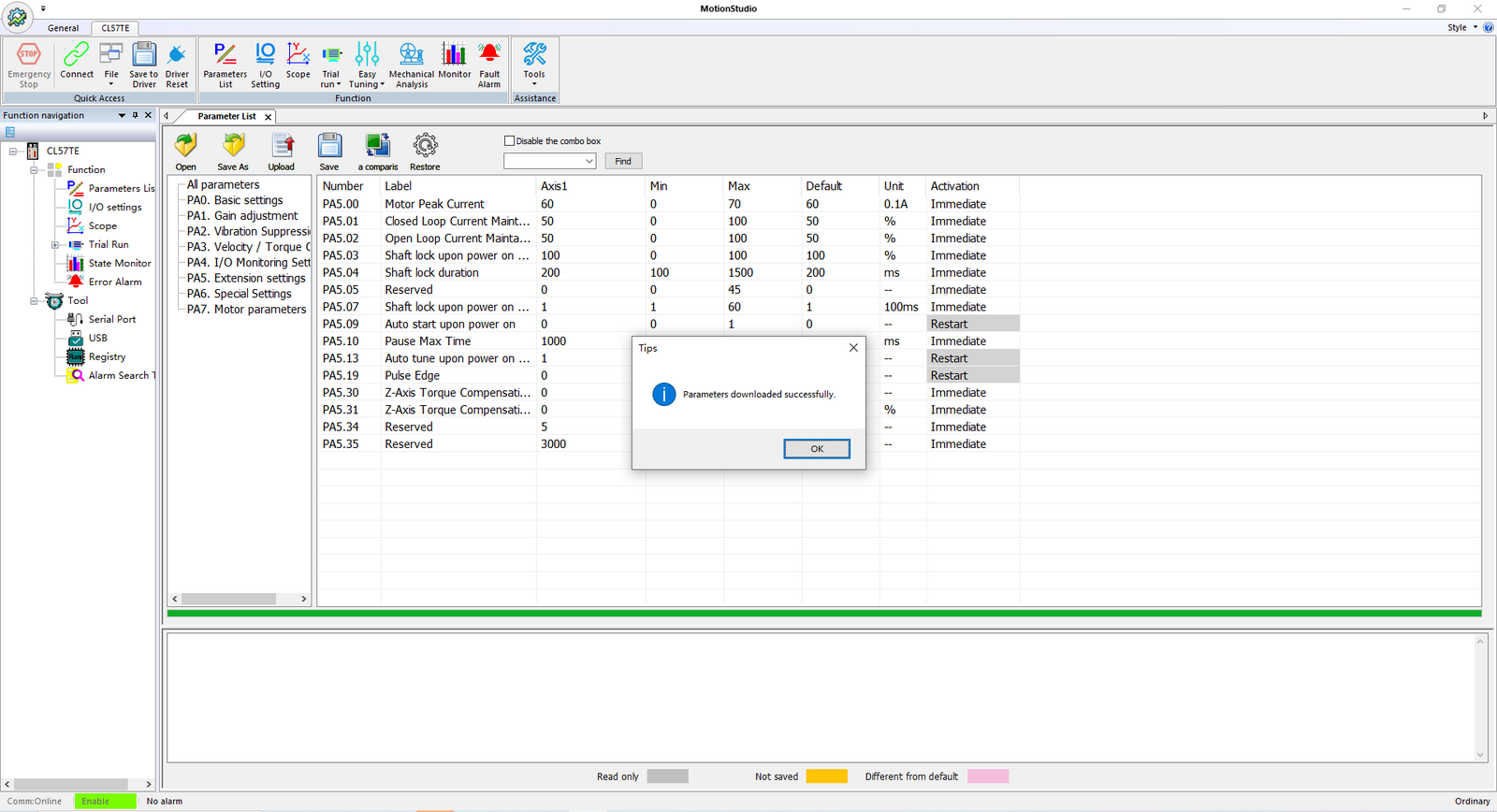
Upon successfully modifying the current value, a confirmation dialog will appear as shown in the figure.
Modifying Encoder Resolution
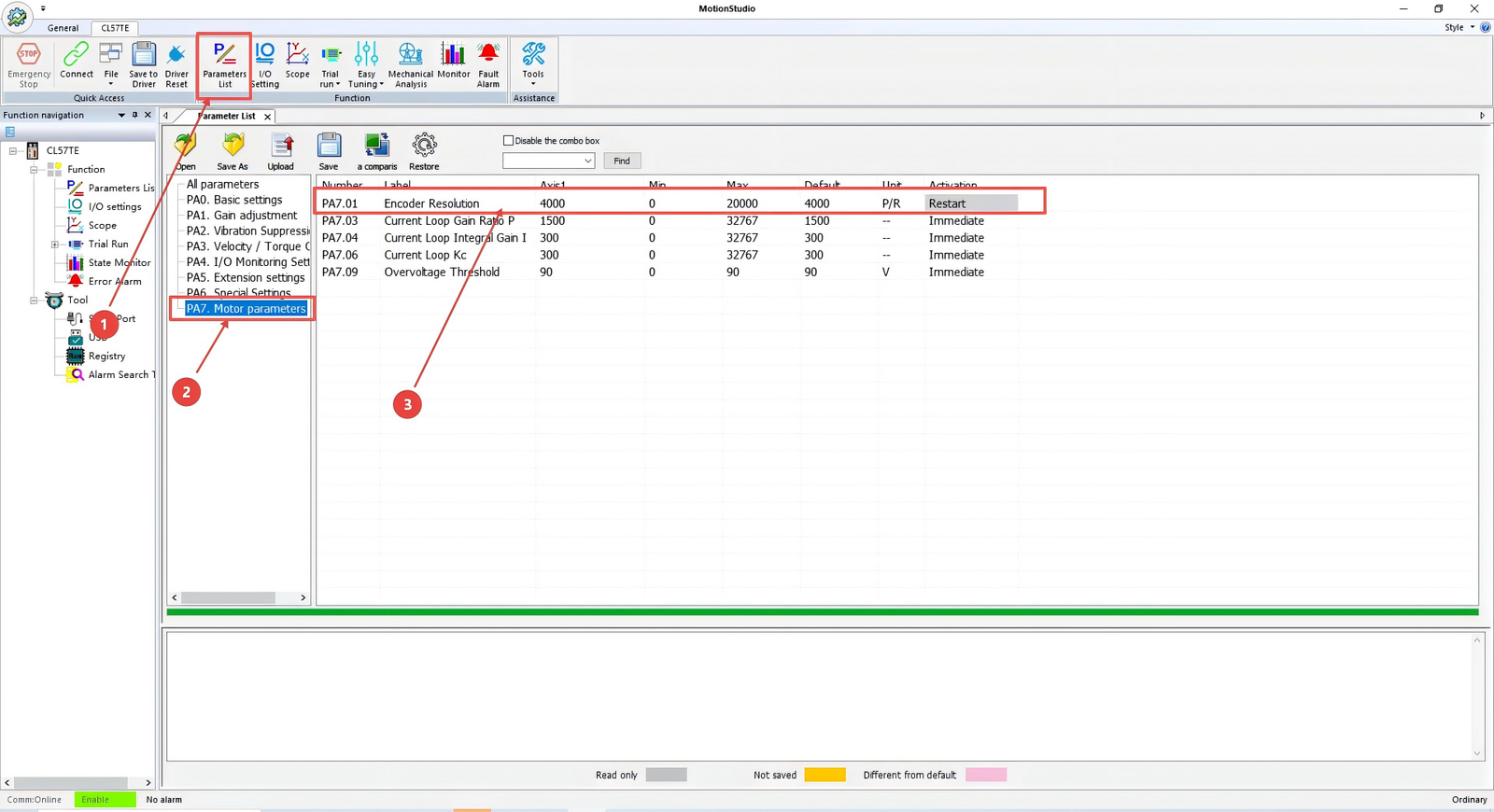
- Click "Parameters List."
- Click "Motor Parameters."
- Find "Encoder Resolution."
- Modify the value as needed by clicking on the numeric field.
For example, the drive defaults to supporting an encoder with a resolution of 1000 PPR. Due to 4× frequency multiplication (1000 PPR = 4000 CPR), the default value in the drive is 4000 (CPR). If your motor encoder resolution is 500 PPR (2000 CPR), set this value to 2000 (CPR).
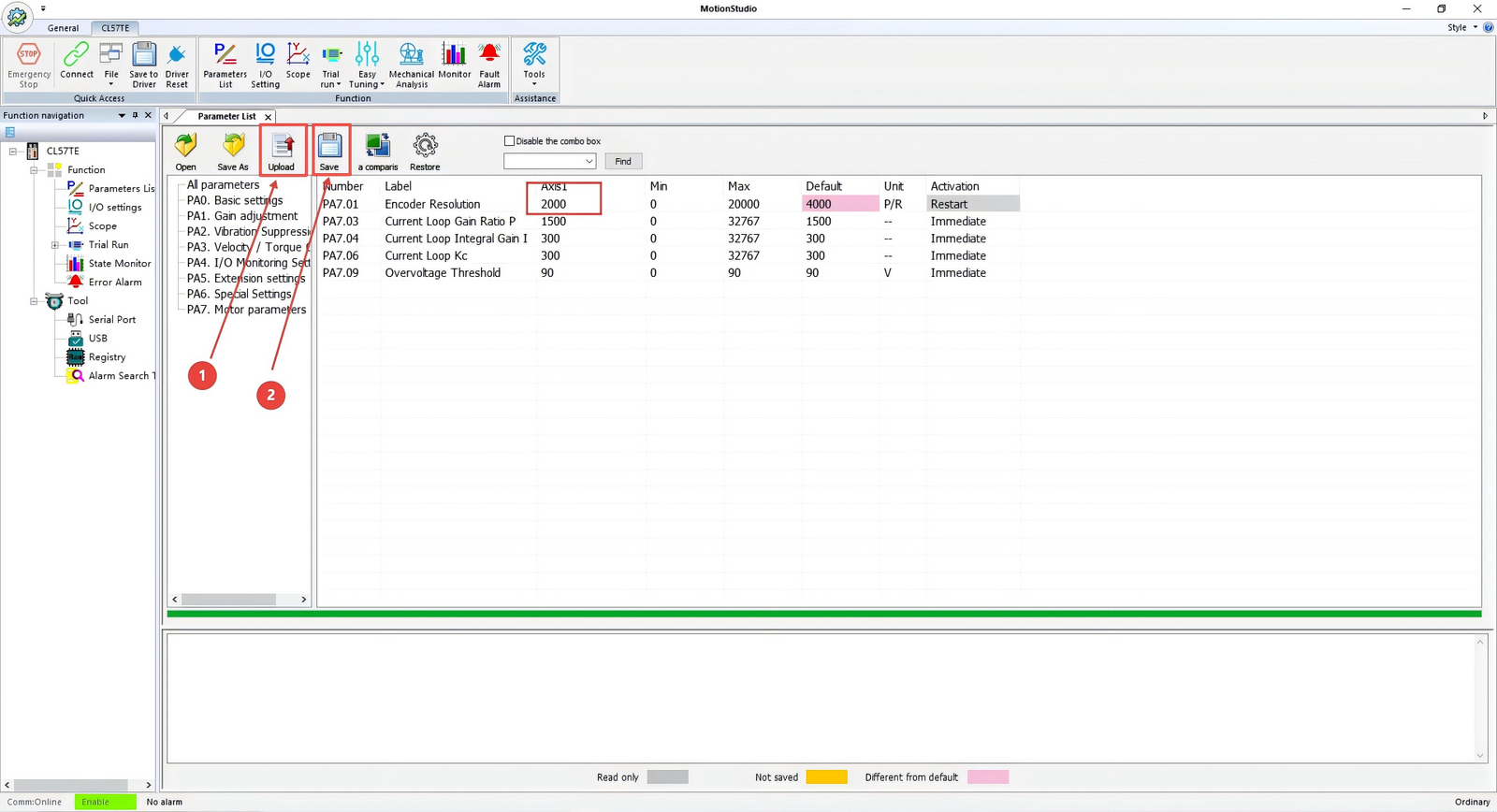
After modifying the value:
- Click "Download" (or "Write to Device").
- Click "Save."
This ensures the modified value is successfully stored.
Adjusting Velocity Loop & Position Loop Gains (Noise Reduction)
These parameters can be adjusted to reduce motor noise if it is excessive. Appropriately reduce the default values if needed.
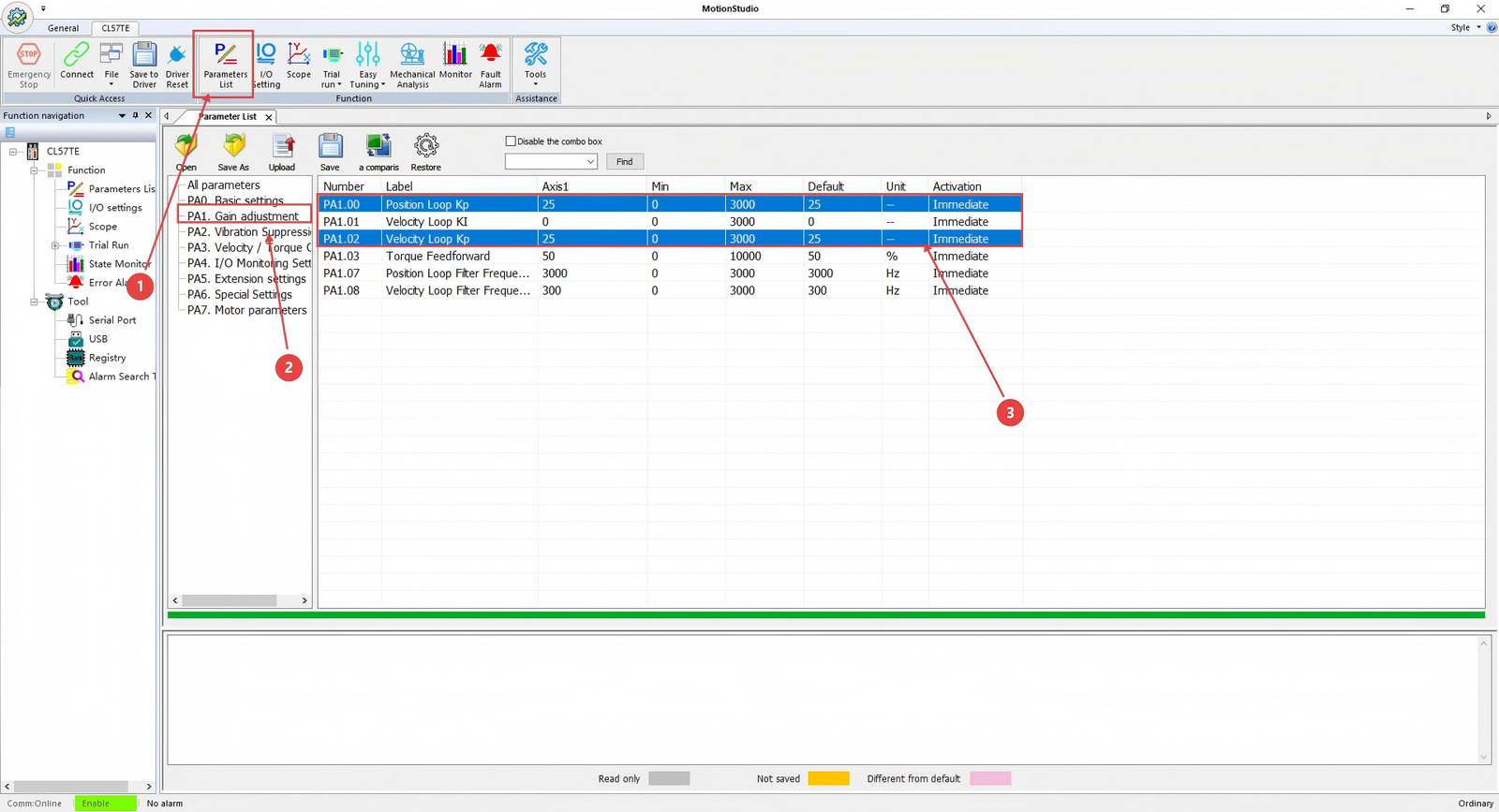
- Click "Parameters List."
- Click "Gain Adjustment."
- Find "Velocity Loop and Position Loop."
- Modify the values as needed by clicking on the numeric fields.
Note: The values for the velocity loop and position loop should be kept consistent.
JOG Trial Operation
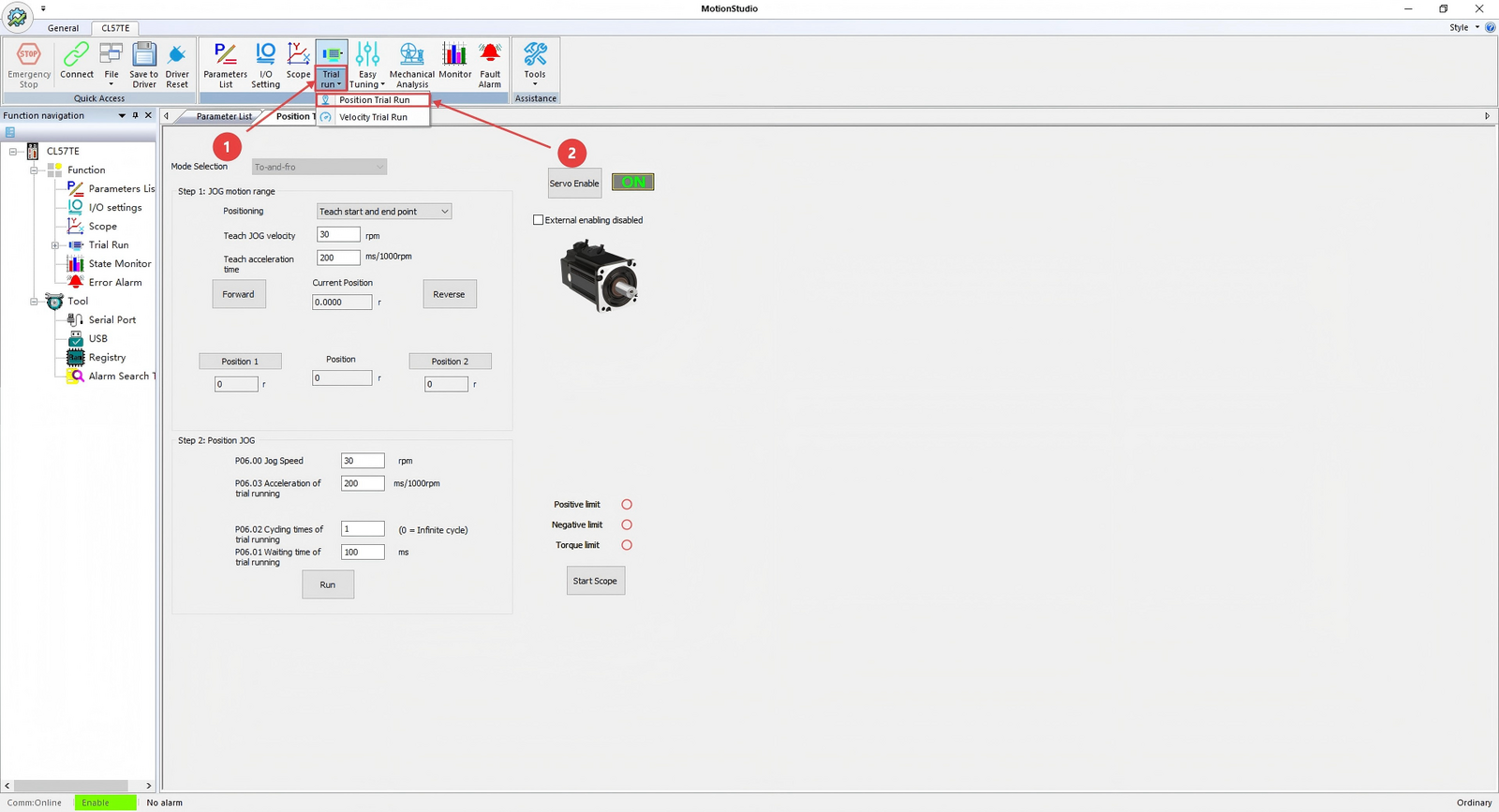
- Click "Trial Operation."
- Click "Position Trial Operation."
The interface shown above will appear.
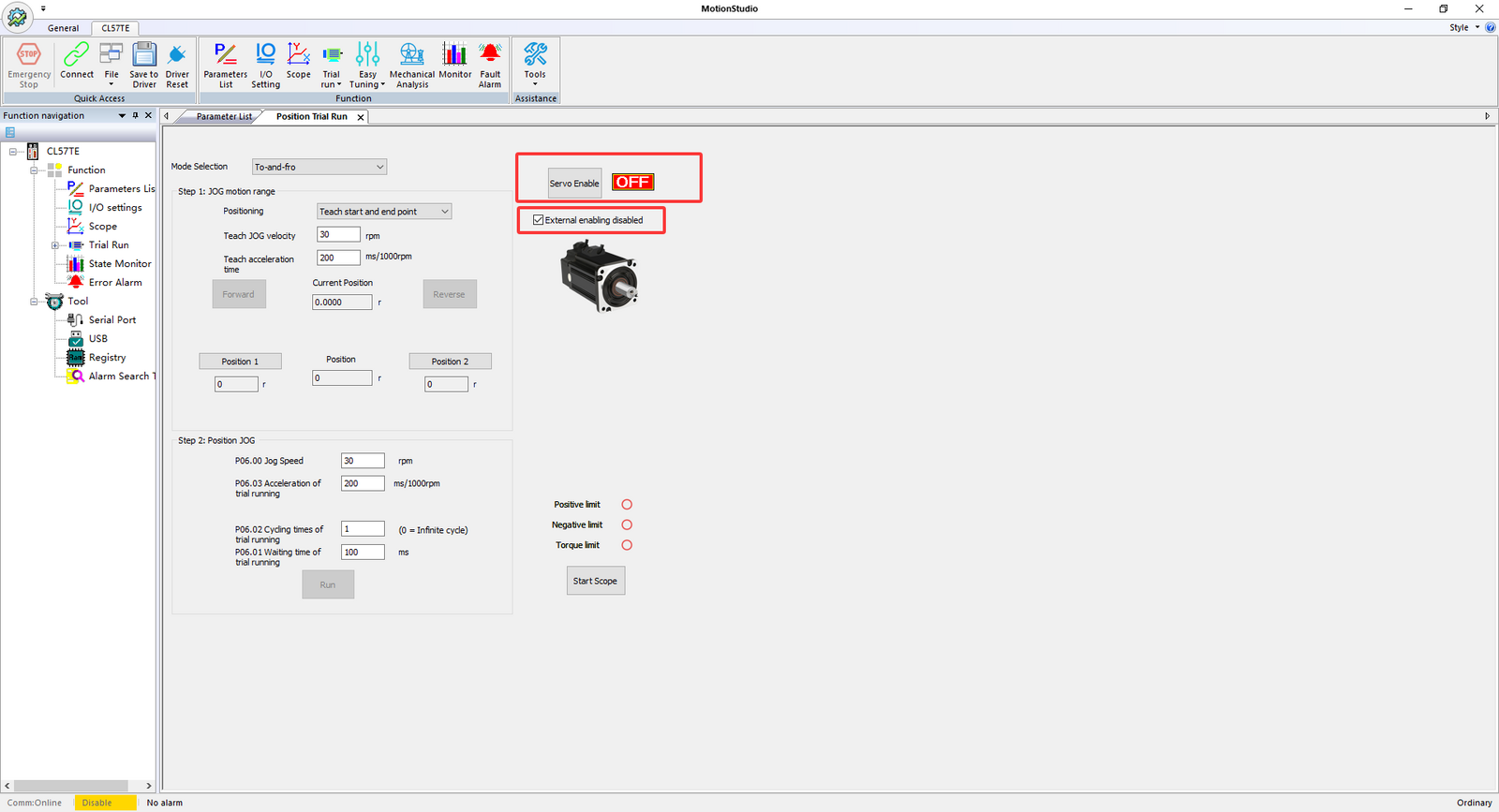
Check the "External Enable Disabled" option — this disables the external enable signal requirement, so the motor defaults to a servo-disabled (unpowered) state.
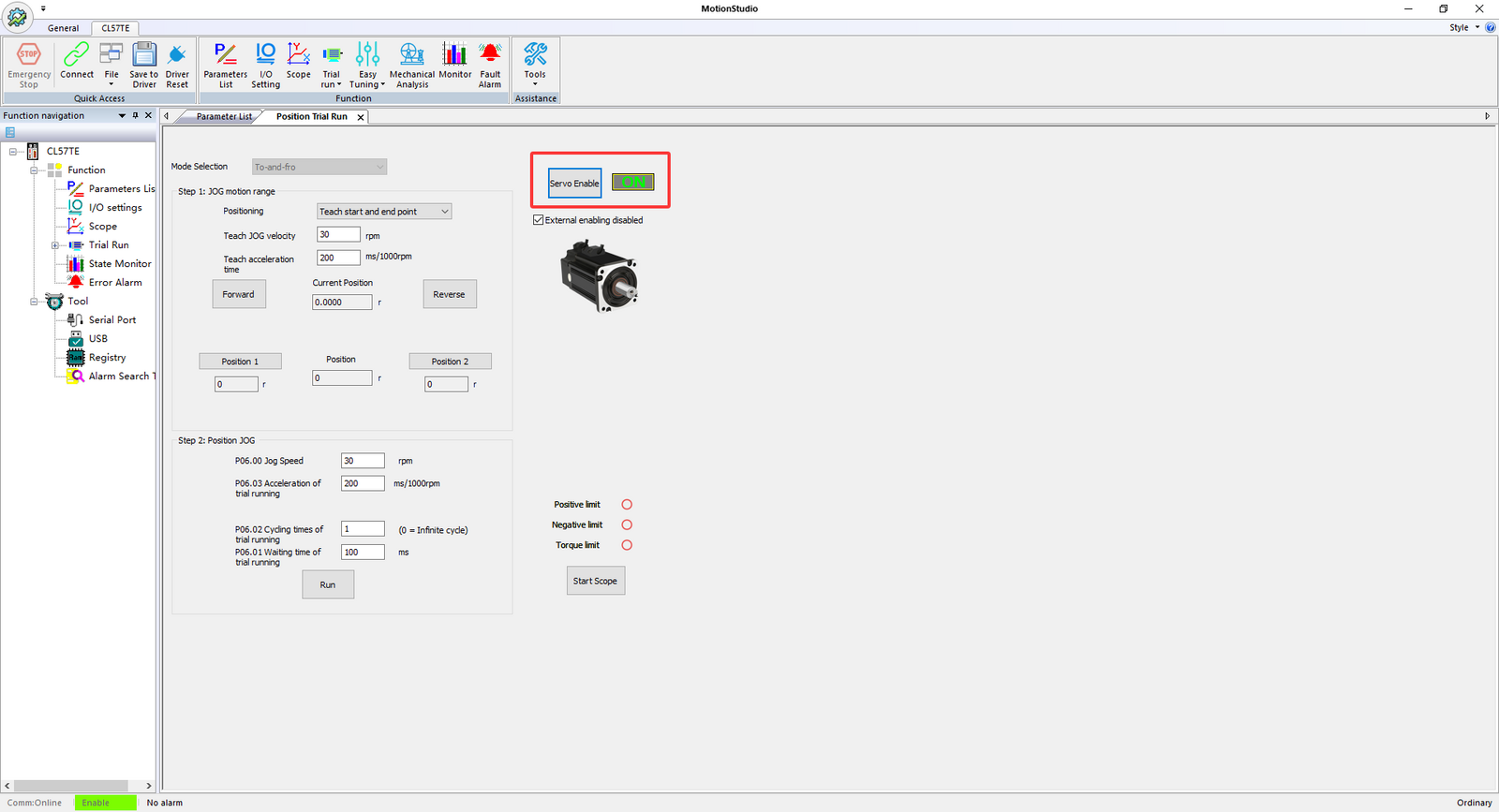
Then click "Servo Enable" to activate the motor.
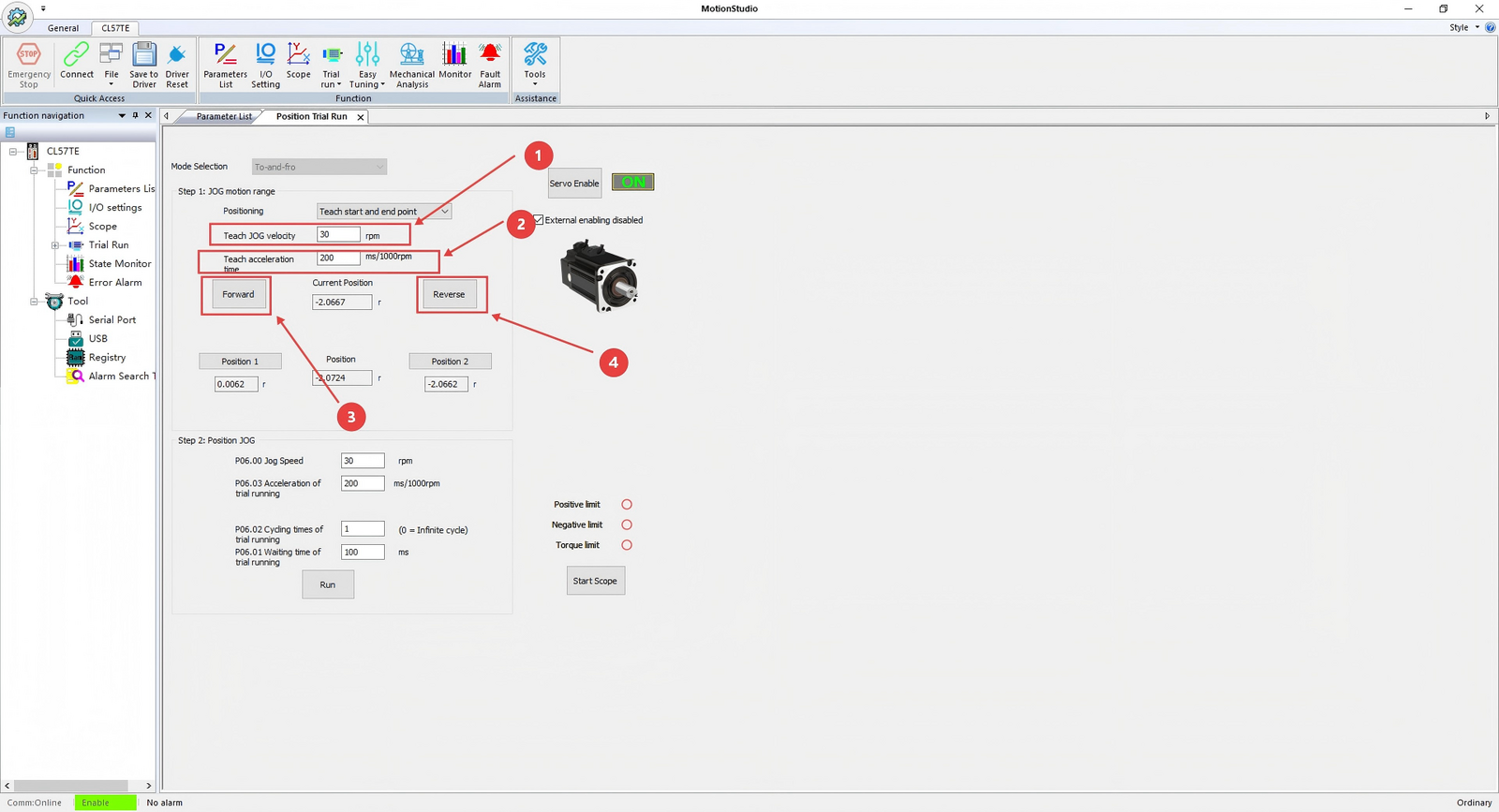
- JOG Speed: Adjusts the motor rotation speed.
- JOG Acceleration: Adjusts the time for the motor to reach the set JOG speed.
- Forward JOG Button: Press and hold to rotate the motor forward.
- Reverse JOG Button: Press and hold to rotate the motor in reverse.
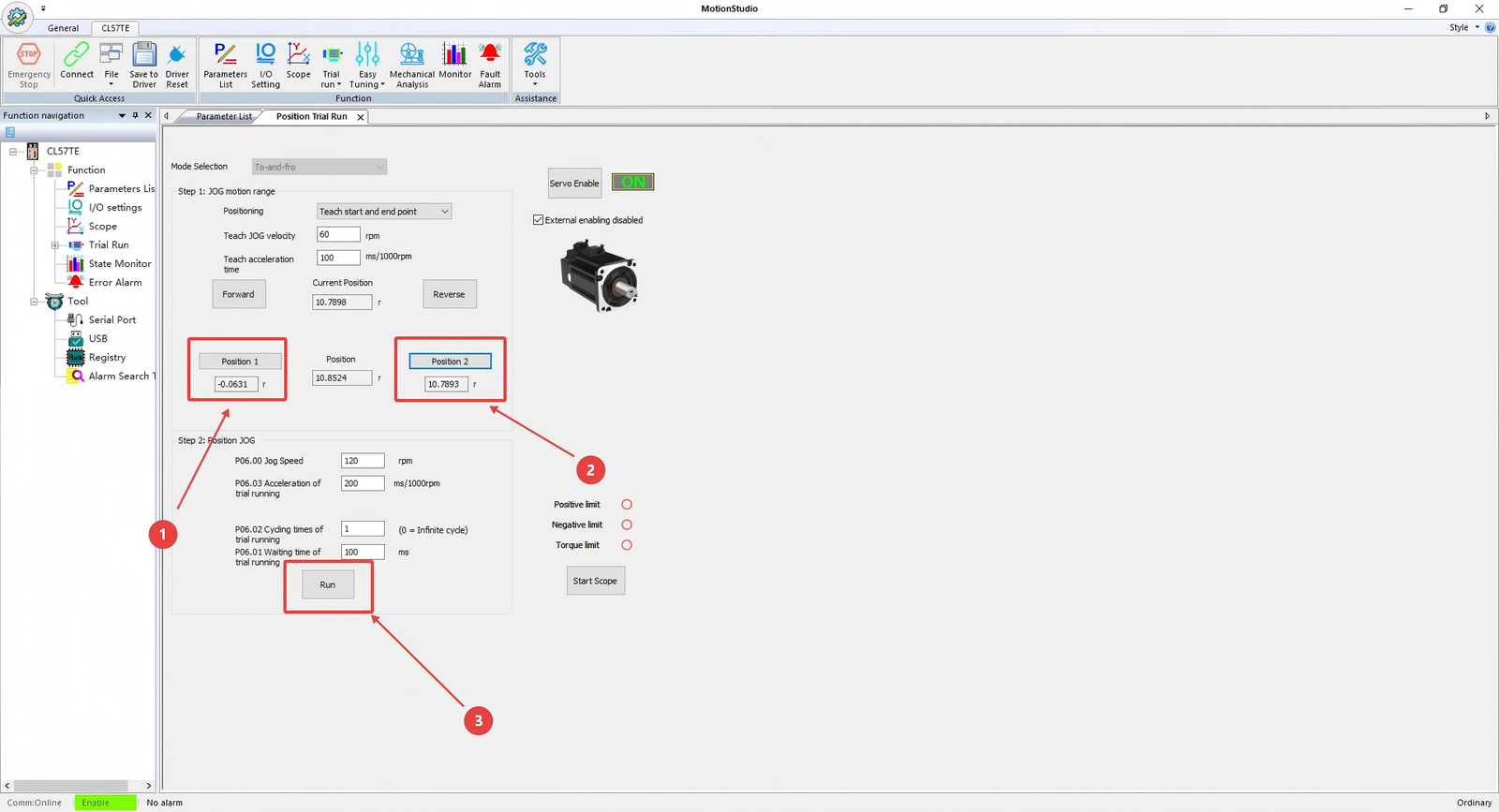
Use the JOG buttons to move the motor to the desired positions, then click "Set Position 1" and "Set Position 2" to record those positions. Click the "Run" button at the bottom to execute continuous motion between the two positions.
Using the Oscilloscope
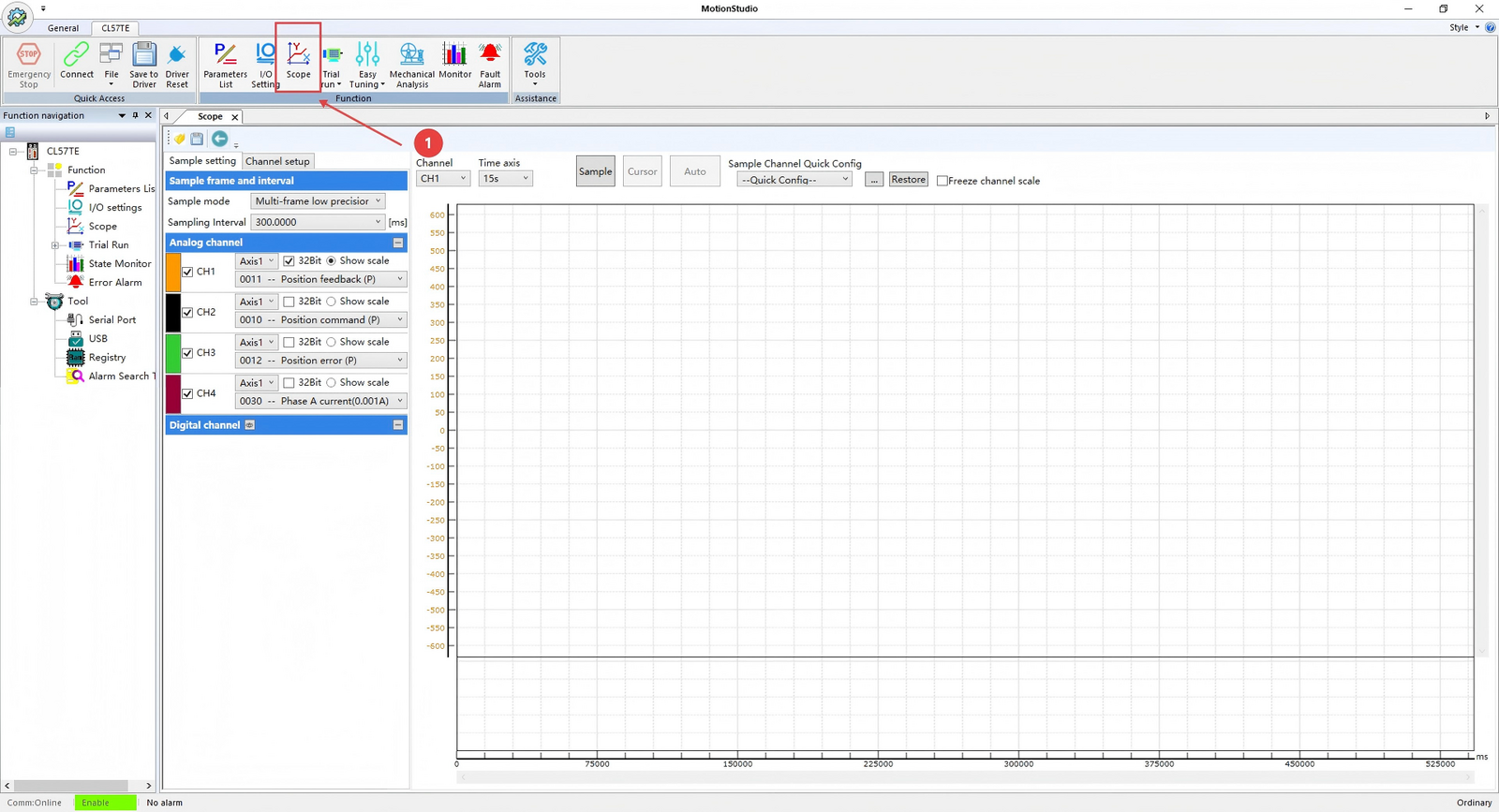
- Click "Oscilloscope" to enter the interface shown above.
- Sampling Mode: Options include single-frame high-precision sampling and multi-frame low-precision sampling.
- Channel Parameter Settings: Select from various parameters to display.
- After configuring the "Sampling Mode" and channel parameter settings, click "Sample" to record the motor's operating conditions.
The above steps outline the detailed process for modifying key parameters in the software. If you encounter any issues while using the software, please feel free to contact us. We are committed to providing you with the best service!