This article explains how to use the configuration software for the Y series closed-loop drivers.
Because the Y series closed-loop drivers are available in two hardware versions—V1.0 and V2.0—each requiring different software, this guide covers both versions separately.
V1.0
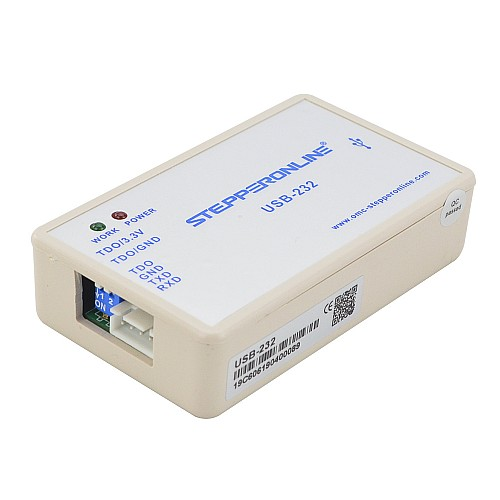
Please prepare the following items: the driver, a power supply, the configuration adapter, and the driver configuration software. (The motor can be connected based on your actual application.) The CL57Y is used here as an example.
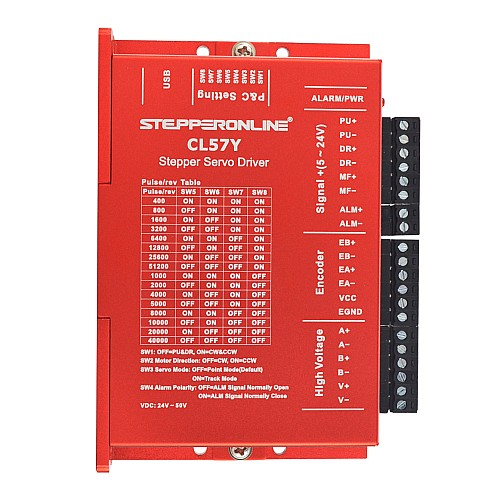
Use the Y-USB-CL cable set to connect the driver to the configuration adapter, and then connect the adapter to your PC.
 https://help.omc-stepperonline.com/help-assets/crisp/en/image_l4pt3t-8d24493018f0d39da1496a28.png

Download the Stepper Driver Configuration Software. (The V1.0 driver hardware is compatible with both the legacy and updated versions of the software.)
: Legacy version: https://www.dropbox.com/scl/fi/3eclhcqtalwlmxn6z8pmq/Y_Series_Stepper_Driver_Debug_Softwar-old.zip?rlkey=kfwaof80z35xhyxvuwi2nyo2e&st=d7uy9aa6&dl=0 Updated version: https://github.com/StepperOnline/Tuning-Software/blob/main/Y_Series_Stepper_Driver_Debug_Software_V1.2.7.zip
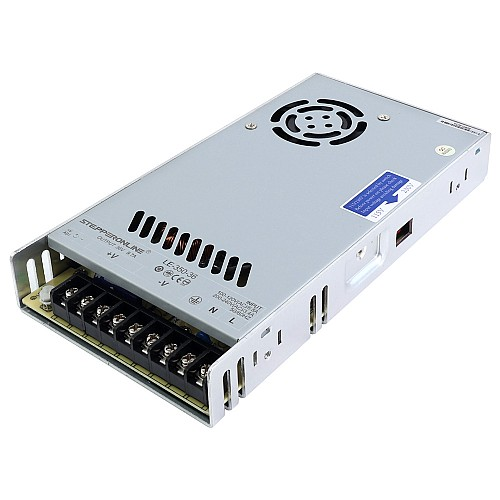
Use a DC power supply to power the driver. Note: The power supply voltage must be within the driver's input voltage range. For example, the CL57Y has an input voltage range of 24–50 VDC, so the power supply output must fall within this range. Connect the V+ terminal of the power supply to the V+ terminal of the driver, and connect the V– terminal of the power supply to the V– terminal of the driver. After powering on, the indicator lights on both the driver and the configuration adapter will illuminate.
After the software is downloaded and installed, click the desktop shortcut. The following interface will appear:
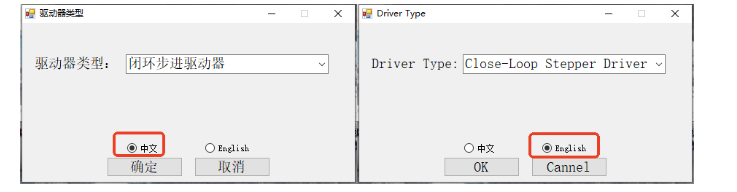
The software is available in both Chinese and English. Select the language that suits your needs.
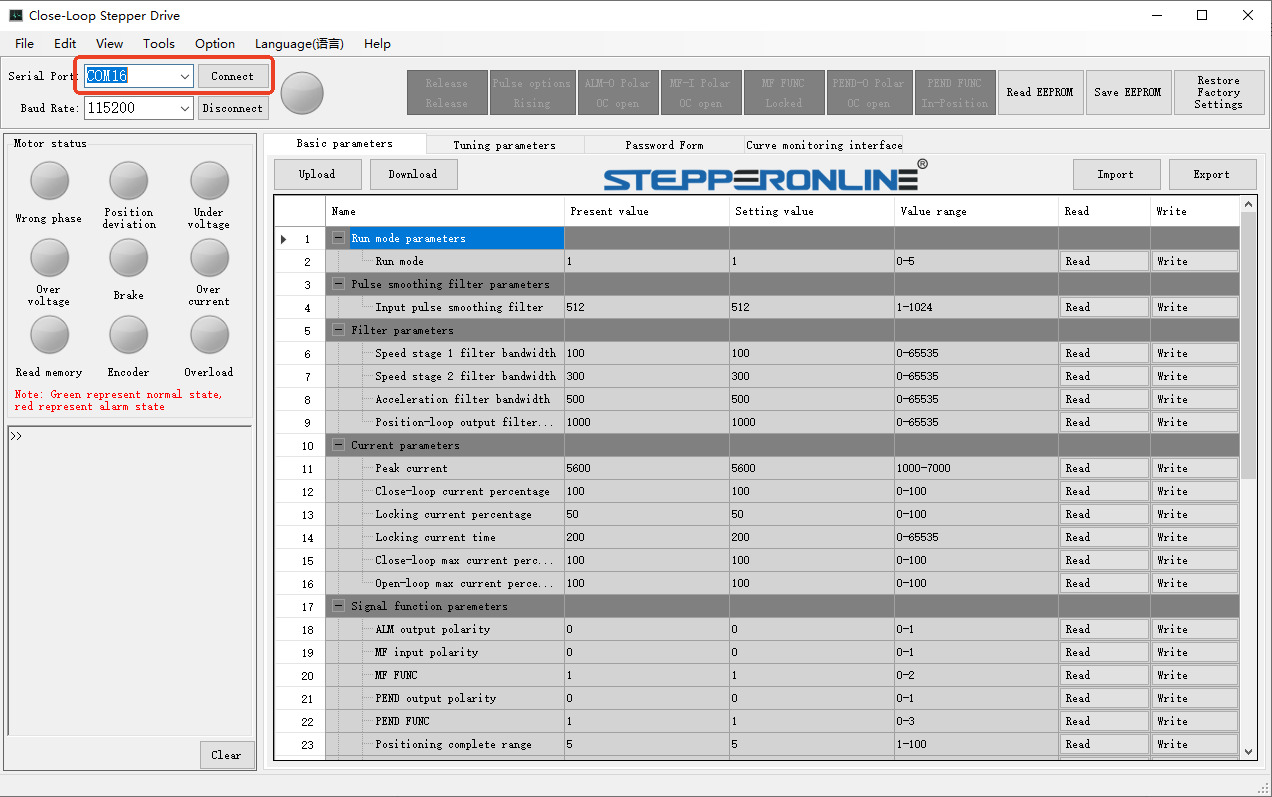
Once the software opens, select the correct serial (COM) port as shown below and click Connect.
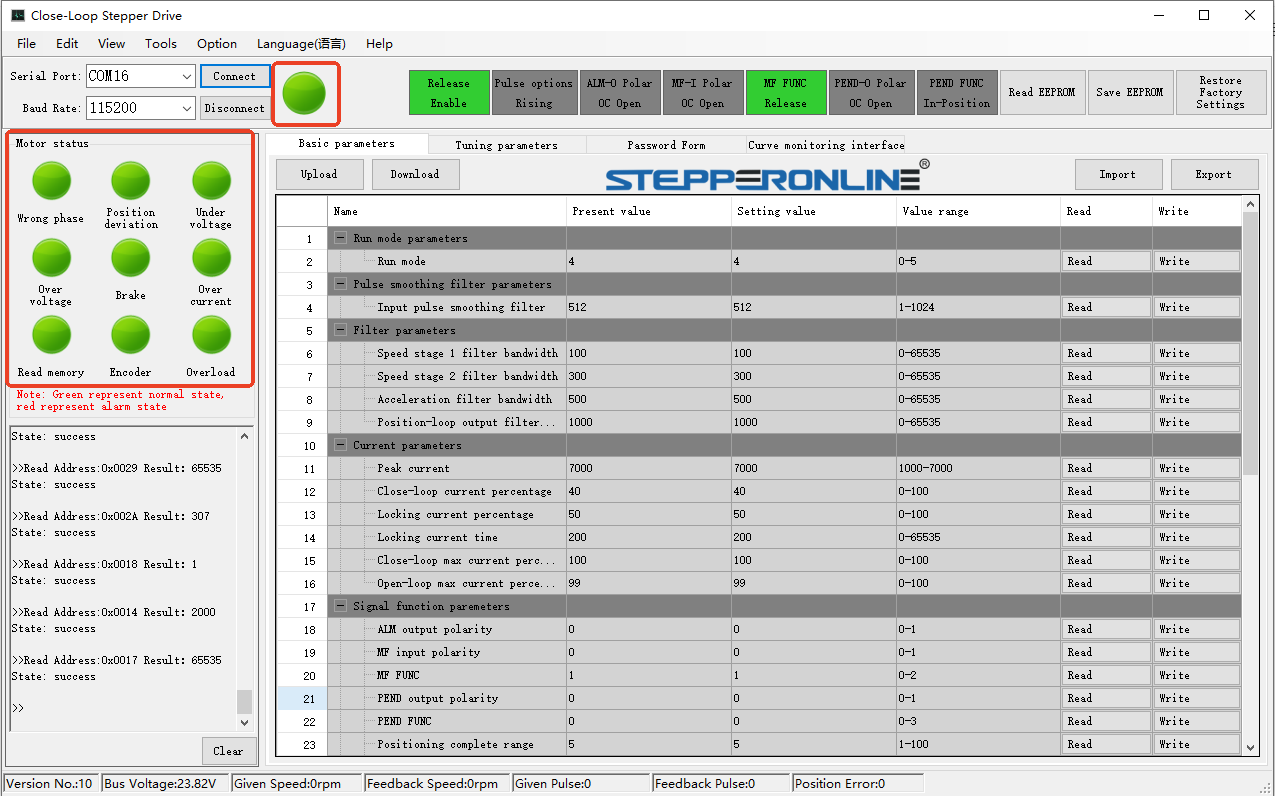
A successful connection is indicated by all icons turning green, as shown below:
Preparation is now complete. The following sections describe how to use the software in detail.
Modifying the Driver Operating Mode
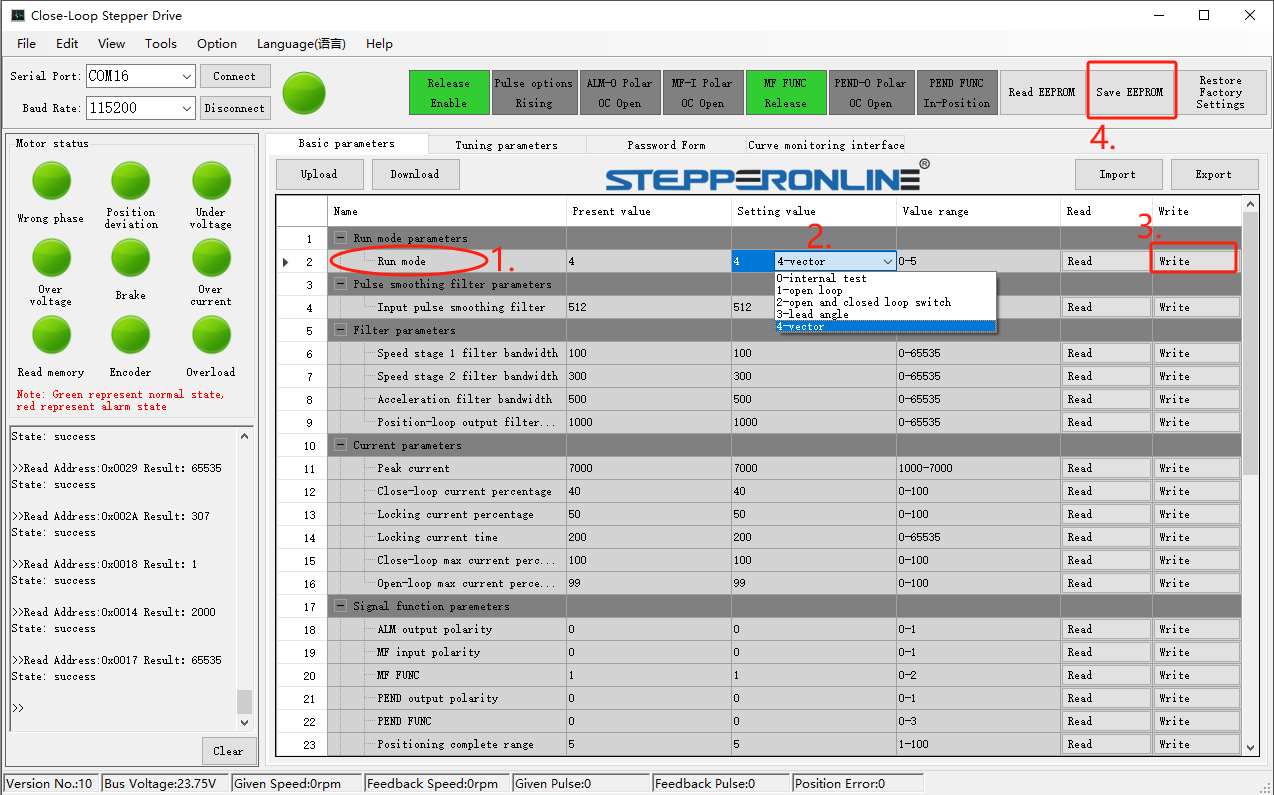
The driver supports multiple operating modes. To switch to open-loop mode or another mode, follow these steps:
- Locate the Run Mode parameter.
- Click the drop-down menu and select the desired mode.
- Click Write.
- Click Save Parameters. (Note: If switching to open-loop mode, also set the SW3 DIP switch to ON.)
After completing the steps above, power cycle the driver (turn it off and then on again) for the mode change to take effect.
Built-in Test Mode
The driver includes a built-in test mode that uses its internal pulse generator to run the motor without an external controller. This feature is useful for performing a quick self-test to verify that the motor and driver are operating correctly. Follow these steps:
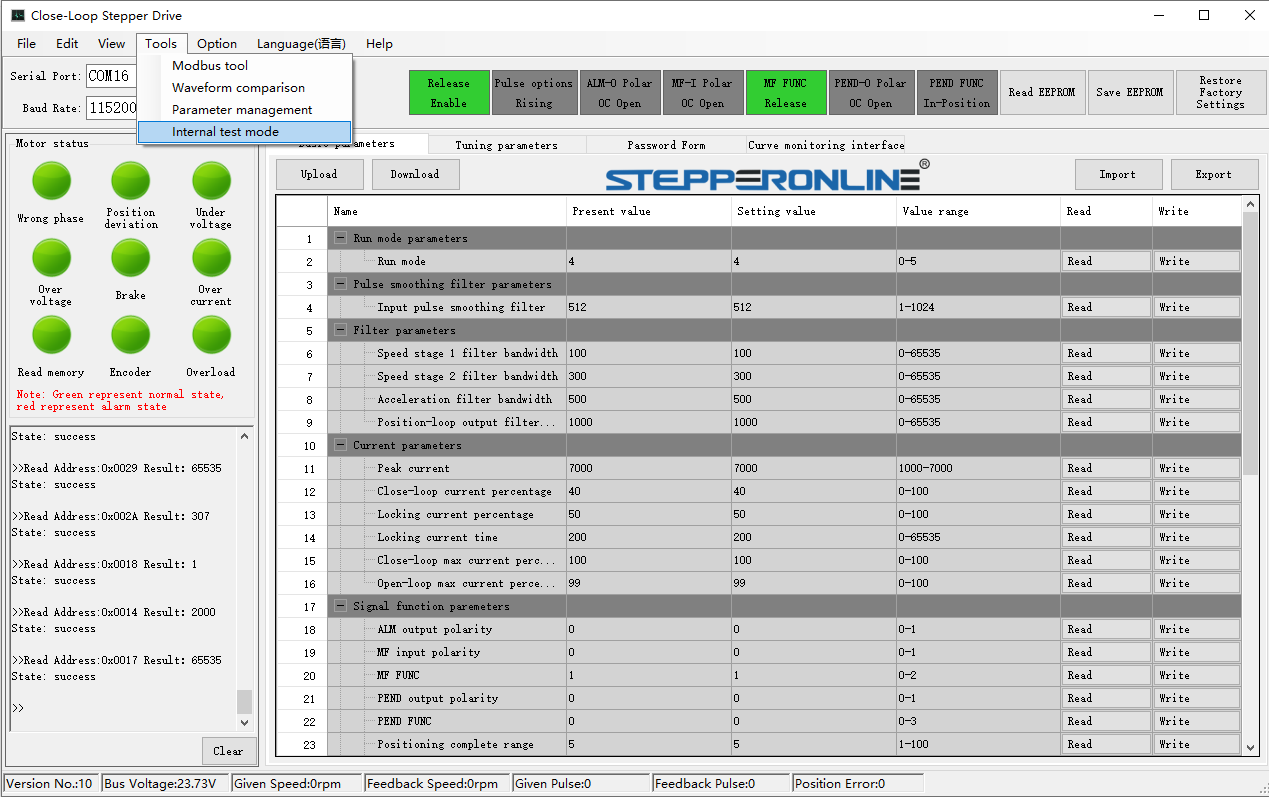
- Locate Test Mode in the tool options and enable it.
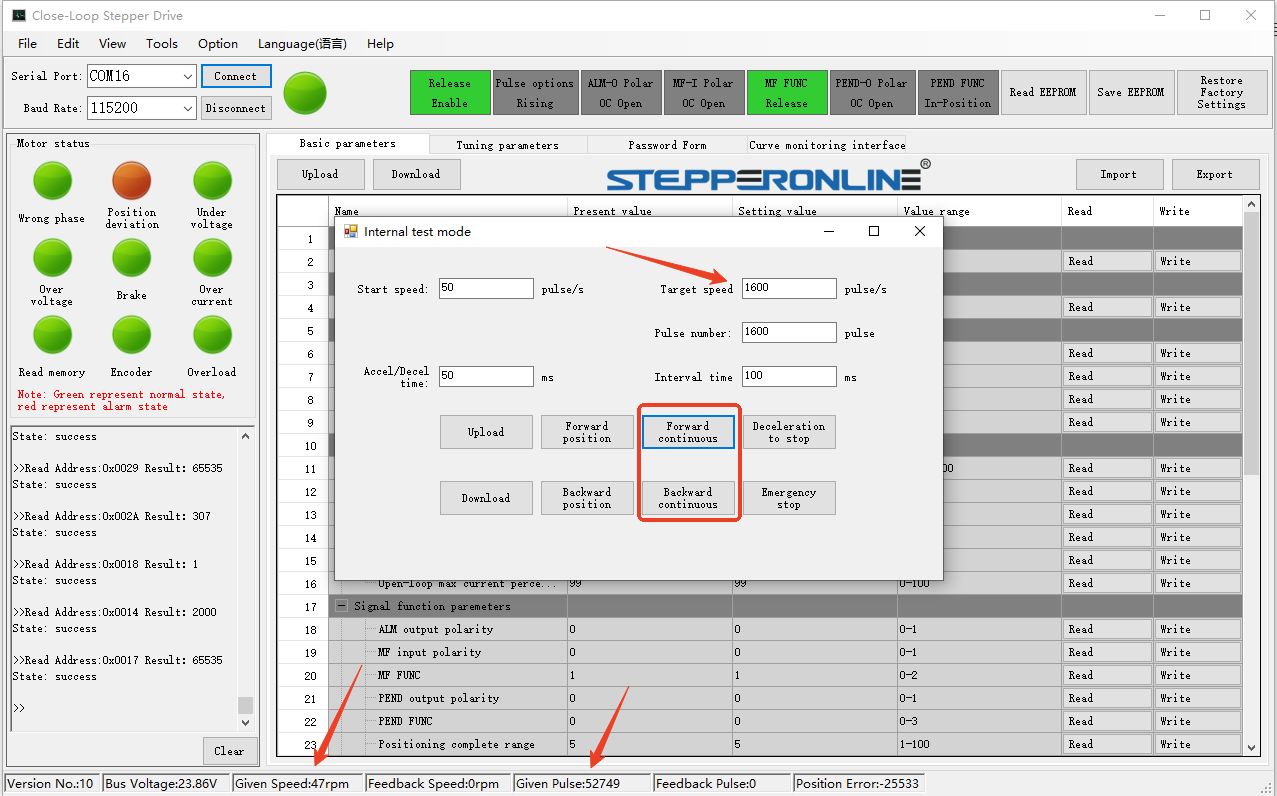
- In test mode, use the Forward Continuous and Reverse Continuous buttons to run the motor continuously in either direction.
- If the running speed or acceleration/deceleration is too slow, you can adjust these values. After making changes, click Download Parameters; otherwise, the modifications will not take effect. The current running speed and motor position are displayed at the bottom of the interface.
- Click the Forward and Reverse Position button to rotate the motor a fixed distance based on a preset number of pulses. This is the jog function.
Modifying the Default Encoder Resolution
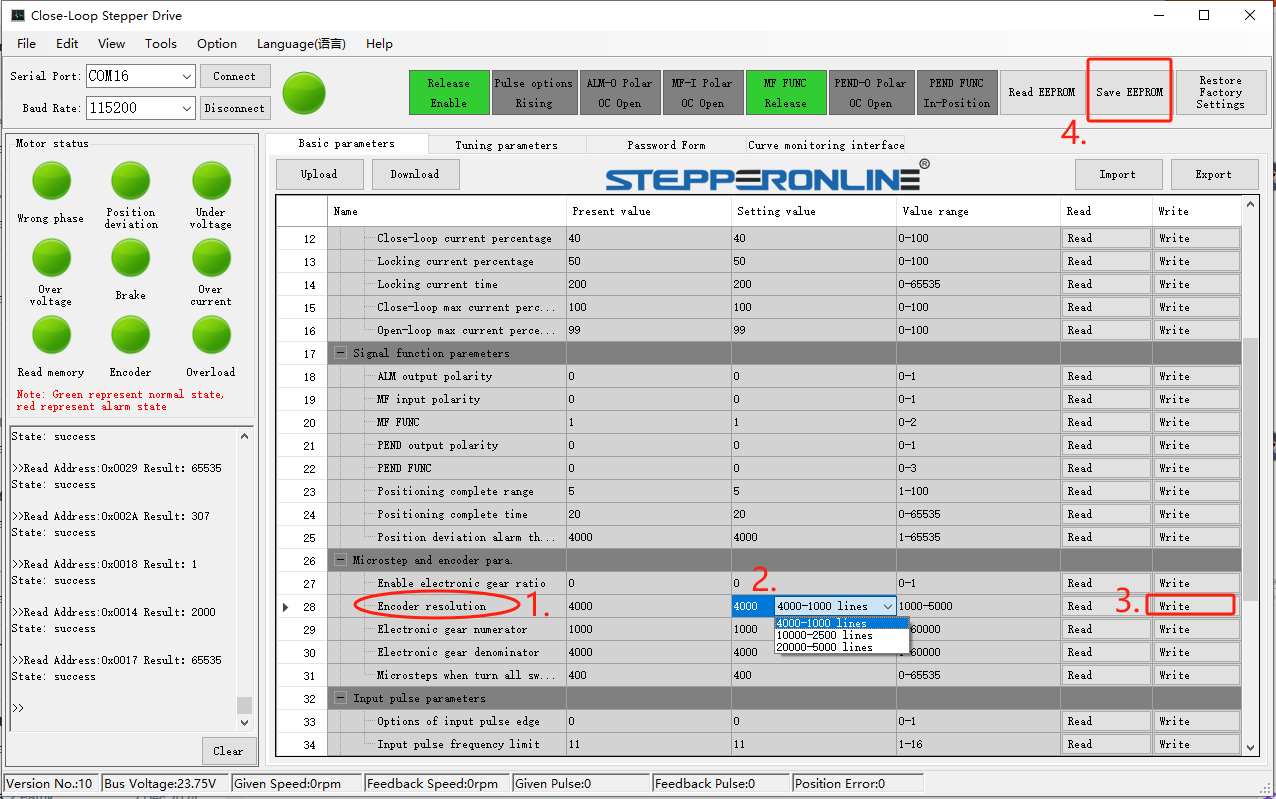
The driver supports encoders with a default resolution of 1000 PPR (pulses per revolution). To use an encoder with a different resolution, follow these steps:
- Locate the encoder resolution parameter.
- Click the drop-down menu. The driver supports three resolution options: 1000 PPR / 2500 PPR / 5000 PPR.
- Select the desired resolution and click Write.
- Click Save Parameters.
Finally, power cycle the driver for the changes to take effect.
Modifying Current Parameters
The Y series closed-loop drivers feature automatic current regulation. For example, with the CL57Y, regardless of the rated current of your NEMA 23/24 motor, the driver automatically identifies the motor's current requirement and outputs the appropriate current.
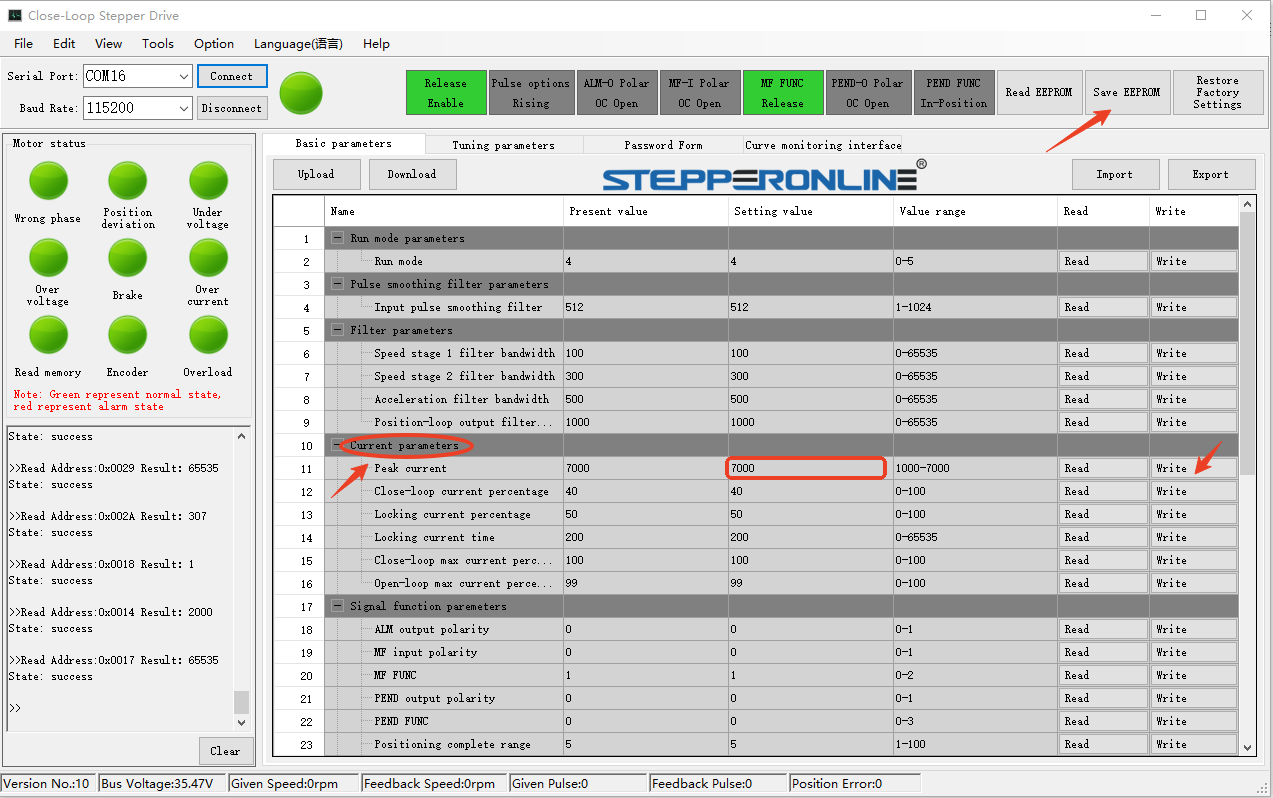
As shown above, if the default peak current is too high, you can adjust it by modifying the default value. Remember to click Write and Save Parameters after making changes.
Current Loop Gain Tuning
This parameter adjustment is useful when the motor produces excessive noise. Adjust the gain values as appropriate to reduce noise.
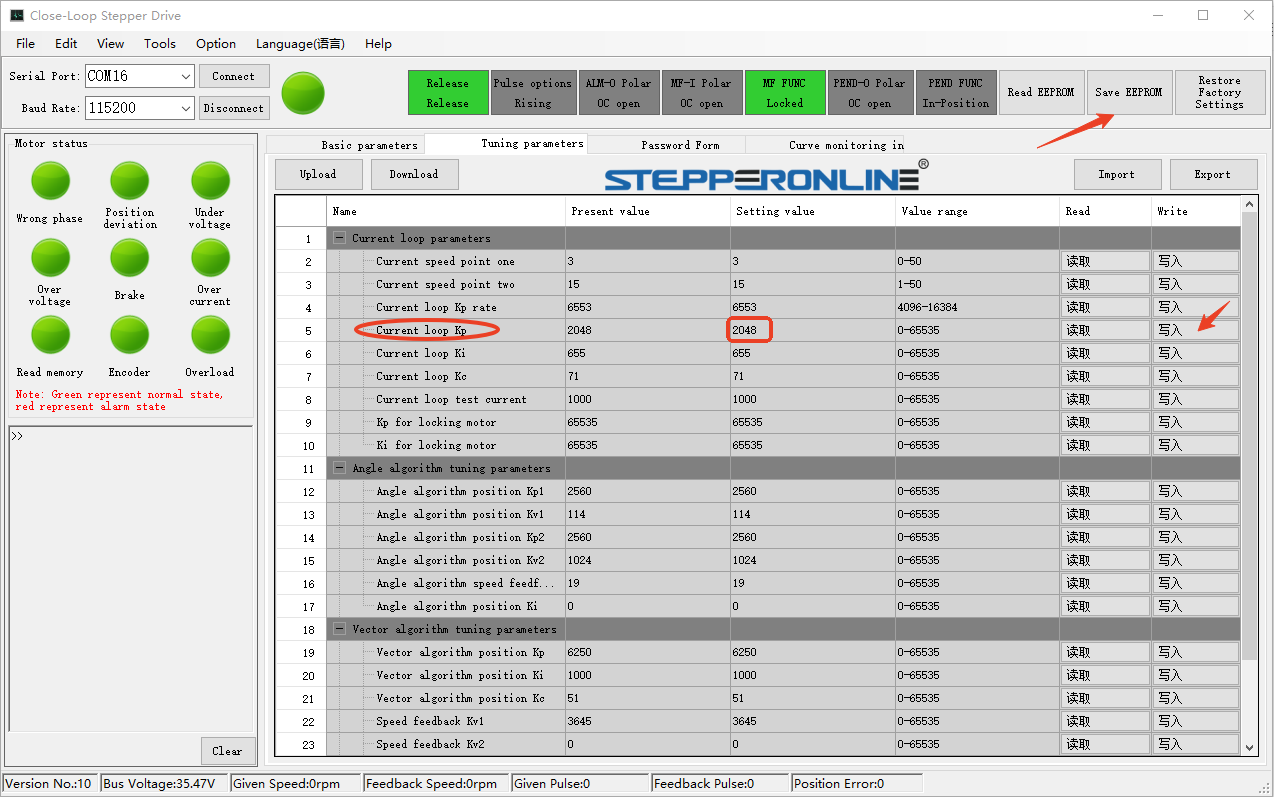
Locate the current loop parameters and adjust them according to the following guidelines:
- Heavy load with high speed requirements: Increase the value by 100 increments from the original setting.
- Light load with low noise requirements: Decrease the value by 100 increments from the original setting.
After making changes, click Write and Save Parameters.
V2.0
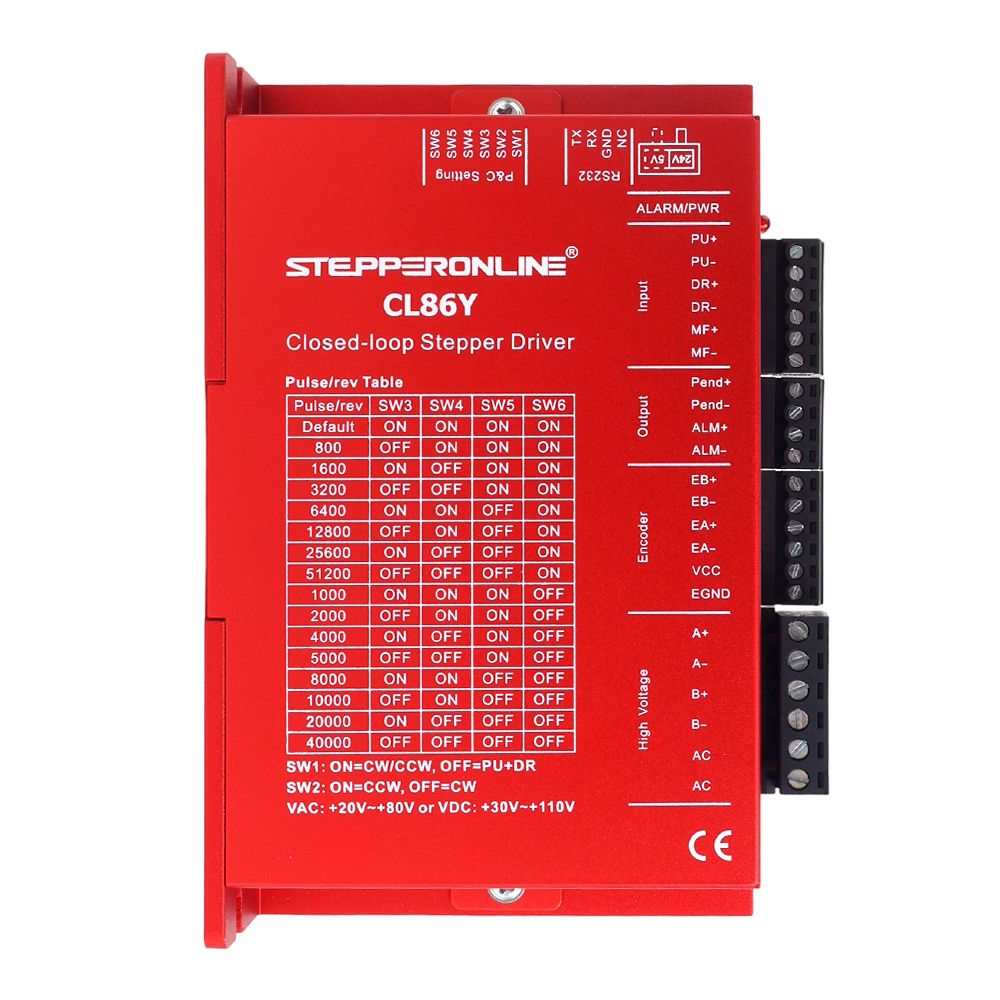
Take out the CABLE-PC-2 configuration cable included with the driver and connect it in the following order: Driver → Configuration Cable → PC. (If your computer does not have a DB9 serial port, we recommend using this USB-to-RS232 adapter cable: https://www.omc-stepperonline.com/usb-2-0-to-serial-rs232-adapter-with-1m-cable-converter-c006)
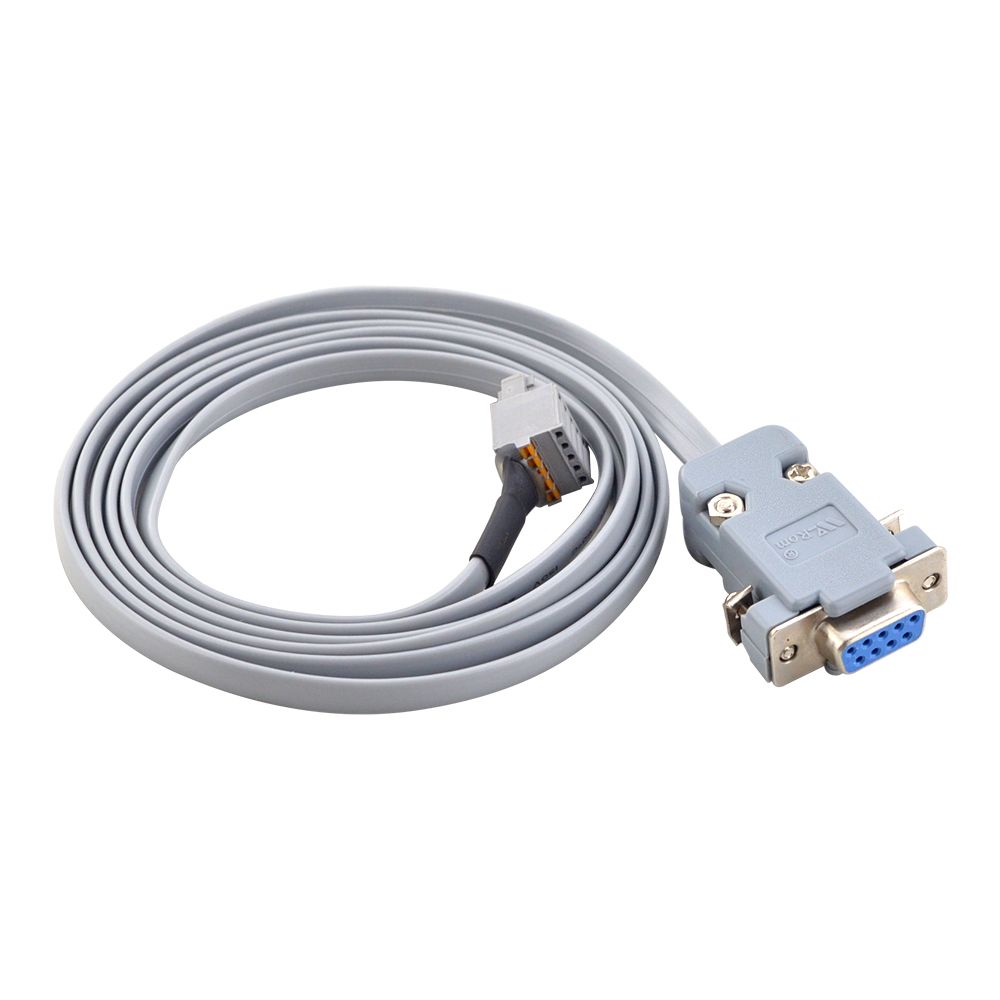
Download the Stepper Driver Configuration Software (the updated software supports both V1.0 and V2.0 driver hardware): https://www.omc-stepperonline.com/index.php?route=product/product/get_file&file=5511/Y_Series_Stepper_Driver_Debug_Software_7.4.zip
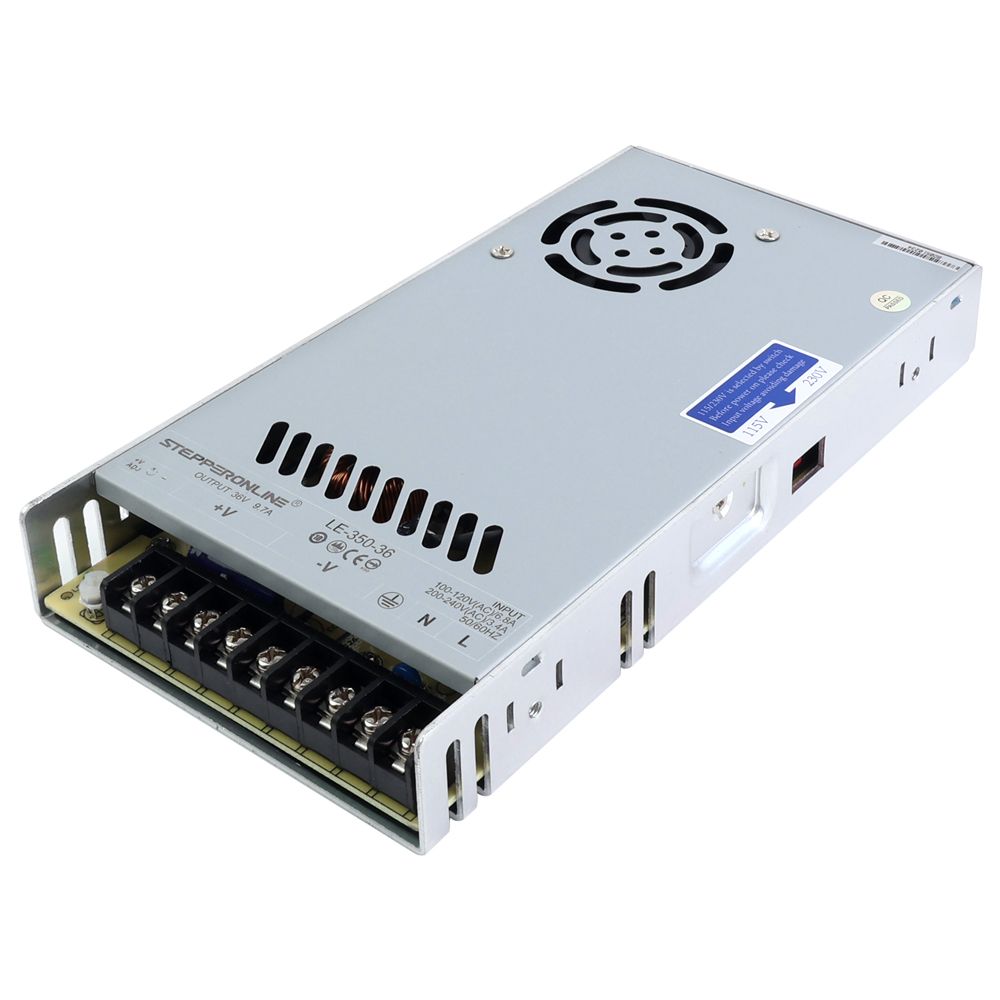
Power the driver using a DC or AC power supply. Note: The power supply voltage must be within the driver's input voltage range. For example, the CL86Y-V20 has an input voltage range of 20–80 VAC / 30–110 VDC, so the power supply output must fall within this range. Connect the V+ terminal of the power supply to the V+ terminal of the driver, and connect the V– terminal of the power supply to the V– terminal of the driver. After powering on, the indicator lights on both the driver and the configuration adapter will illuminate.
After downloading the software, it is recommended to select English during installation. Then, click the desktop shortcut. The following interface will appear:
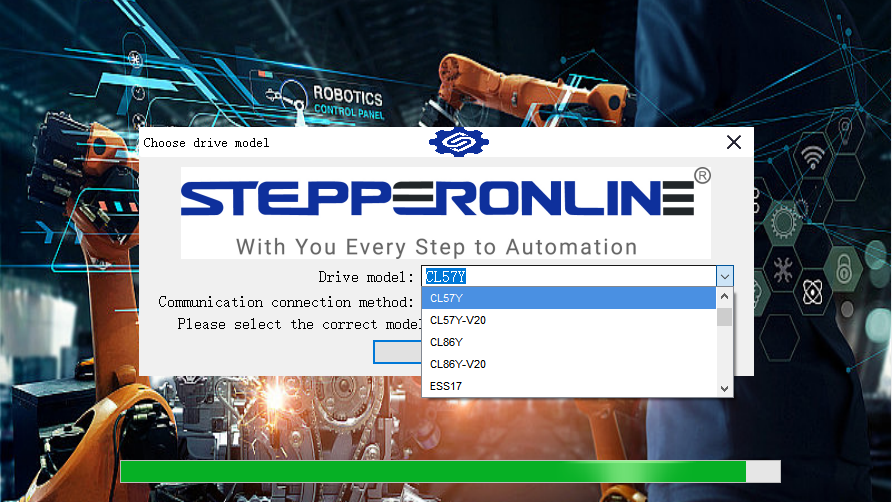
Select the appropriate driver model and click Confirm to enter the software interface:
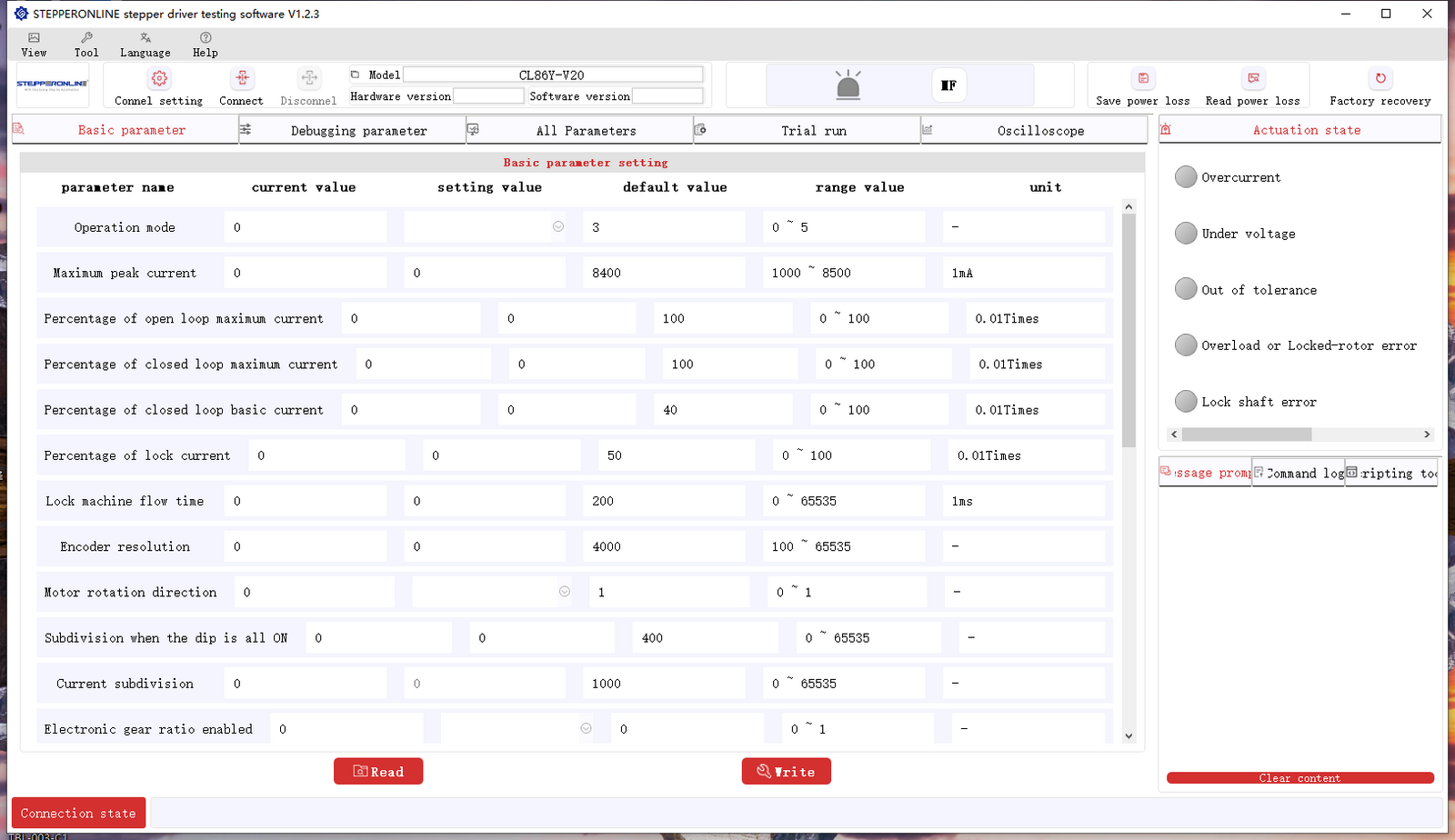
The software is available in both Chinese and English. Select the language that suits your needs.
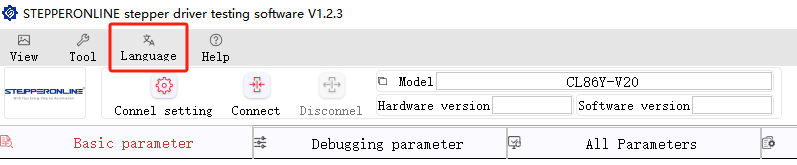
With the updated software, there is no need to select the serial port manually—it is detected automatically. Once the software interface loads, the connection has been successfully established.
Click Read Parameters to display the driver's current parameter values.
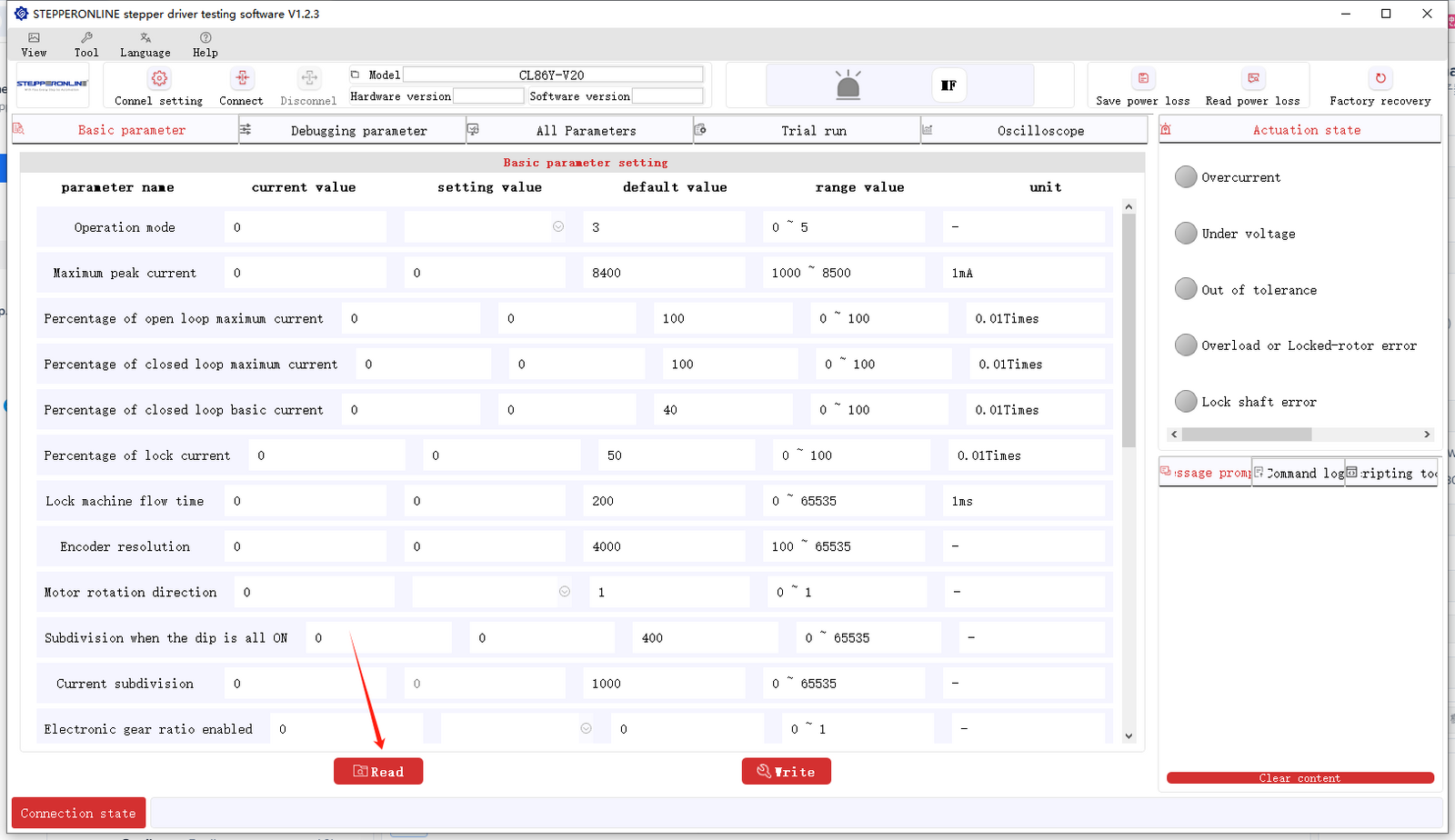
Preparation is now complete. The following sections describe how to use the software in detail.
Modifying the Driver Operating Mode
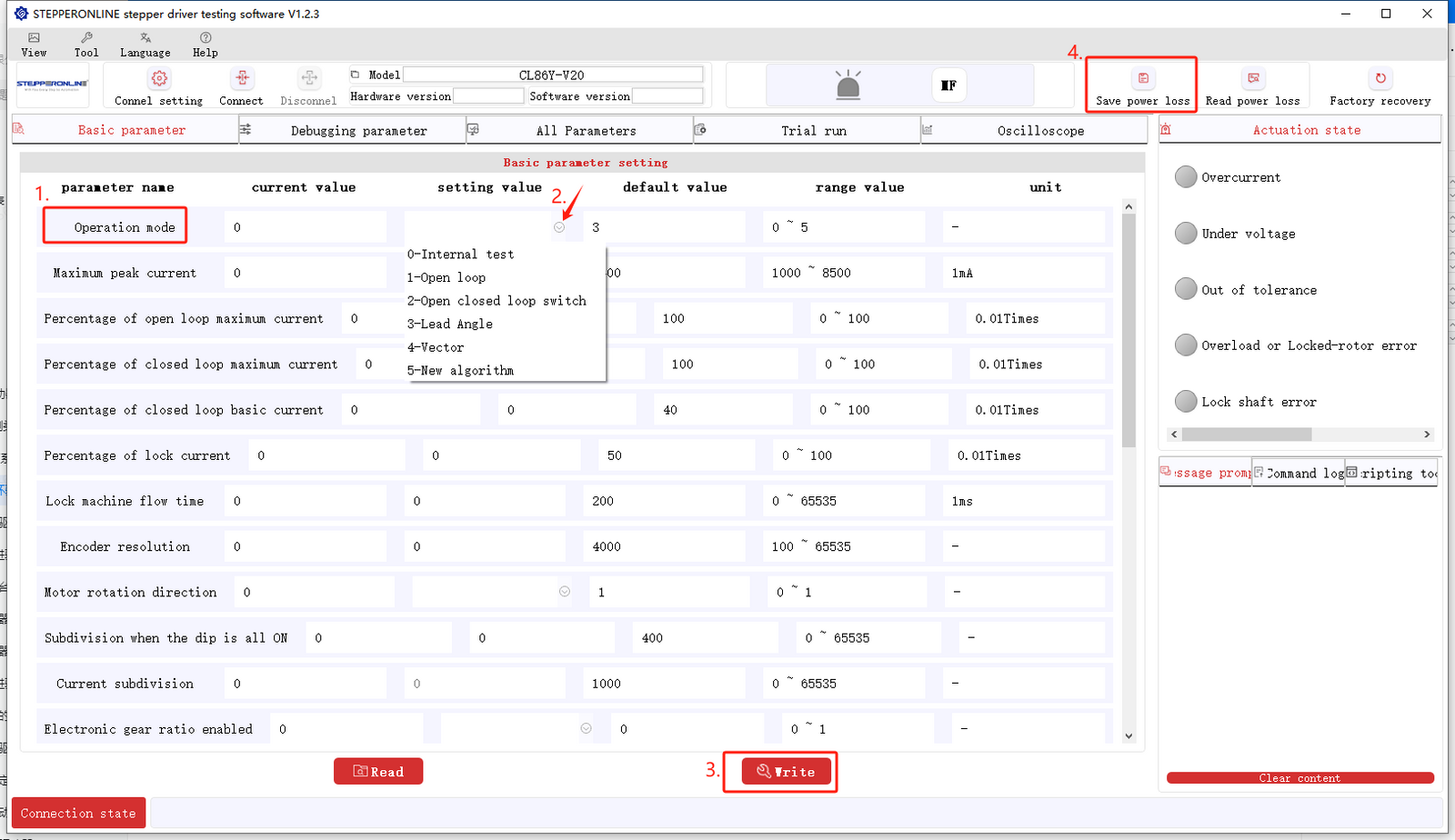
The driver supports multiple operating modes. To switch to open-loop mode or another mode, follow these steps:
- Locate the operating mode parameter.
- Click the drop-down menu and select the desired mode. (For explanations of these modes, refer to: Difference Between Lead Angle Algorithm and Vector Mode Algorithm in Y Series Closed-Loop Driver Operating Mode)
- Click Write.
- Click Save.
After completing the steps above, power cycle the driver (turn it off and then on again) for the mode change to take effect.
For additional operations, refer to: User Manual for the New Version Software of the Y Series Closed-Loop Driver
The steps above cover modifying several key parameters using the configuration software. The same general process applies to modifying other parameters. If you encounter any issues while using the software, please contact our support team.