If you are experiencing issues communicating with your servo motor over RS-485 using the Modbus RTU protocol, follow the steps below to diagnose and resolve the problem.
1. Check Hardware Connections
Ensure the RS-485 interface cable is wired correctly. Pay close attention to the A/B (or 485+/485-) wire assignments on the Ethernet cable (used for RS-485 wiring), as shown in the figure below.
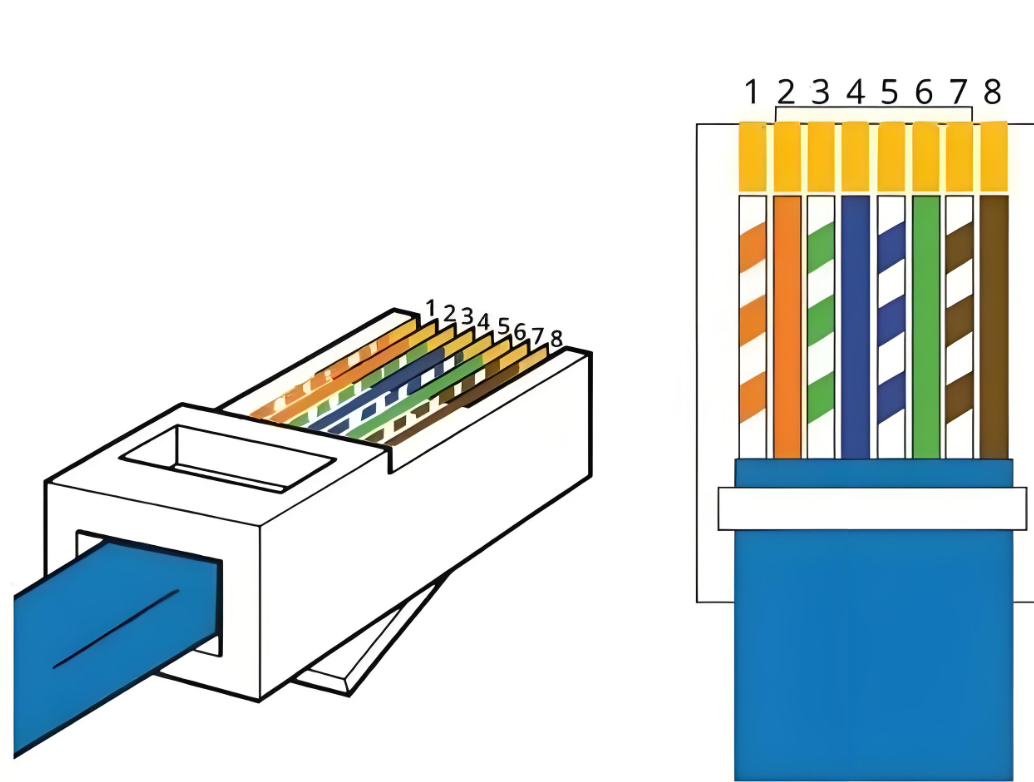
When using an Ethernet cable to connect to the RS485-USB adapter, always refer to the pinout of the RS-485 port specified in the servo driver manual.
A6-RS Series Example
The RS-485 communication interface pinout for the A6-RS series servo motor is shown below.
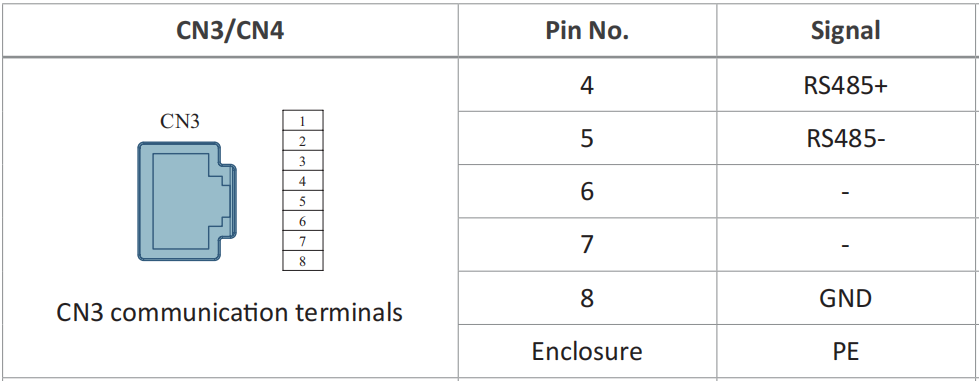
If you are using the RS485-1 USB-to-RS485 cable, make the following connections:
| Ethernet Cable Wire | RS485-USB Adapter Pin |
|---|---|
| Blue | T/R+ |
| Blue/Green striped | T/R- |
| Brown | GND |
2. Check Configuration Parameters
- Verify that the Modbus slave address of the servo motor matches the address configured in the controller. Communication will fail if the addresses do not match.
- Confirm that the baud rate, data bits, stop bits, and parity settings on the controller match the servo motor configuration.
3. Verify Software Settings
- Ensure the serial port settings in your software (e.g., Python scripts, serial terminal) match the servo motor's communication parameters.
- Verify that the Modbus command format is correct, including the slave address, function code, data, and CRC checksum.
4. Use Modbus Debugging Tools
Use professional Modbus debugging tools such as ModScan or Modbus Poll. These tools allow you to manually send and receive Modbus commands to verify whether communication is functioning correctly.
5. Example Setup: A6-RS Series Servo Motor
-
Prepare an Ethernet cable (for RS-485 wiring) and an RS485-USB adapter cable. Wire the connections according to the port pinout defined in the manual, as described in Section 1. Plug one end of the Ethernet cable into the RS-485 communication port on the drive and the other end into a USB port on your PC.
-
Check your PC serial port settings: ① Right-click Start > Device Manager ② Expand Ports (COM & LPT) ③ Right-click your serial port > Properties > Port Settings tab ④ Note the baud rate, data bits, stop bits, and parity values.
-
Check the default communication parameters (slave address, baud rate, etc.) for the A6 servo drive in the manual.
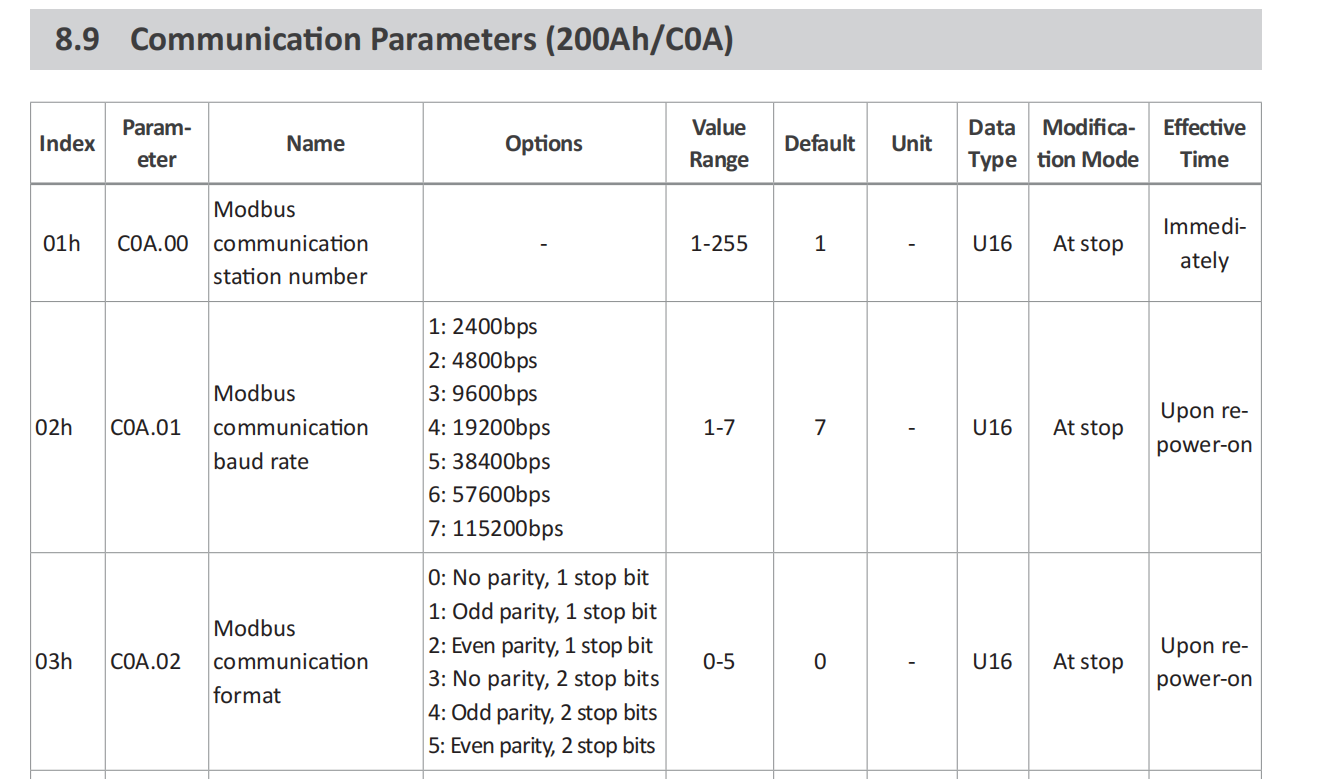
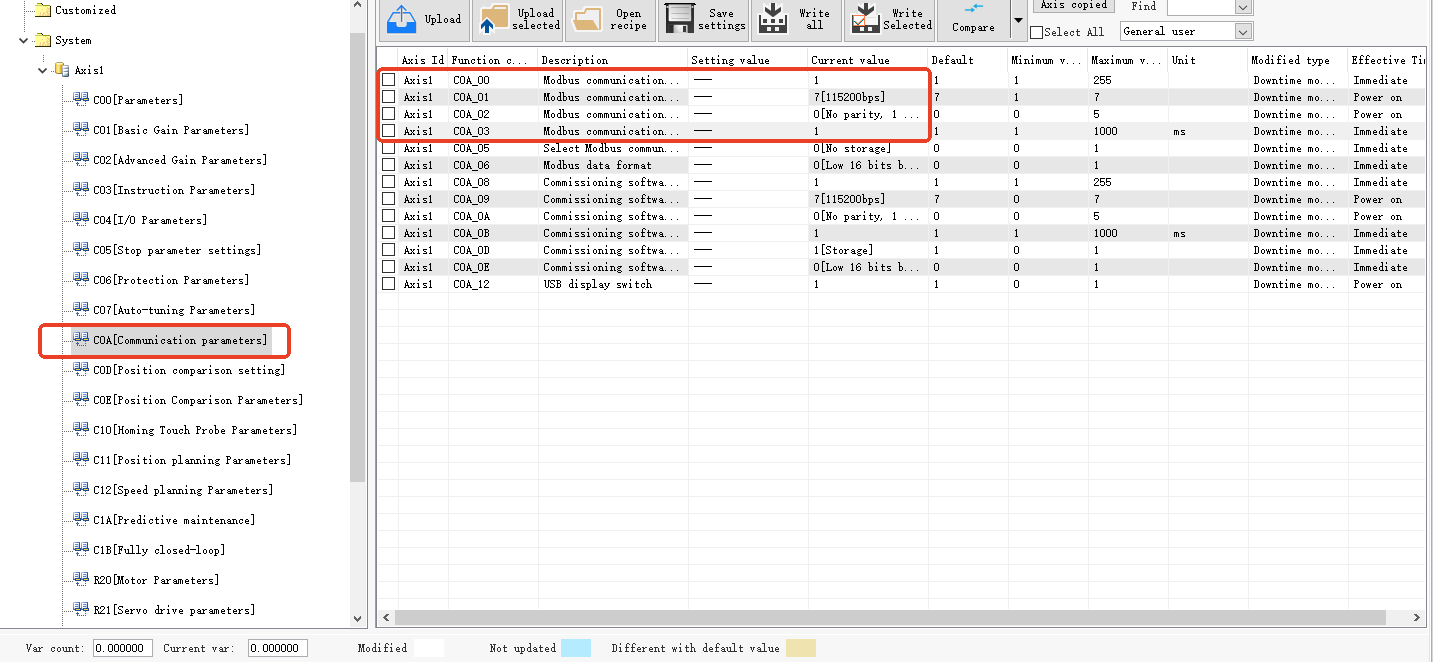
- After confirming the parameters listed in the manual, verify the slave address, baud rate, and other settings using the A6 series debug software or the driver's built-in panel buttons.
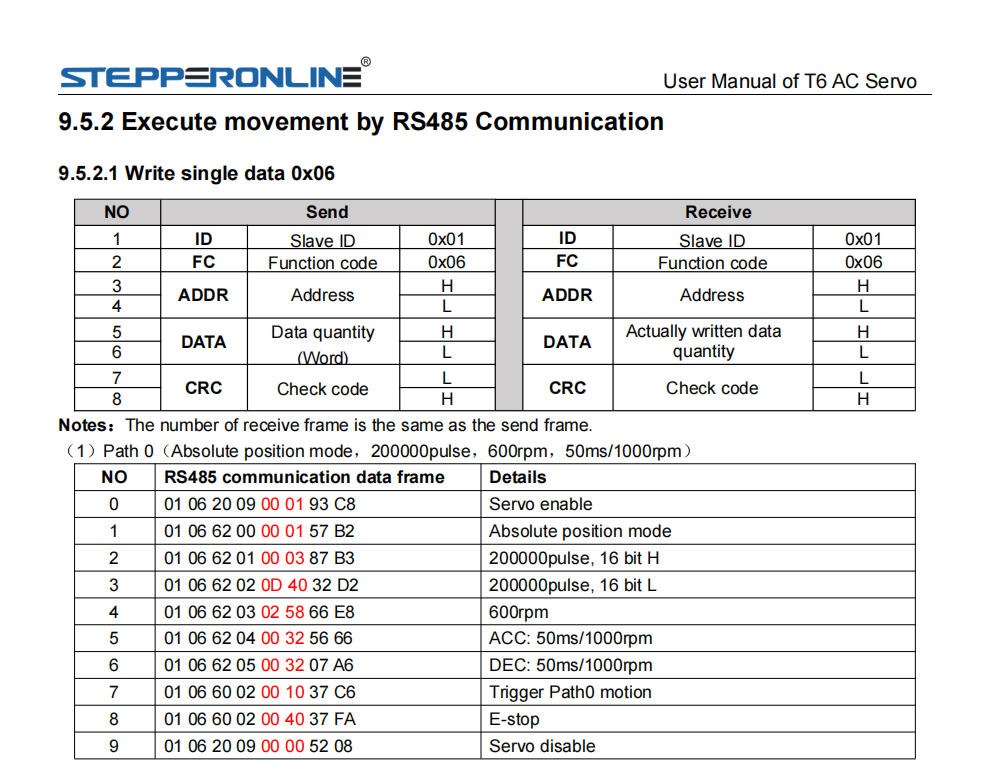
- Open your serial terminal software and configure the serial port using the parameter values identified above. Once the port is open, send a sample Modbus command for a basic test. If the device returns a valid response, communication has been established successfully. (Refer to page P330 of the manual for sample commands.)
6. Example Setup: T6 Series Servo Motor
- Prepare an Ethernet cable (for RS-485 wiring) and an RS485-USB adapter cable. Wire the connections according to the port pinout defined in the manual. The RS-485 communication port pinout for the T6 series is shown below.
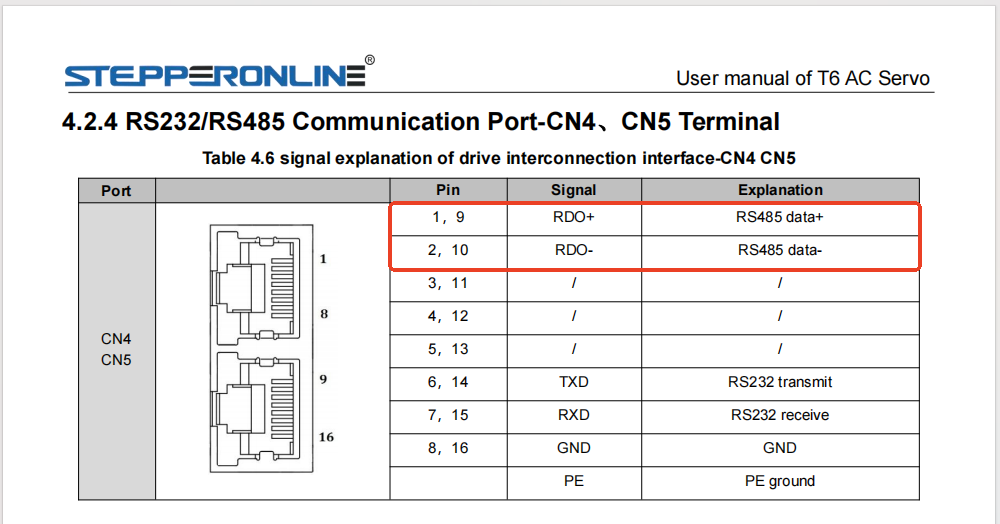
Make the following connections:
| Ethernet Cable Wire | RS485-USB Adapter Pin |
|---|---|
| Green/White striped | T/R+ |
| Solid Green | T/R- |
| Brown | GND |
Plug one end of the Ethernet cable into the RS-485 communication port on the drive and the other end into a USB port on your PC.
-
Check your PC serial port settings: ① Right-click Start > Device Manager ② Expand Ports (COM & LPT) ③ Right-click your serial port > Properties > Port Settings tab ④ Note the baud rate, data bits, stop bits, and parity values.
-
Check the default communication parameters for the T6 servo drive in the manual. The default values for PR5.29, PR5.30, and PR5.31 are 5, 2, and 1, respectively.
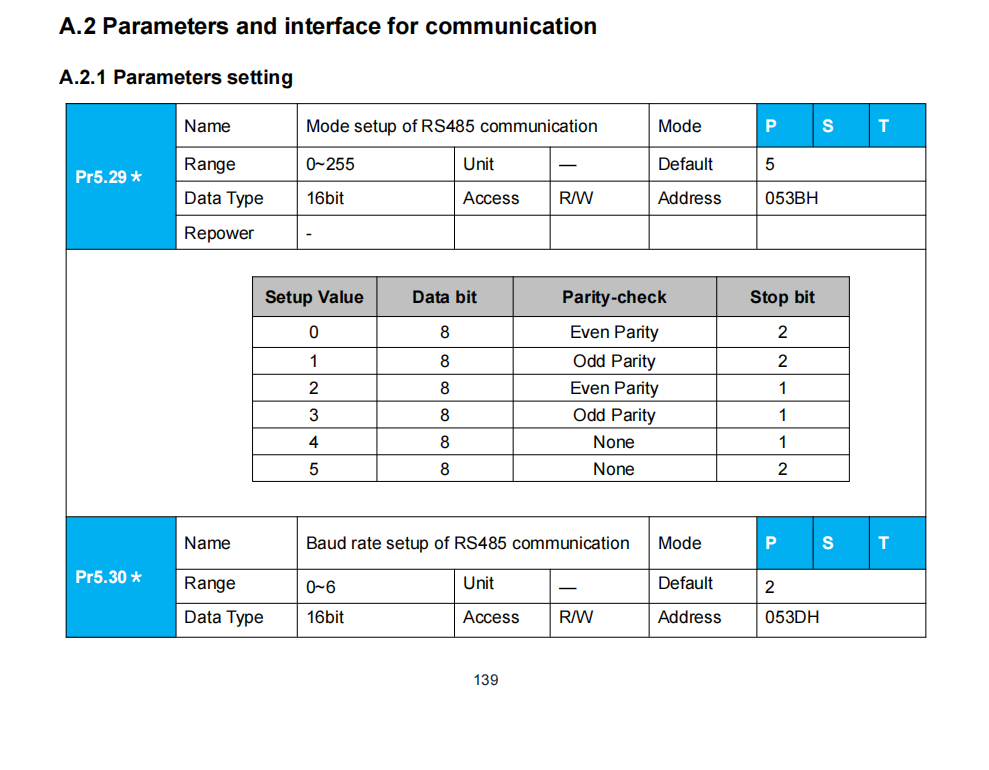
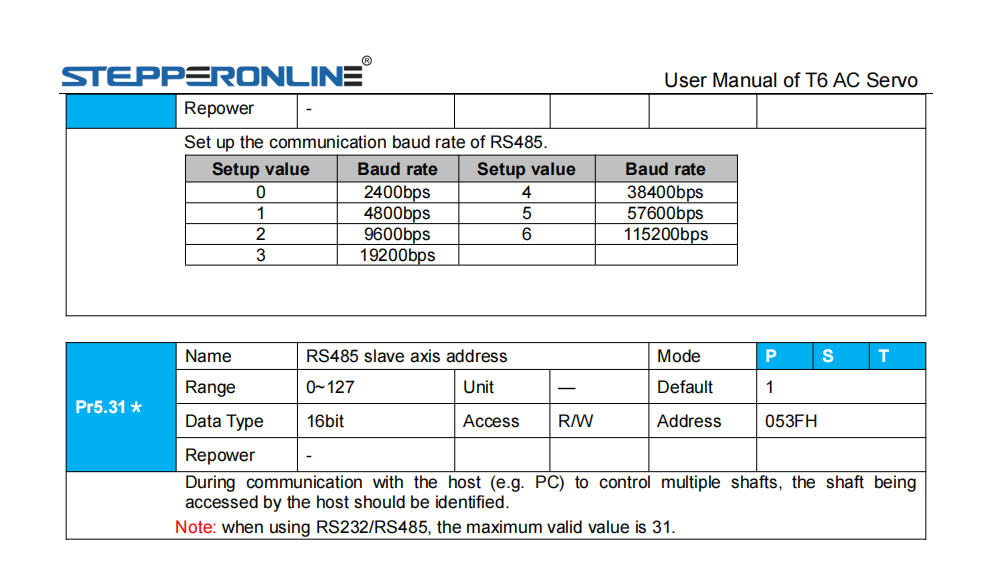
- Open the parameter panel using the T6 series debug software. Navigate to PR5 Special Settings and verify that the current values of PR5.29, PR5.30, and PR5.31 match the manual defaults (5, 2, 1). If they do not, update them accordingly.
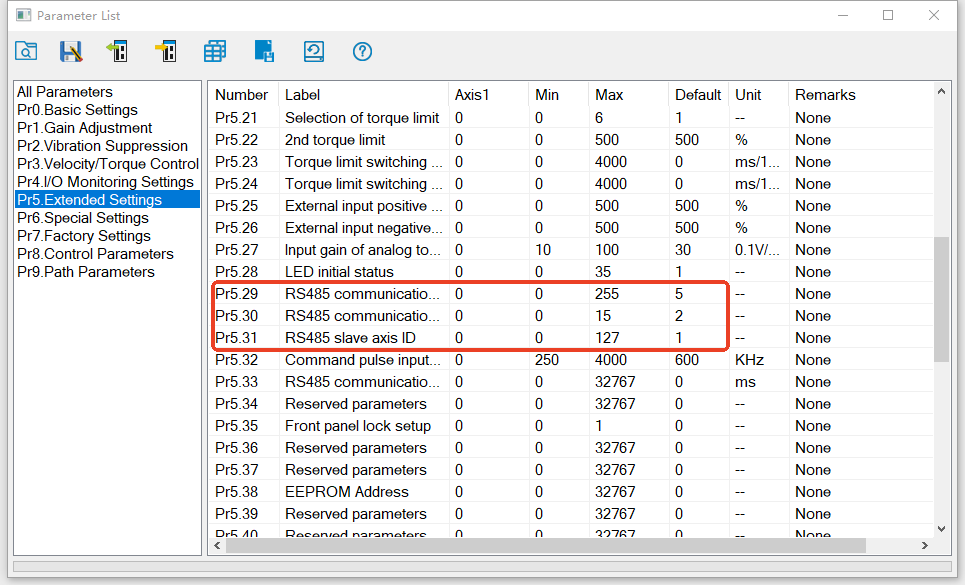
- Open your serial terminal software and configure the serial port using the parameter values identified above. Once the port is open, send a sample Modbus command for a basic test. If the device returns a valid response, communication has been established successfully. (Refer to page P132 of the manual for sample commands.)