- EtherCAT Bus Overview
EtherCAT is a widely used industrial Ethernet protocol that outperforms traditional fieldbus systems in many aspects. One of its key advantages is its ease of use.
- Application Characteristics
EtherCAT bus applications have the following characteristics:
- Flexible Topology: Supports virtually any network topology.
- Maximum Cable Length of 1000 Meters: Cable lengths between nodes do not need to be matched or precisely calculated.
- Automatic Slave Address Assignment.
- Fixed Communication Rate of 100 Mbps.
- Minimal communication parameter configuration required.
- Debugging Steps
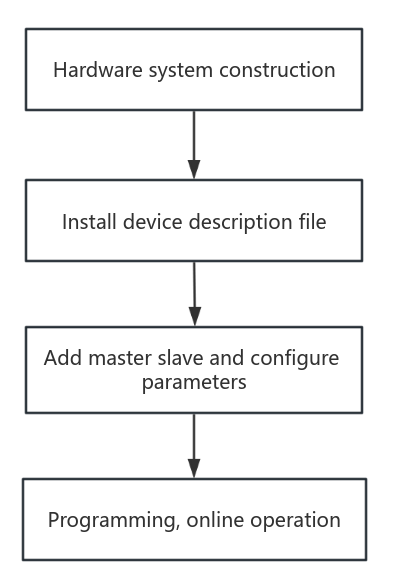
- Example
This tutorial uses the StepperOnline EtherCAT AC servo T7 and the Omron NJ501-1500 controller as examples.
Step 1: Hardware System Setup
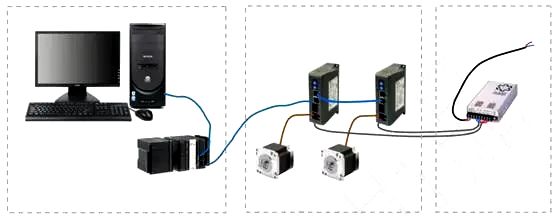
The hardware system consists of the master, the slaves, and the communication cables. The following figure shows a schematic diagram of the network connection between the NJ501-1500 and two T7 servo drives.
- Install the Sysmac Studio programming environment on the computer.
- Connect the Ethernet port of the controller to the network port of the computer.
- Connect the EtherCAT port of the controller to the ECAT IN port of the first servo drive.
- Connect the ECAT OUT port of the first servo drive to the ECAT IN port of the next servo drive. (Although the diagram shows two T7 servo drives, this example demonstrates controlling a single T7. The procedure for controlling multiple servo drives follows the same pattern.)
Step 2: Install the Device Description File (ESI File)
Copy the device description file T7-EC_V1.03.xml to the corresponding installation directory of the programming environment: OMRON\SysmacStudio\IODeviceProfiles\EsiFiles\UserEsiFiles
Step 3: Add Master and Slaves, and Configure Parameters
- Open the Sysmac Studio programming environment, create a new project, and select the controller model and software version.
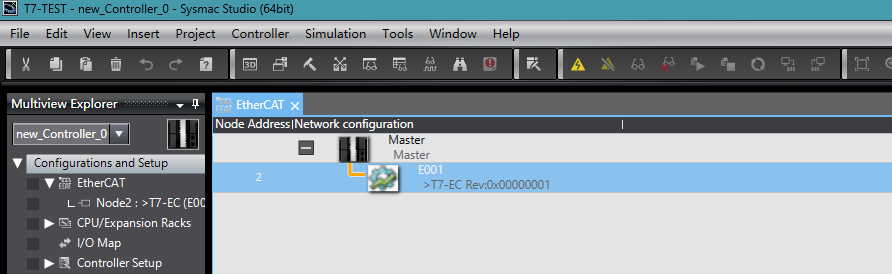
- Add nodes under Configuration and Settings > EtherCAT Master.
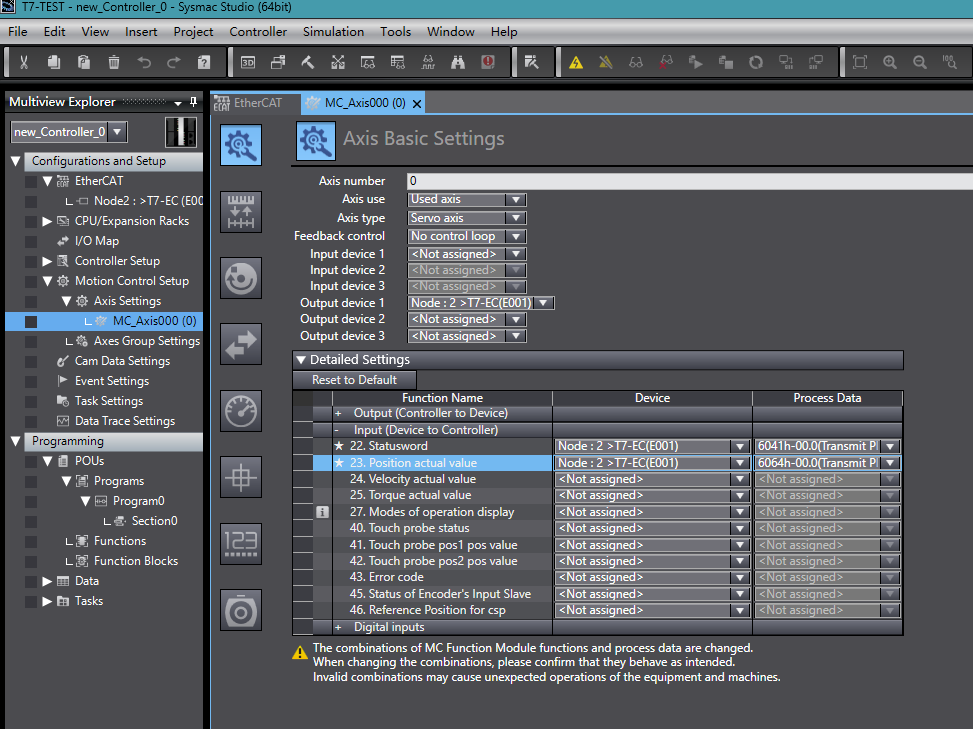
- In Motion Control Settings > Axis Settings, right-click to add an axis and configure the axis parameters as shown in the figure.
Step 4: Programming and Online Operation
Add a program by navigating to Programming > POUs > Program > Program0 > Section0.
Online operation: After confirming that the program compiles without errors, establish the communication connection and download the program to the controller. Then:
- Set the variable "enc" to TRUE to enable the servo drive.
- Trigger the "relative1" function block to start relative positioning.
- Trigger the "stop1" function block to stop the servo drive.
You have now completed the basic EtherCAT online setup and commissioning.