First, please refer to the connection steps overview:
| 1 | Install Beckhoff PLC-TwinCAT3 Software |
|---|---|
| 2 | Create a New Project |
| 3 | Install Network Adapter Driver |
| 4 | Device Discovery |
| 5 | Servo Parameter Configuration |
| 6 | PDO Configuration |
| 7 | Configure Runtime Information |
| 8 | Activate Configuration |
1. Install Beckhoff PLC-TwinCAT3 Software
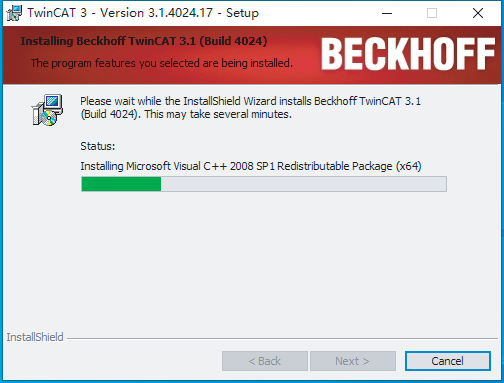
1.1. Installation Notes:
Computer Operating System:
Windows 7 (must have Service Pack 1 installed) Windows 10 Professional / Enterprise (only supports TwinCAT 3.1.4020 or later versions)
(Windows 10 Home / Education editions are not recommended, as they may cause system freezes when switching to Run mode.)
1.2. Network Adapter:
An Intel gigabit or higher Ethernet adapter is recommended. Other network adapters may not support TwinCAT 3 or may exhibit unstable performance.
After installing the software, add the A6-EC series XML device description file (ESI file: STEPPERONLINE_A6_Servo_V0.04.xml) to the EtherCAT device directory of TwinCAT 3 (e.g., C:\TwinCAT\3.1\Config\Io\EtherCAT).
The XML file download link is as follows: https://www.omc-stepperonline.com/index.php?route=product/product/get_file&file=5072/STEPPERONLINE_A6_Servo_V0.04.xml
2. Create a New Project
Run the TwinCAT 3 program and create a new TwinCAT 3 project:
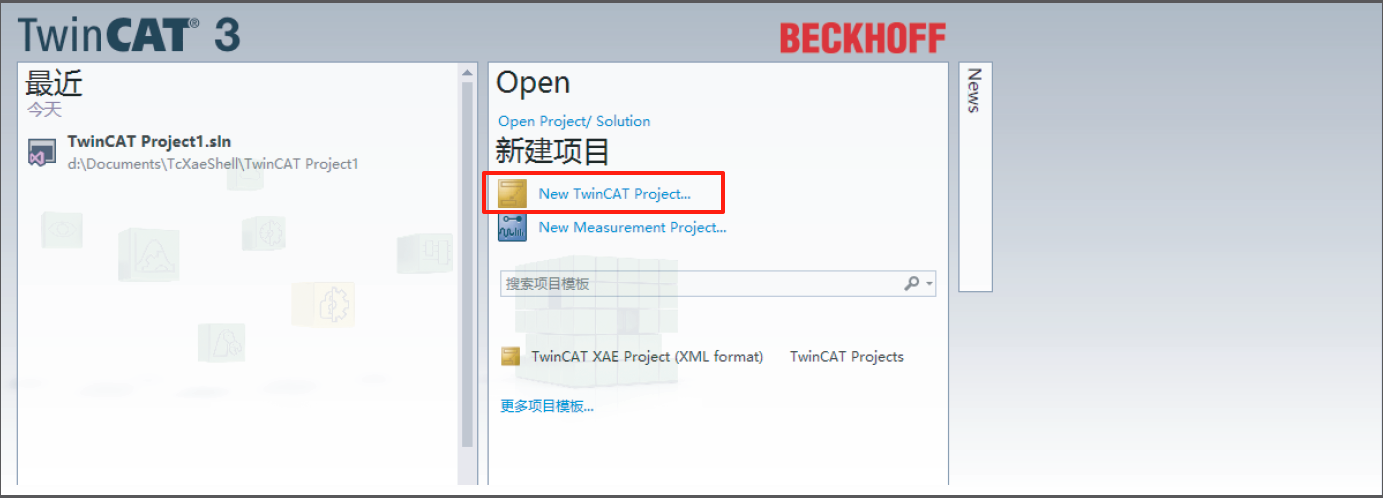
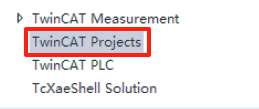
After creating a new project, select "TwinCAT Projects" in the pop-up interface, enter the project name, and confirm.
3. Install Network Adapter Driver
After creating a new project, click the [TwinCAT] drop-down menu in the interface, then select "Show RealTime Ethernet Compatible Devices...".
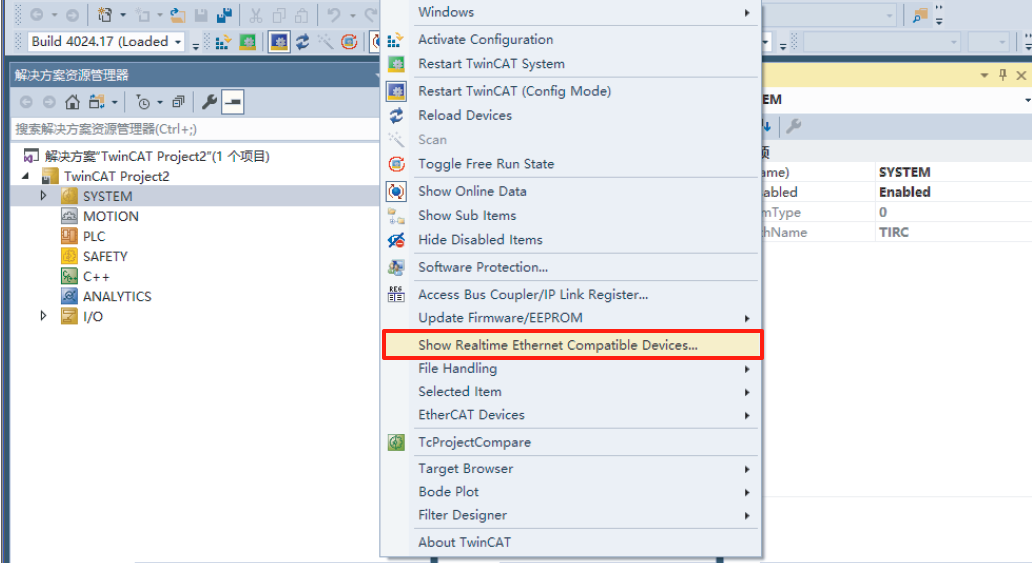
Choose the local network adapter and click Install.
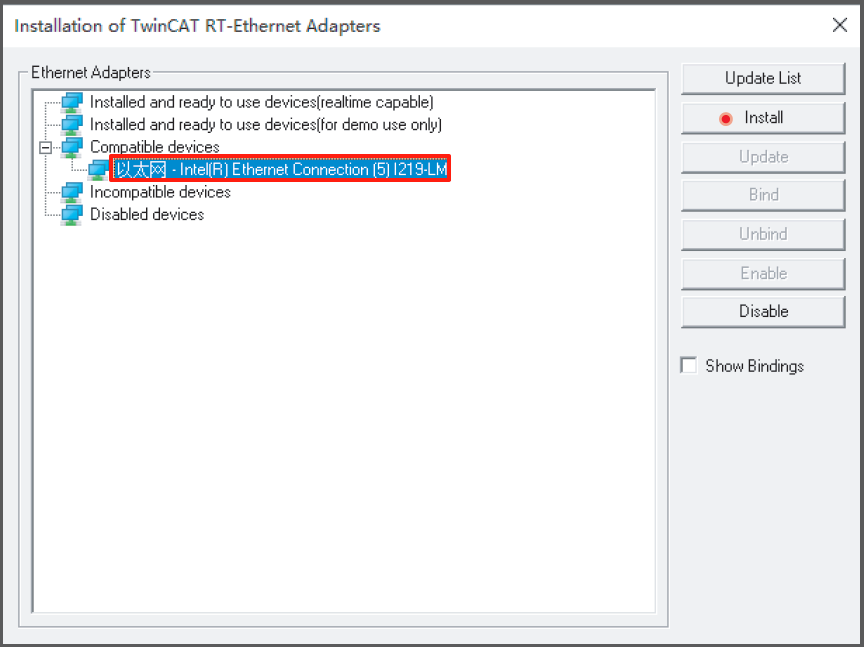
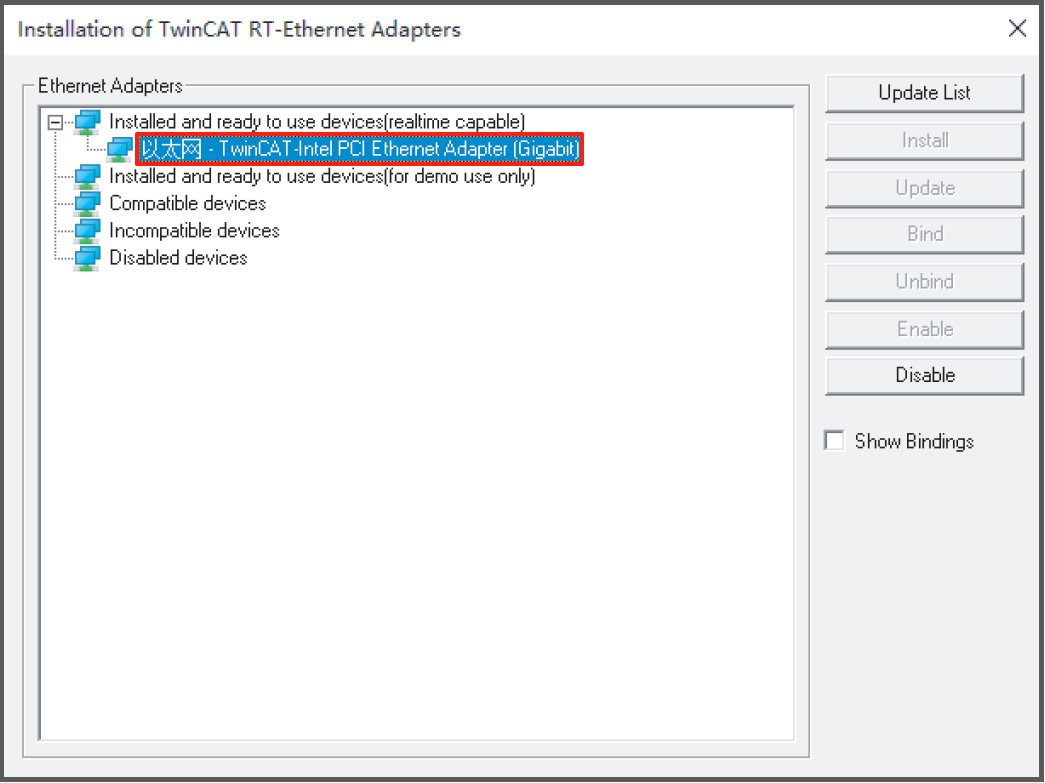
After the installation is complete, the screen should look like this:
4. Device Discovery
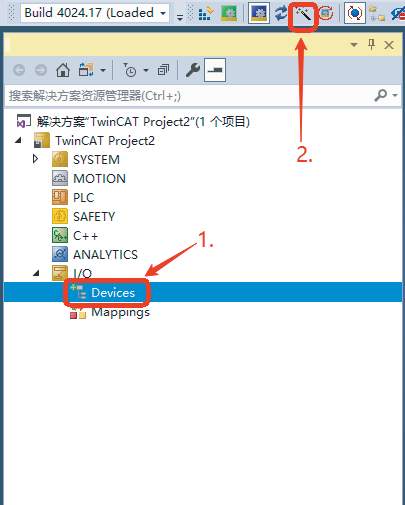
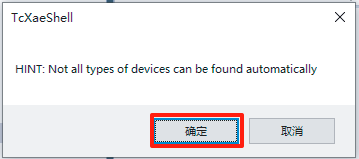
4.1. Click on "Devices"; 4.2. Click the Scan Devices icon (wand icon) to search for devices; 4.3. After the pop-up window appears, click "OK";
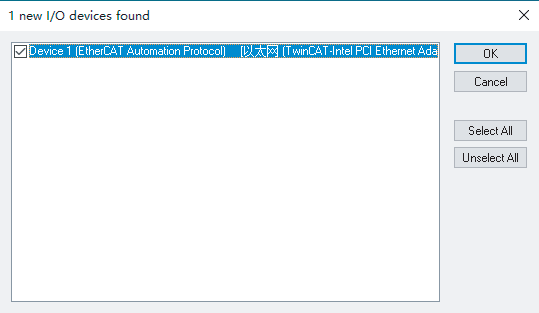
4.4. Check the previously installed network adapter driver and click "OK";
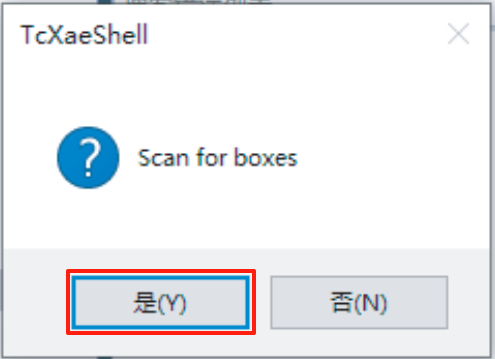
4.5. In the pop-up window, select "Yes";
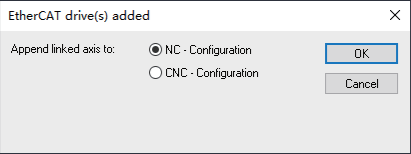
4.6. Finally, click "OK".
After the search is completed successfully, the screen should look like this:
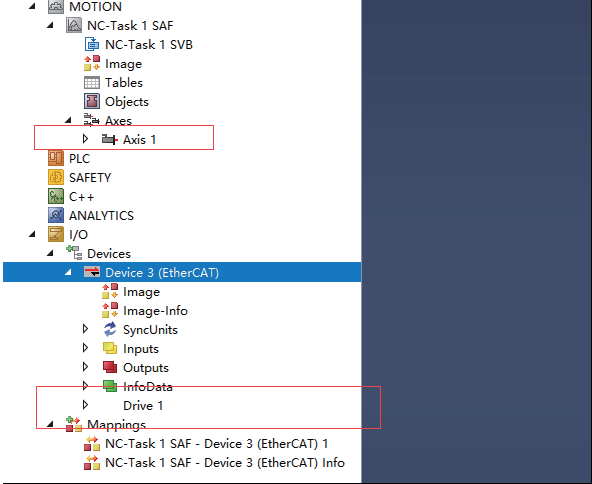
You can now add an axis. Select the discovered EtherCAT slave device and add it to the project.
5. Servo Parameter Configuration
You can view and configure servo parameters in the [CoE-Online] interface according to your requirements. (Note: When the value of object 2013:11h is set to 1, the written SDO data will be stored persistently after power loss.)
6. PDO Configuration
The default PDO selections are groups 0x1701 and 0x1B01. Users can choose to keep these or select other groups according to their needs.
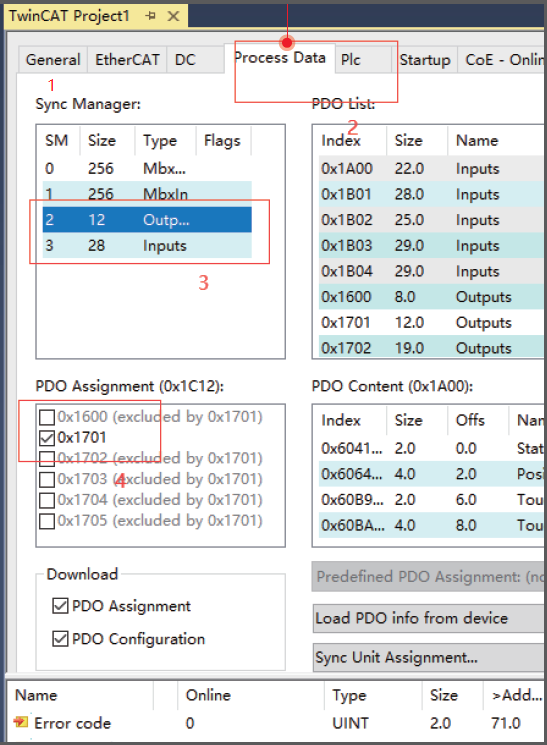
As shown in the figure, open the "Process Data" tab and follow the illustrated steps to select the desired group.
Note:
Groups 0x1600 and 0x1A00 are user-configurable and support adding or removing objects freely.
Other groups have fixed configurations.
⚠ WARNING: If you switch from a PDO group that includes a torque limit (e.g., 0x1703) to one that does not (e.g., 0x1600) without power-cycling the servo, the torque limit resets to 0 and the motor will produce no torque. To restore operation, either power-cycle the servo drive or revert to the original PDO mapping.
7. Configure Runtime Information
Configure the gear ratio and following error limit in TwinCAT according to the encoder settings compatible with the A6-EC series servo. (The A6 series is equipped with a standard 17-bit magnetic encoder, so the gear ratio should be set to 131072:60 (based on the 17-bit encoder resolution of 131,072 counts per revolution and 60 motor pole pairs) and the following error limit to 30.)
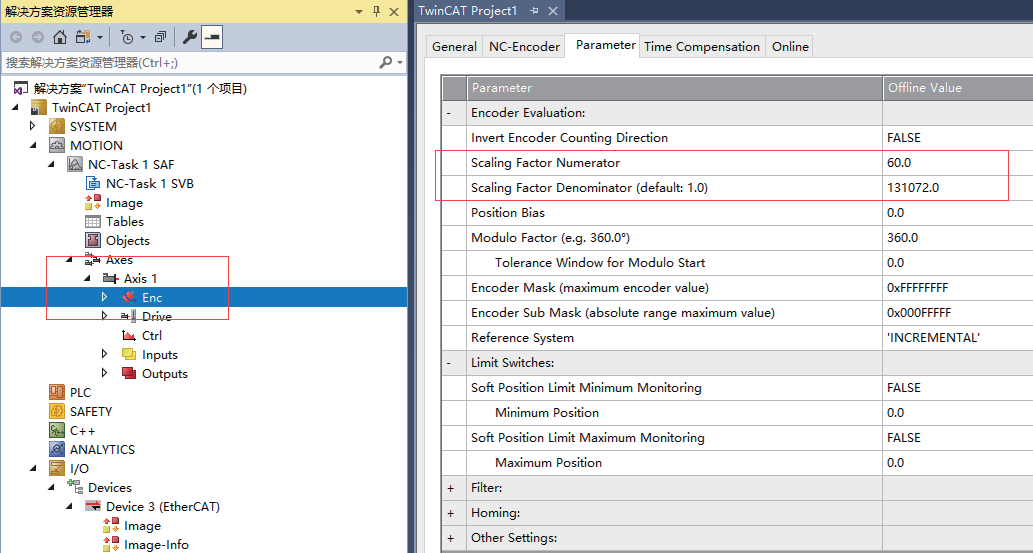
As shown in the figure above, open the "Enc" tab to set the gear ratio.
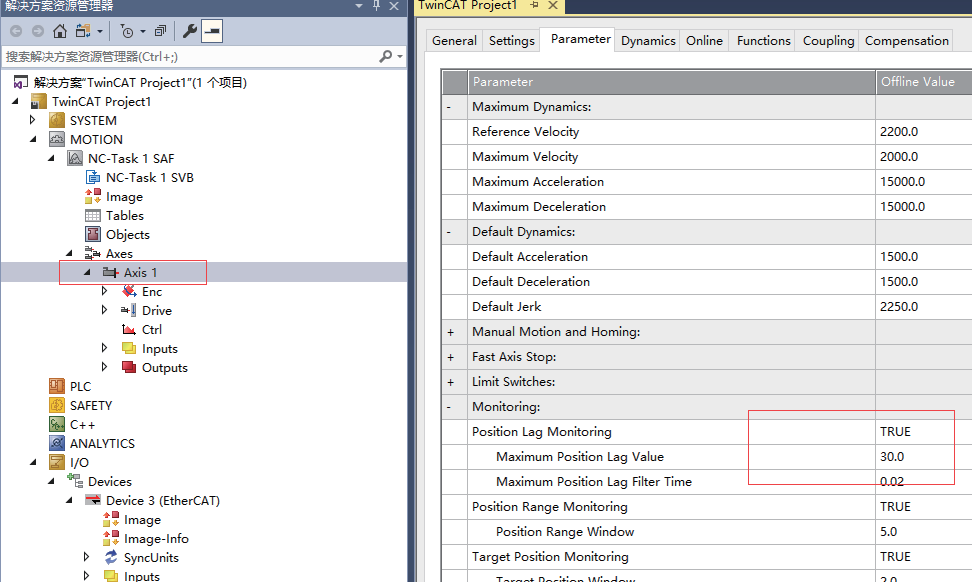
Here, set the following error limit value to 30.
8. Activate Configuration
Click the "Activate Configuration" button, then select OK in the pop-up dialog box, as shown in the figure below:
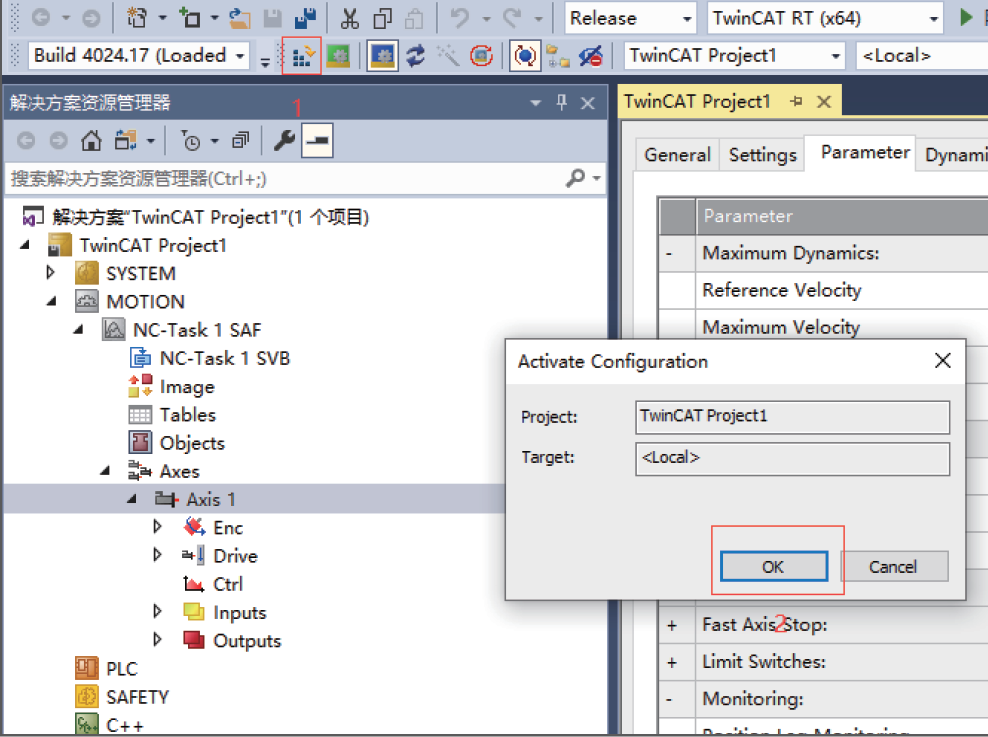
After confirmation, switch to the "Online" interface and check whether the device enters OP state.
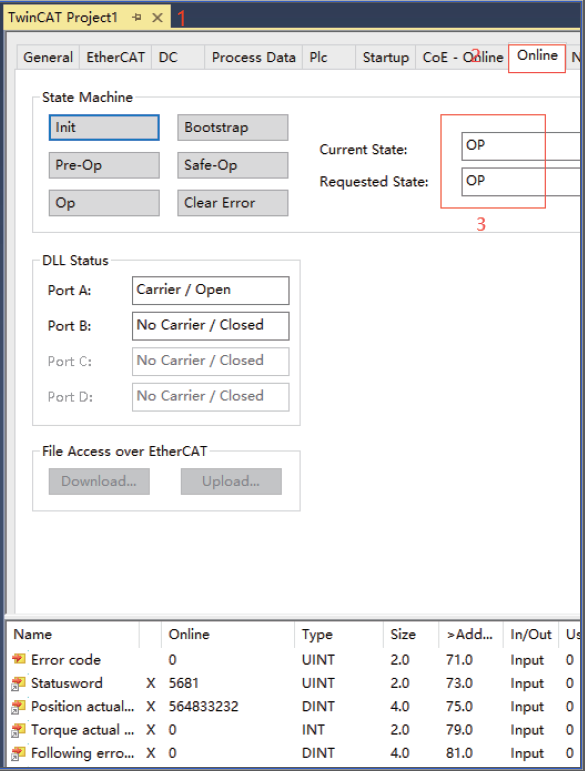
Once the device is in OP state, the servo drive panel will display "88rd", indicating that the servo network has successfully established communication with the PLC and is ready for operation. Below is a simple example to control the servo operation:
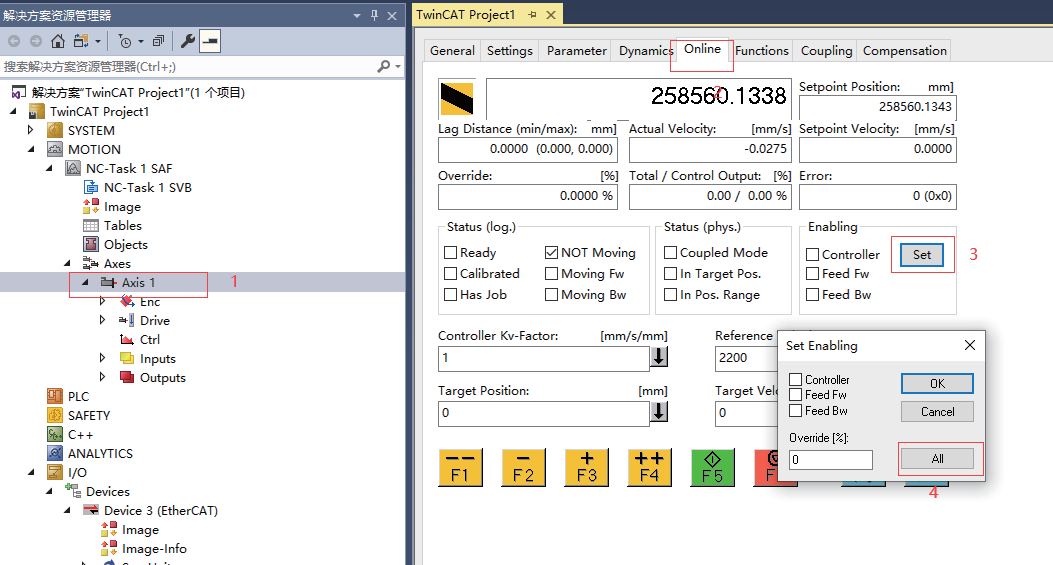
- Click on Axis Settings;
- Switch to the "Online" interface;
- Click "Set";
- Select "All" in the pop-up window.
- Use the F1, F2, F3, and F4 keys to perform jog operation of the servo.
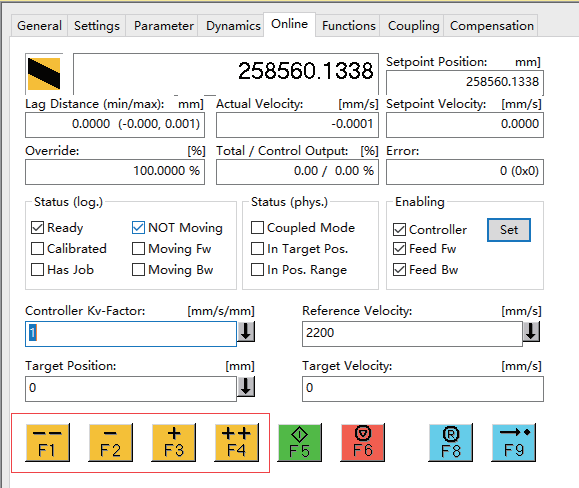
This completes the configuration of the A6-EC series servo with a Beckhoff PLC over EtherCAT. During the operation, please ensure that each step is performed according to the instructions. If you encounter any issues during the configuration process, feel free to contact us for support. In the future, we will release additional tutorials on configuring the full A6 series drives with other brand PLCs, such as Siemens.