This article explains how to use MotionStudio to configure the main parameters of StepperOnline stepper drivers.
MotionStudio is compatible with all StepperOnline drivers and integrated stepper motors that feature an RS232 interface.
Required items: Driver, DC power supply, RS232 configuration cable, USB-to-RS232 adapter cable (if needed), and MotionStudio software.
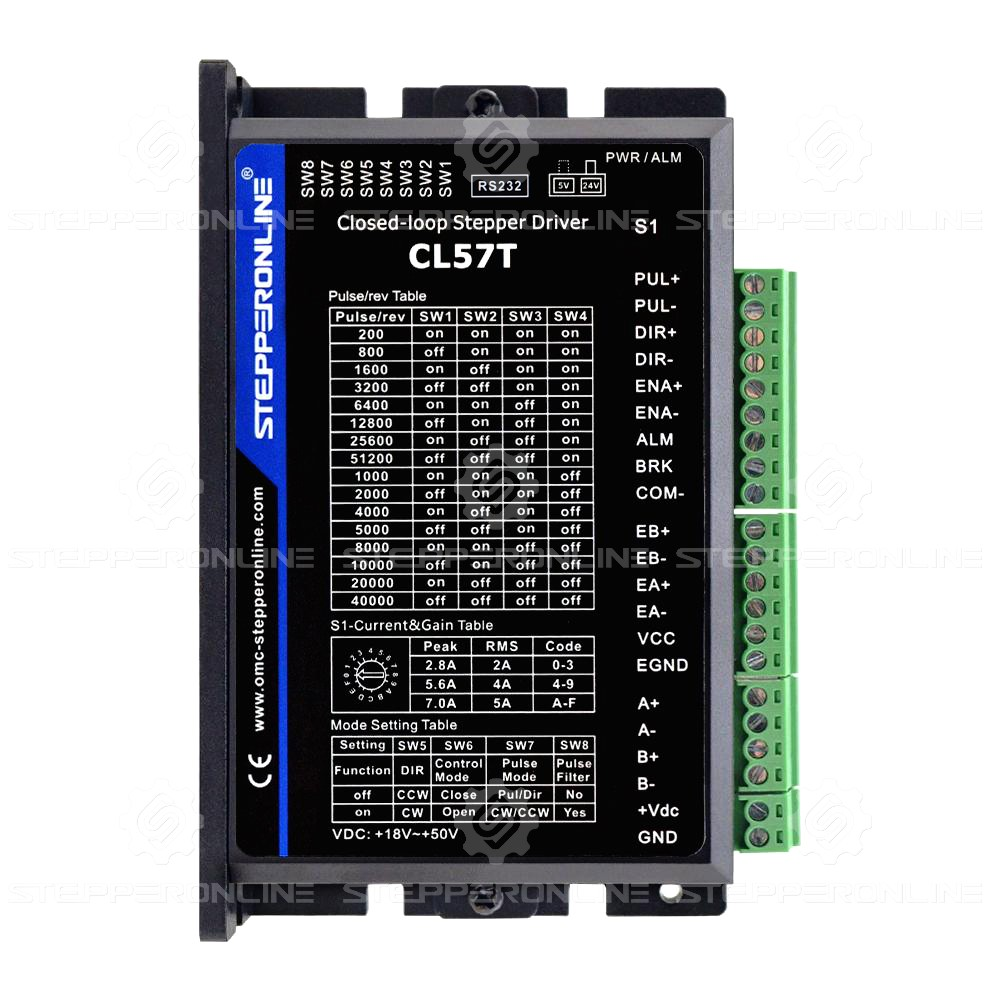
In this example, we use the CL57T-V41 driver.
Important: Both the CL42T-V41 and CL86T (3.0) drivers have a rotary switch with a "default" position. Set the switch to this position before configuring parameters; otherwise, parameter changes will not be saved successfully.
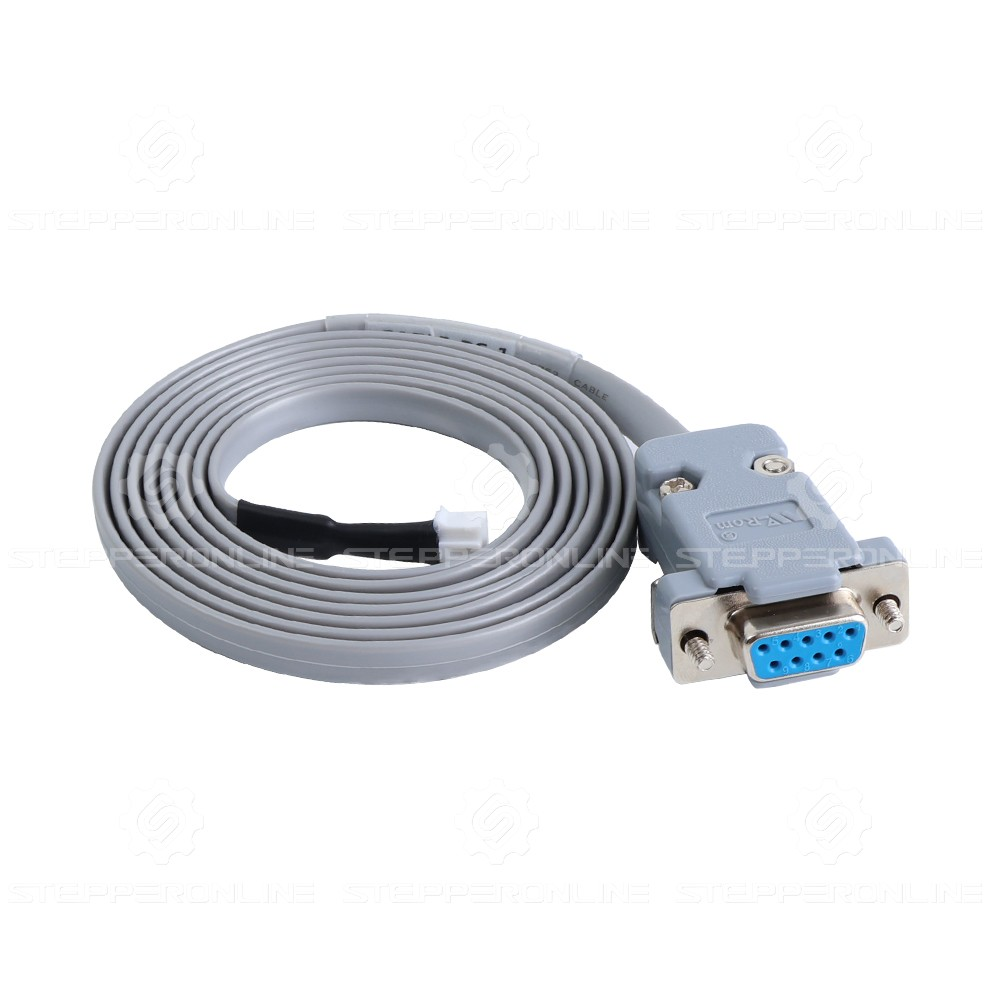
Connect the RS232 configuration cable (included with the driver) to the RS232 port on the driver.
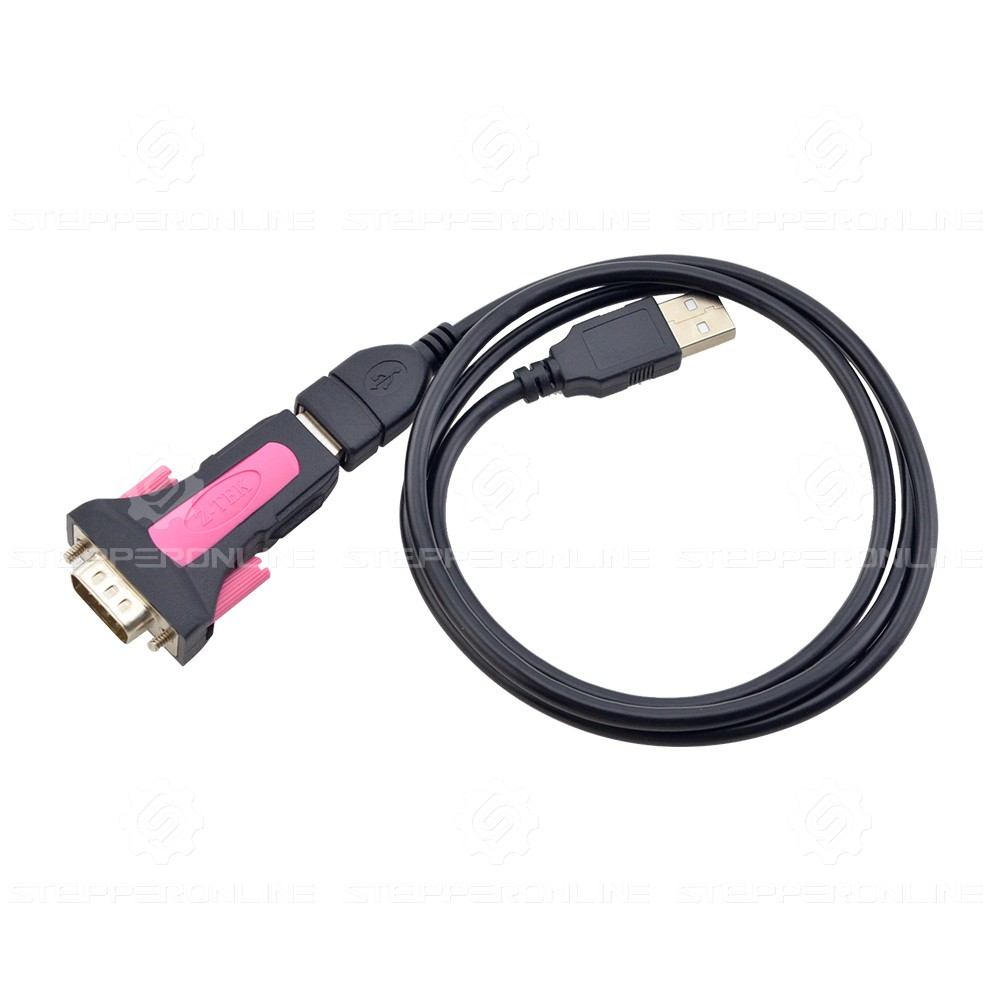
Prepare a USB-to-RS232 adapter cable. Connect the USB end to your PC and the RS232 end to the RS232 configuration cable.
Note: This adapter cable must be purchased separately. Purchase link: USB 2.0 to Serial RS232 Adapter.
If your PC already has a native RS232 port, you can connect the RS232 configuration cable directly to the PC without the adapter.
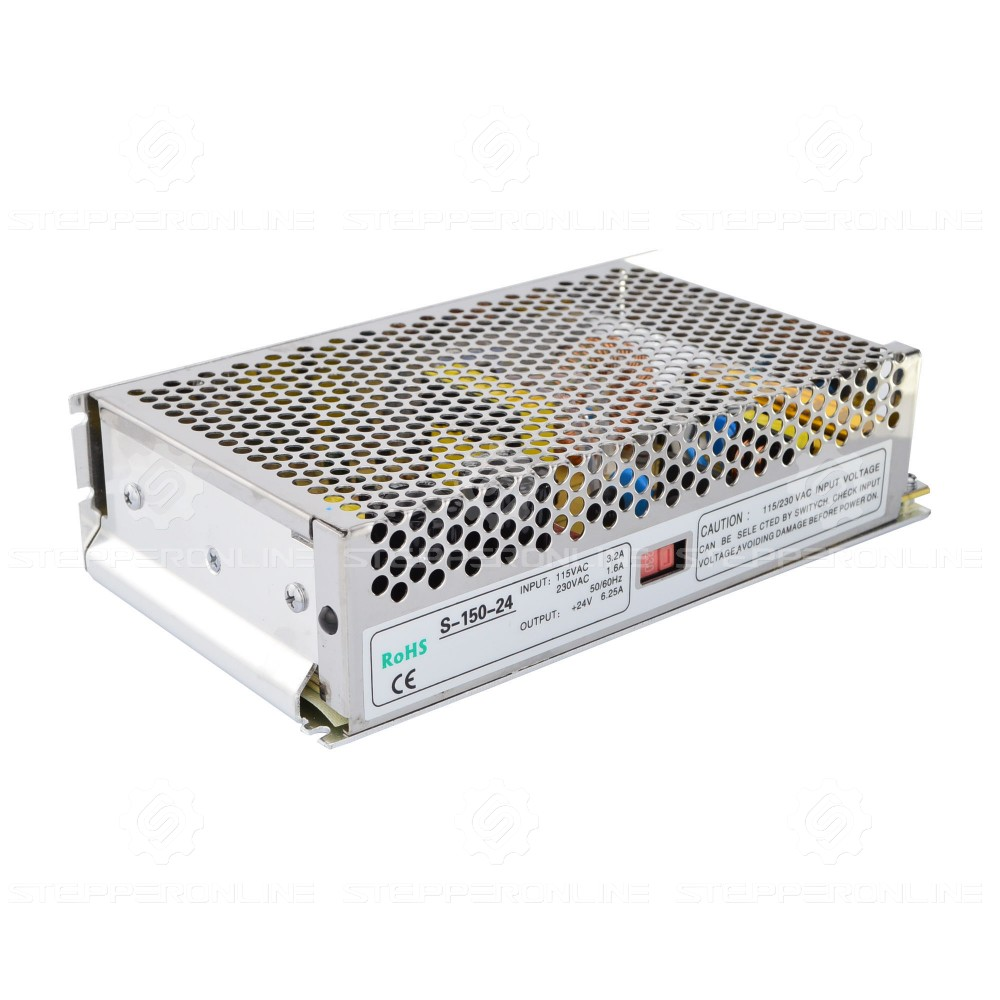
Prepare a DC power supply for the driver. Note: The power supply voltage must be within the driver's specified input voltage range.
Finally, download the MotionStudio software: MotionStudio Overseas Edition v1.4.10
- Power on the driver and launch the software, as shown below.
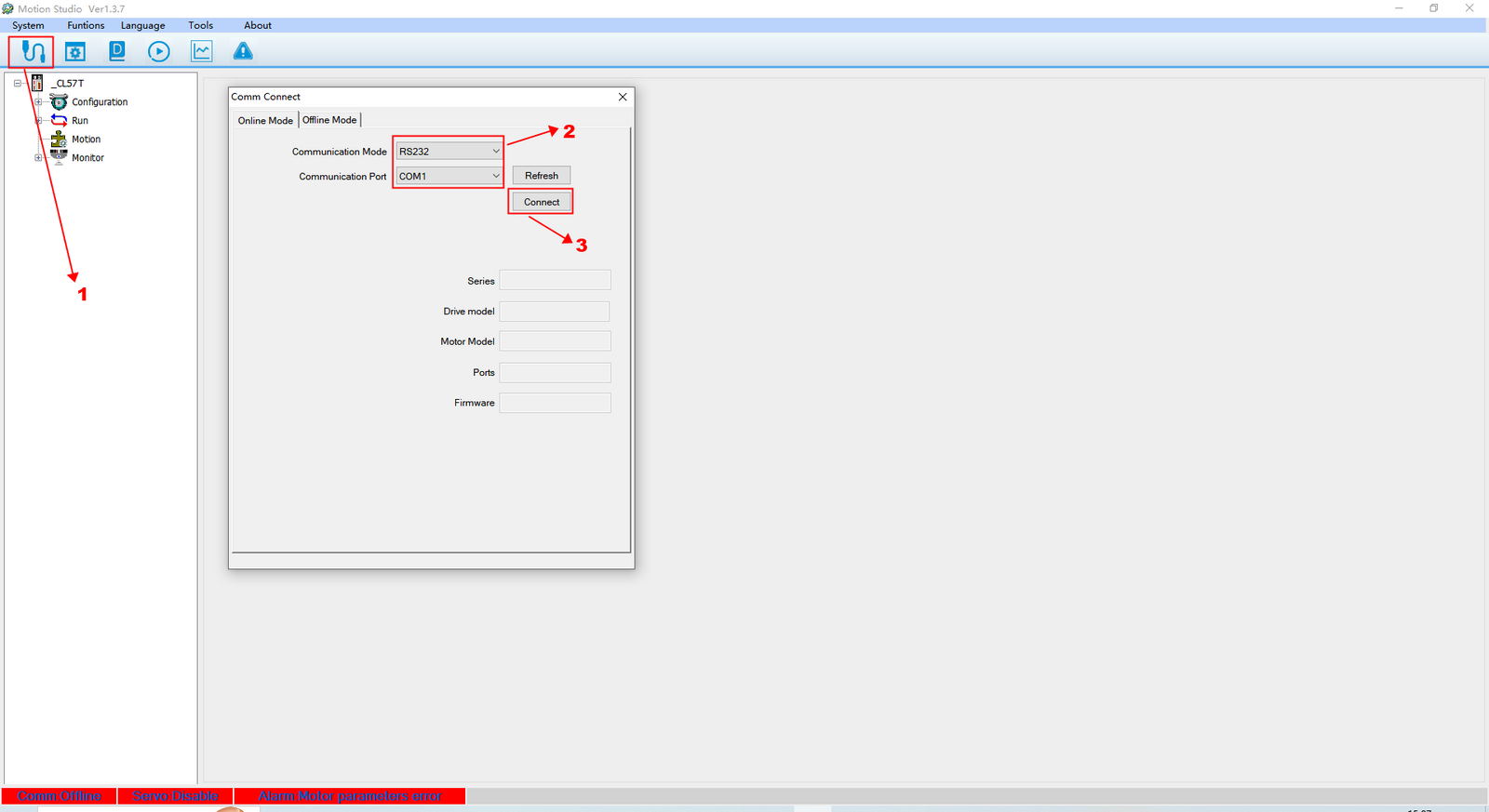
- Click Communication.
- Select RS232 mode and choose the correct COM port.
- Click Connect.
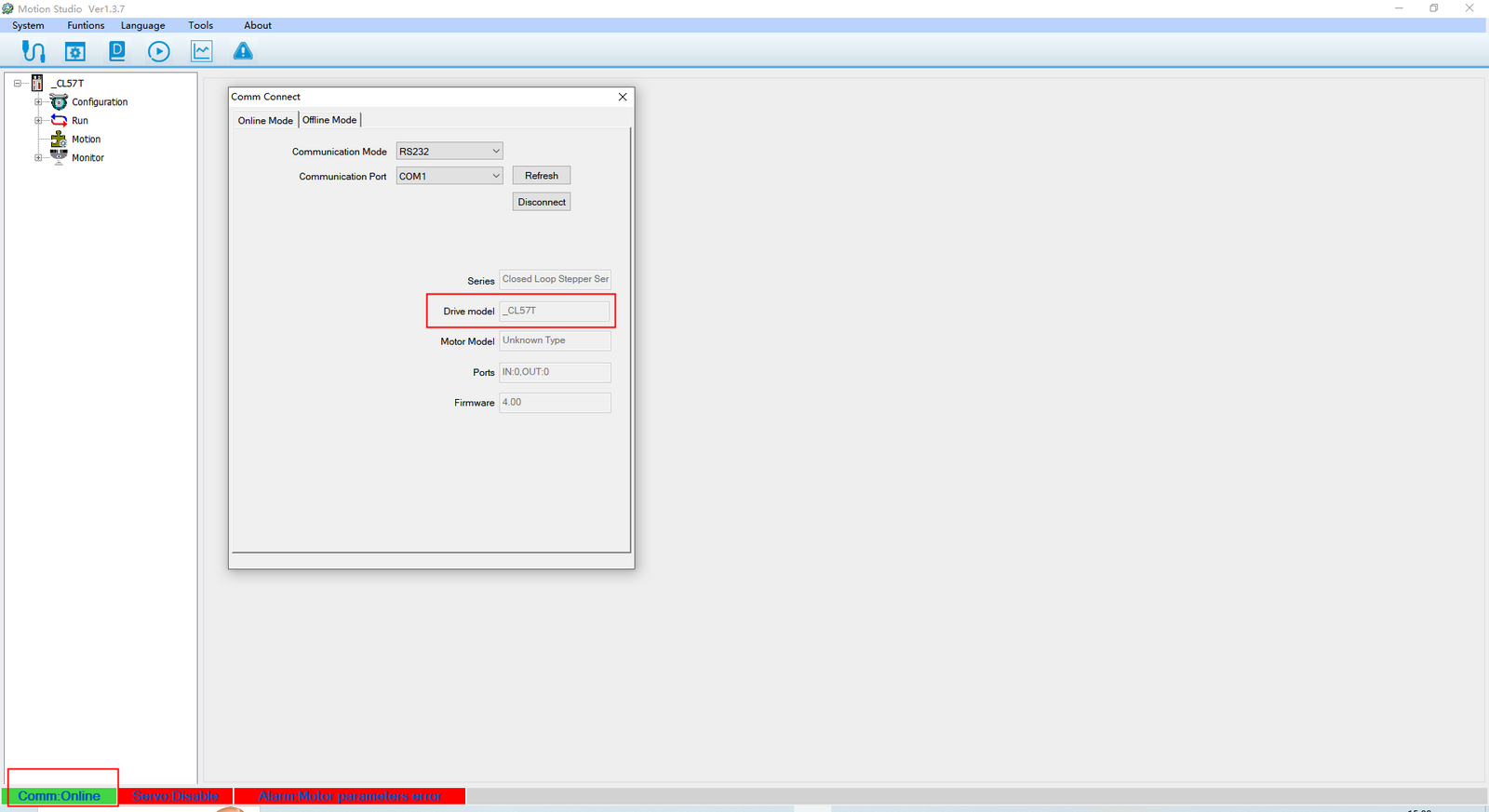
Once connected successfully, the status bar will display the driver model, confirming normal communication.
You can now begin the parameter configuration process.
Setting the Driver Peak Phase Current
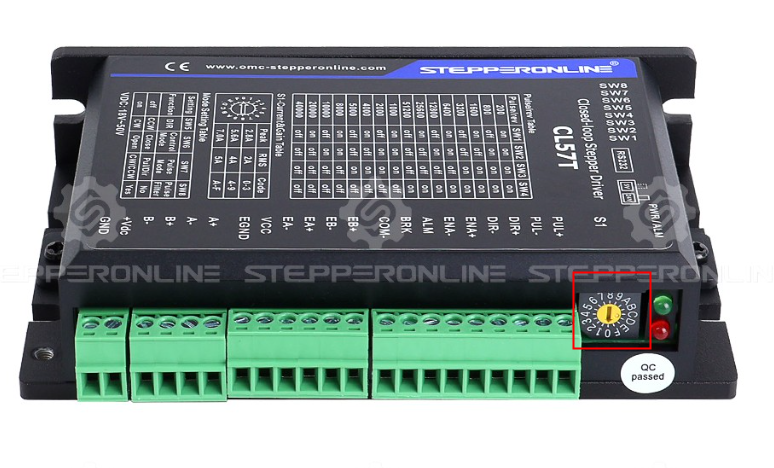
Before modifying this parameter, turn the yellow current potentiometer on the driver to the default position "0". This allows you to set the peak phase current via software.
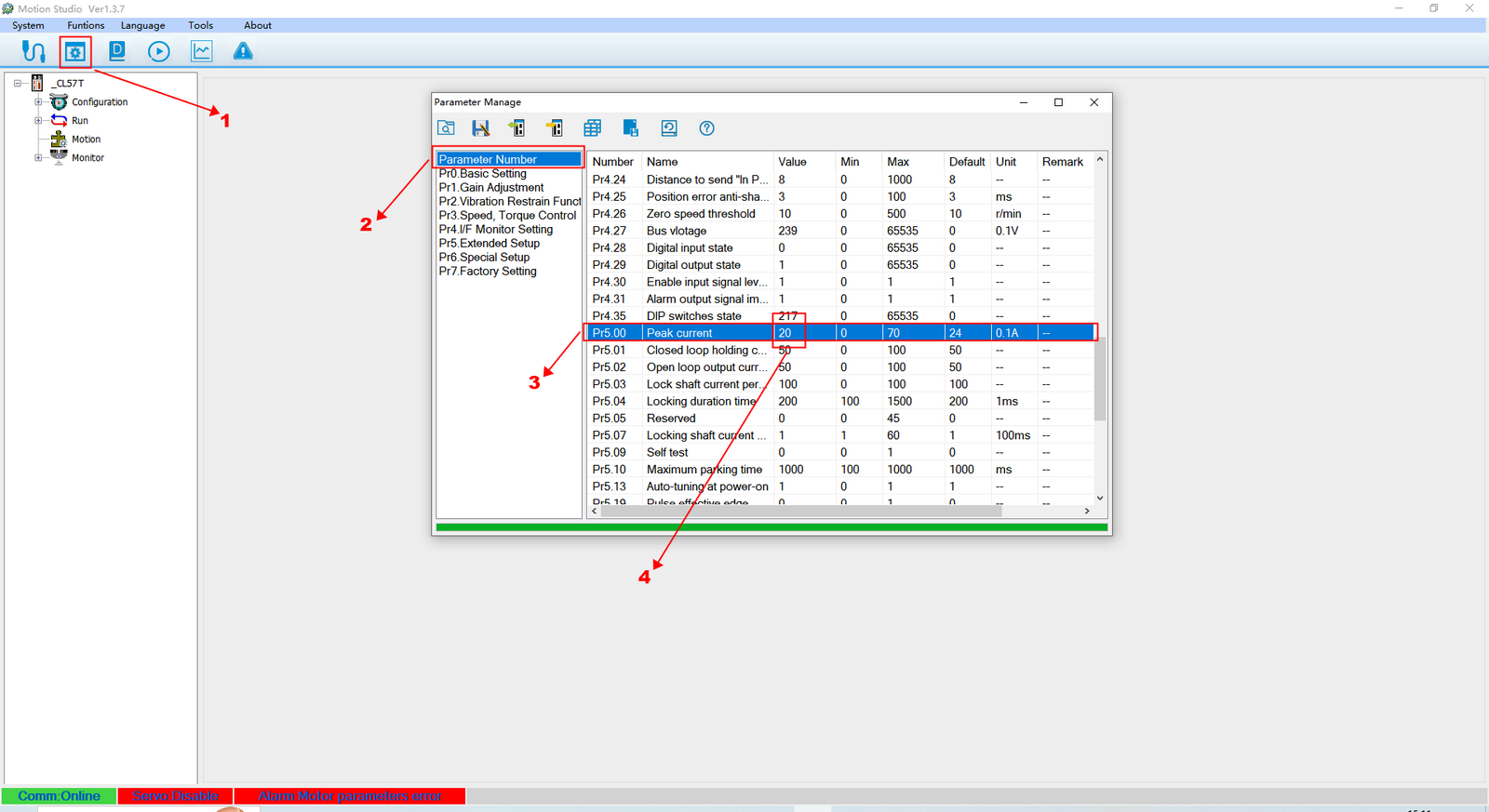
- Click Parameters.
- Click Parameter Number.
- Locate Peak current.
- Click the value field and enter the desired current.
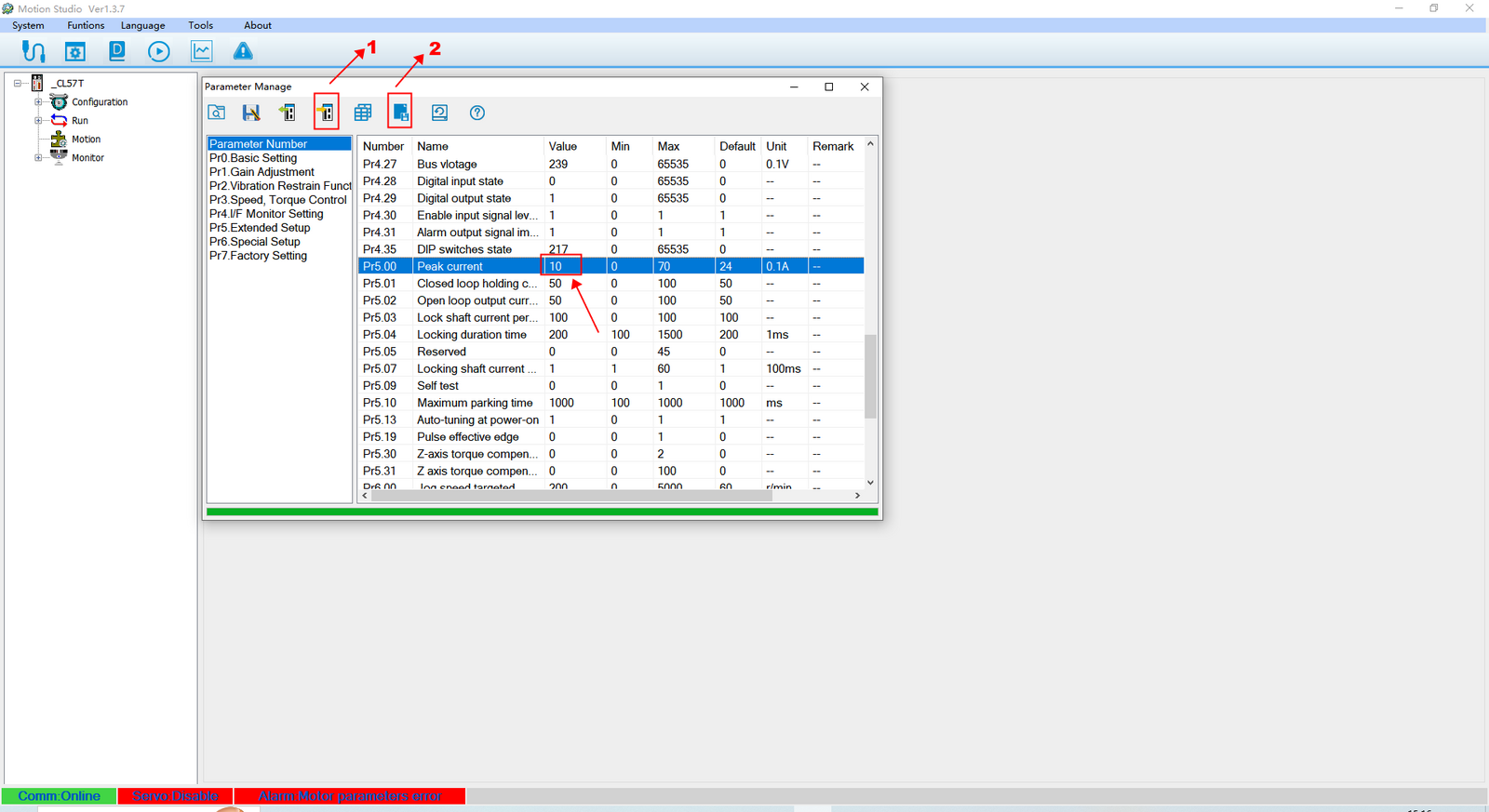
After modifying the current value:
- Click Download parameters to driver.
- Click Save.
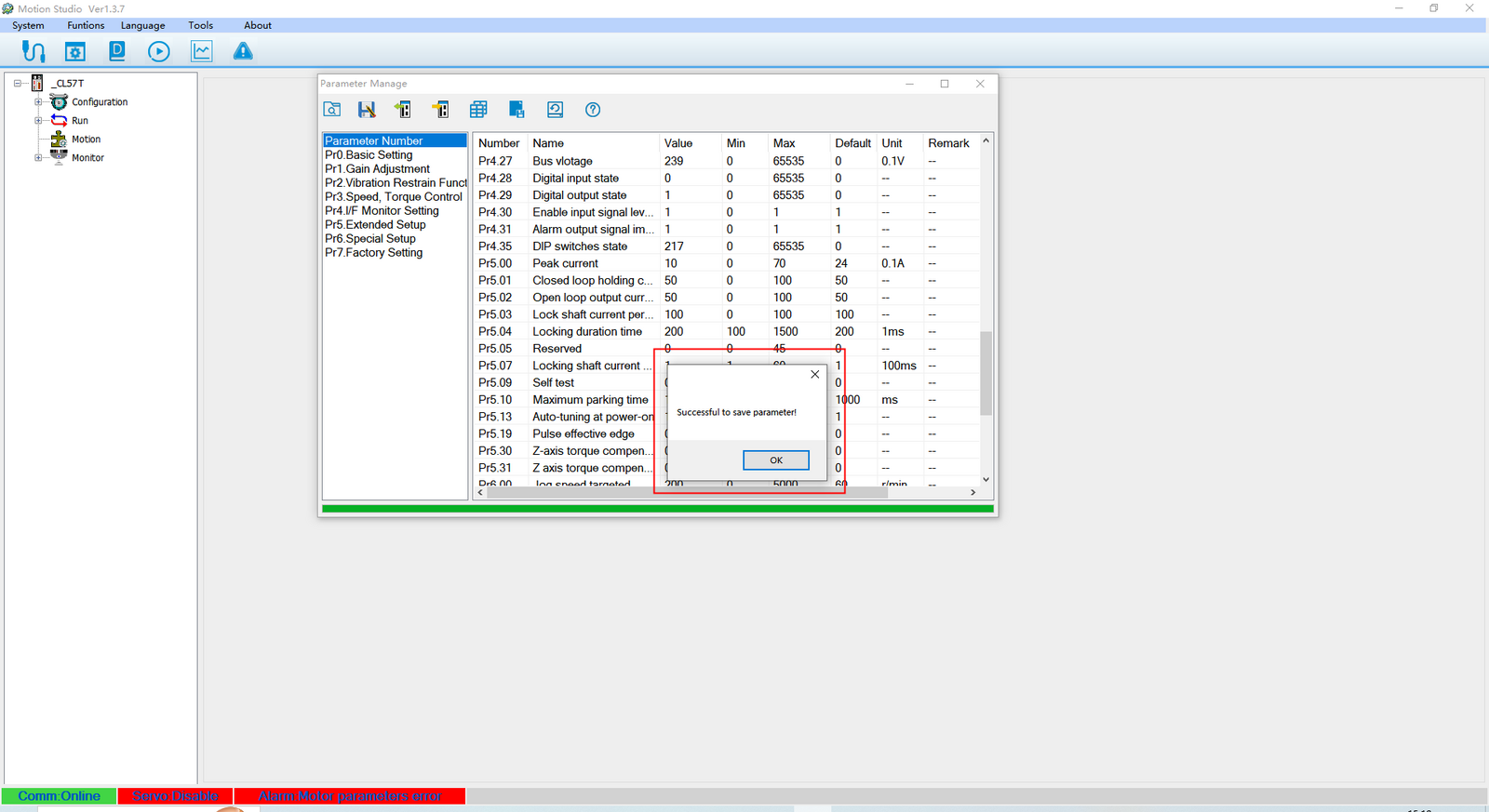
The driver's peak phase current has now been updated successfully.
Configuring Encoder Resolution
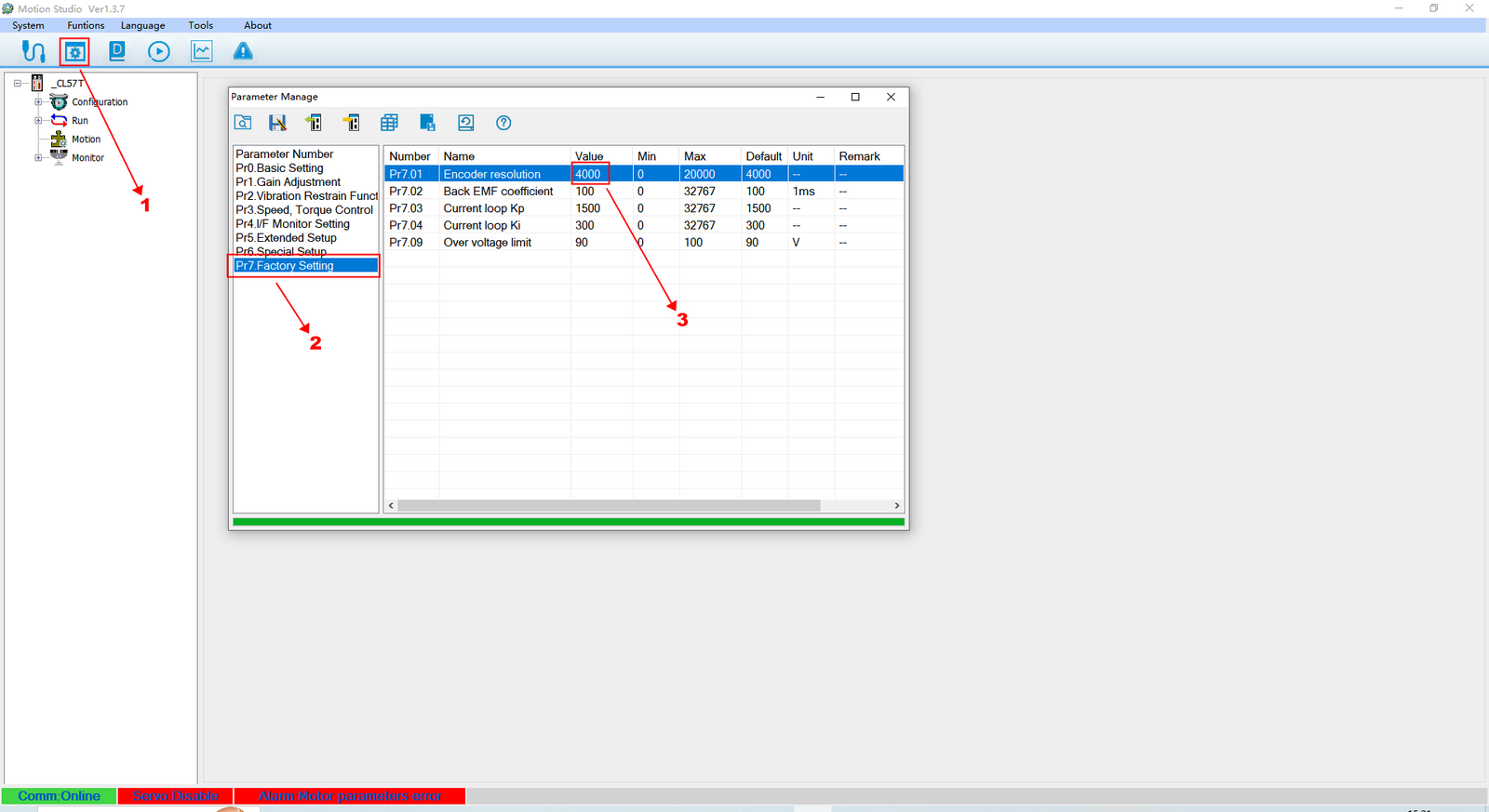
- Click Parameters.
- Click Factory Settings.
- Locate Encoder Resolution.
- Click the value field and enter the correct resolution for your encoder.
The driver uses quadrature decoding, which multiplies the PPR (Pulses Per Revolution) by 4 to obtain CPR (Counts Per Revolution). For example, a 1000 PPR encoder produces 4000 CPR, which is the driver's default value. If your motor encoder has a resolution of 500 PPR, set this value to 2000 CPR (500 × 4).
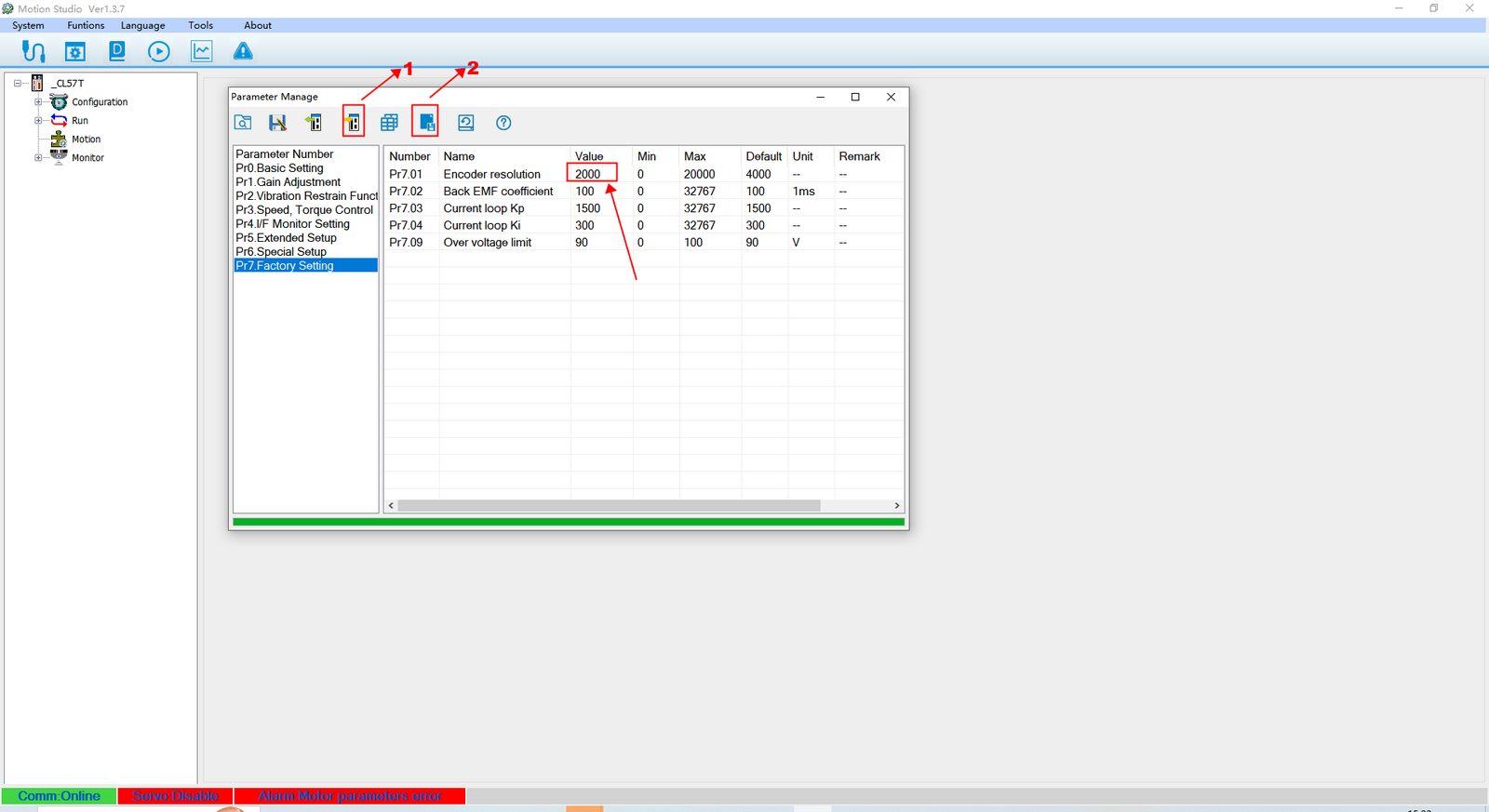
After modifying the value:
- Click Download parameters to driver.
- Click Save.
The updated encoder resolution is now saved.
Velocity Loop and Position Loop Gain Adjustment (Noise Reduction)
This adjustment is useful when the motor produces excessive noise. Reducing the default gain values can help lower noise levels.
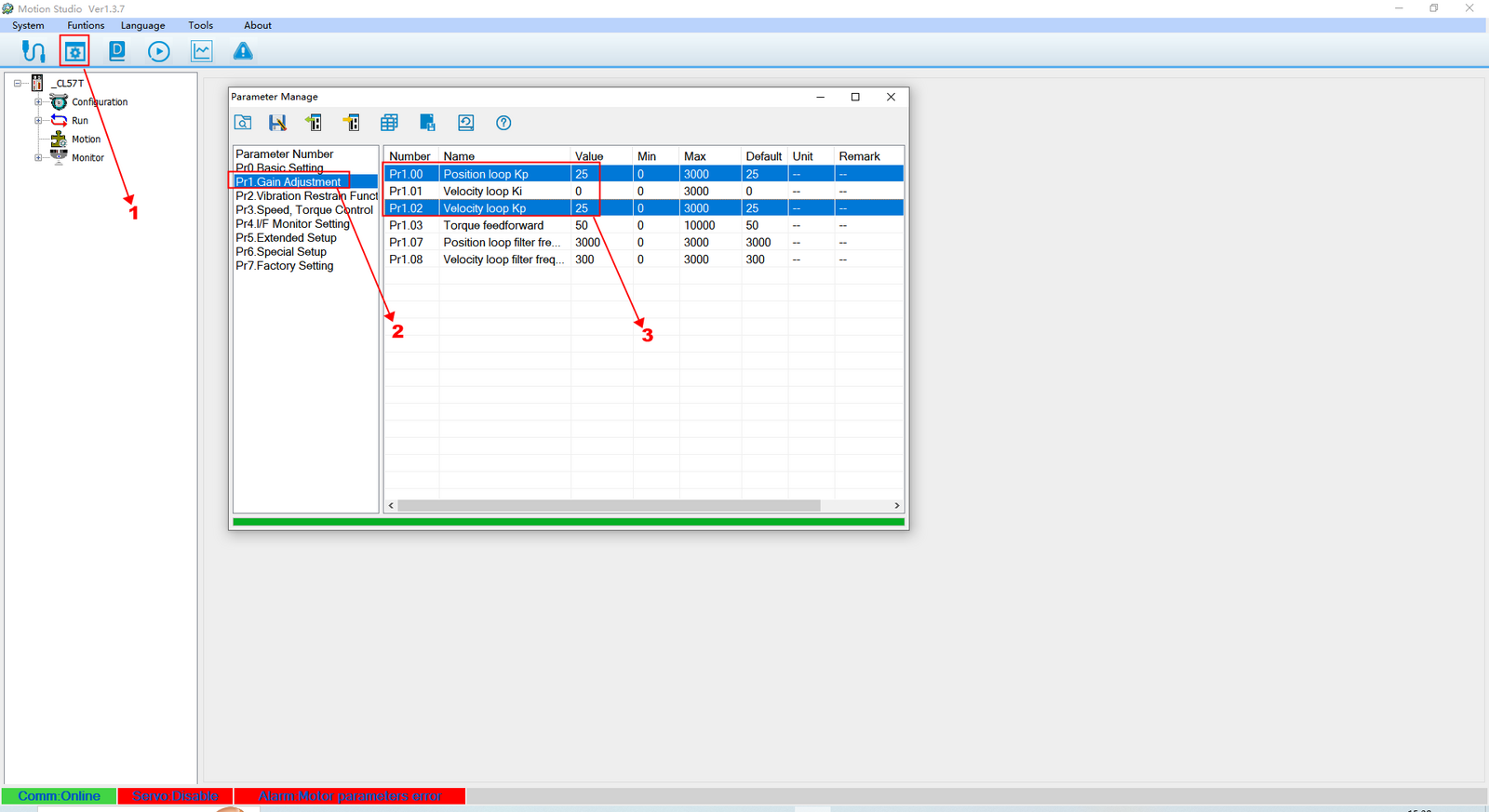
- Click Parameters.
- Click Gain Adjustment.
- Locate Velocity loop and position loop.
- Click the value field and adjust as needed.
Note: The velocity loop and position loop gain values must be set to the same value.
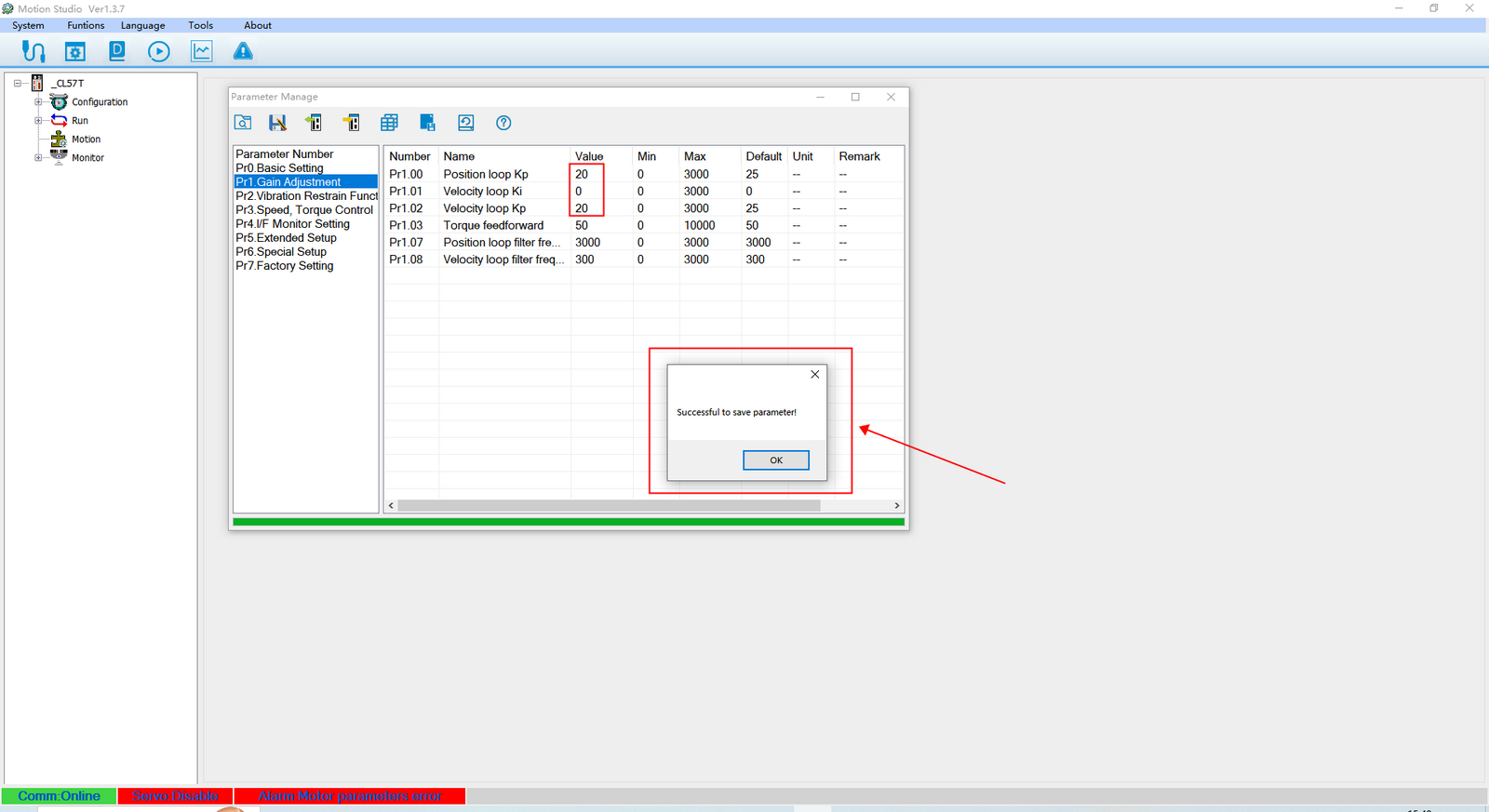
After saving successfully, the confirmation screen above will appear.
Enable Fault Clear (ENA Signal Fault Reset)
This function allows you to clear a position out-of-tolerance alarm by applying a 5–24 VDC signal across the ENA+ and ENA– terminals, without power-cycling the driver.
However, if an overcurrent or overvoltage alarm occurs, you must first disconnect the power, inspect the wiring, and then reapply power after confirming the issue is resolved. These alarms cannot be cleared through this function.
- 0 – Disable ENA fault clear
- 1 – Enable ENA fault clear
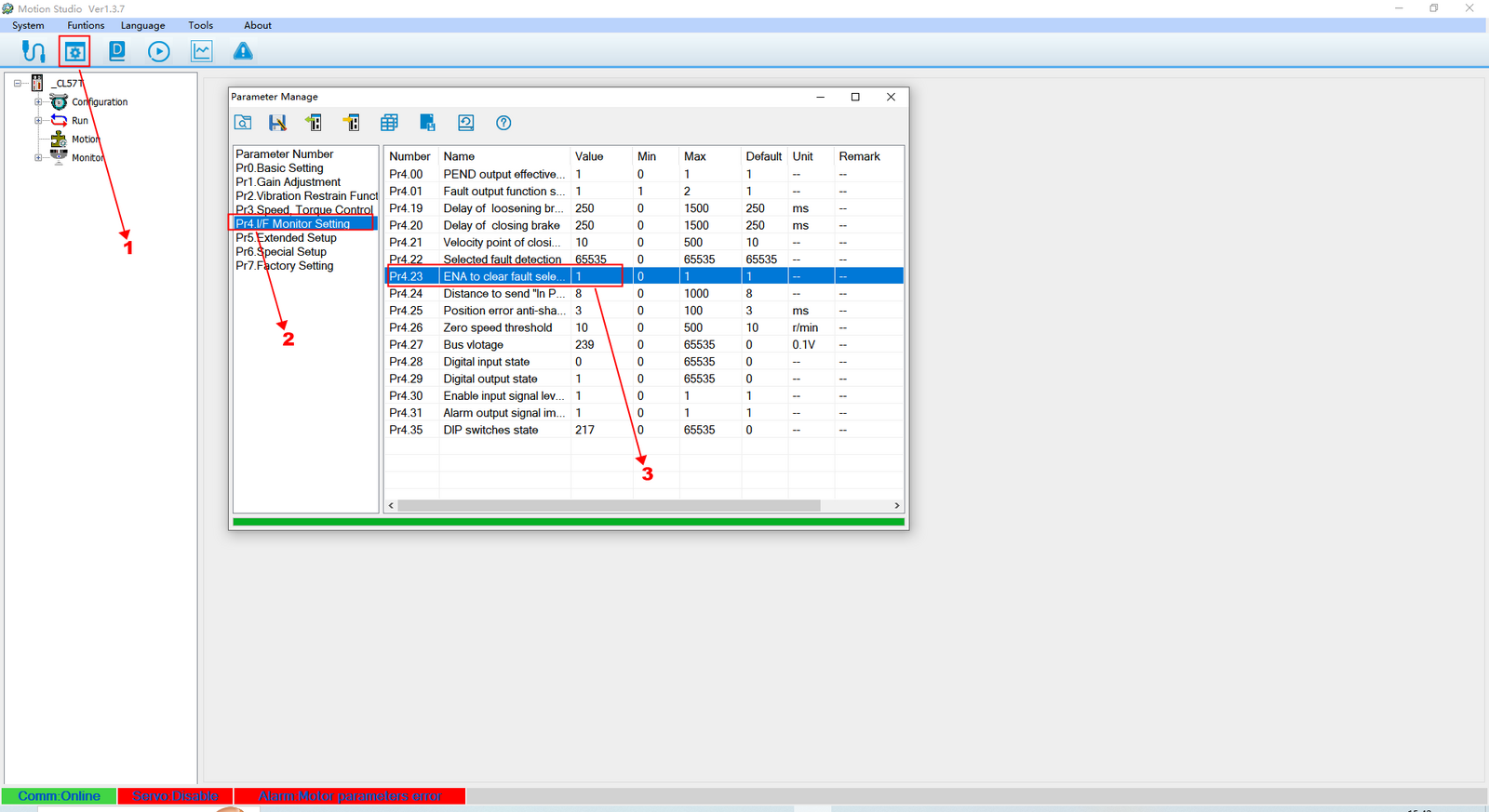
- Click Parameters.
- Click Monitor Settings.
- Locate ENA to clear fault select.
- Click the value field and select the desired option.
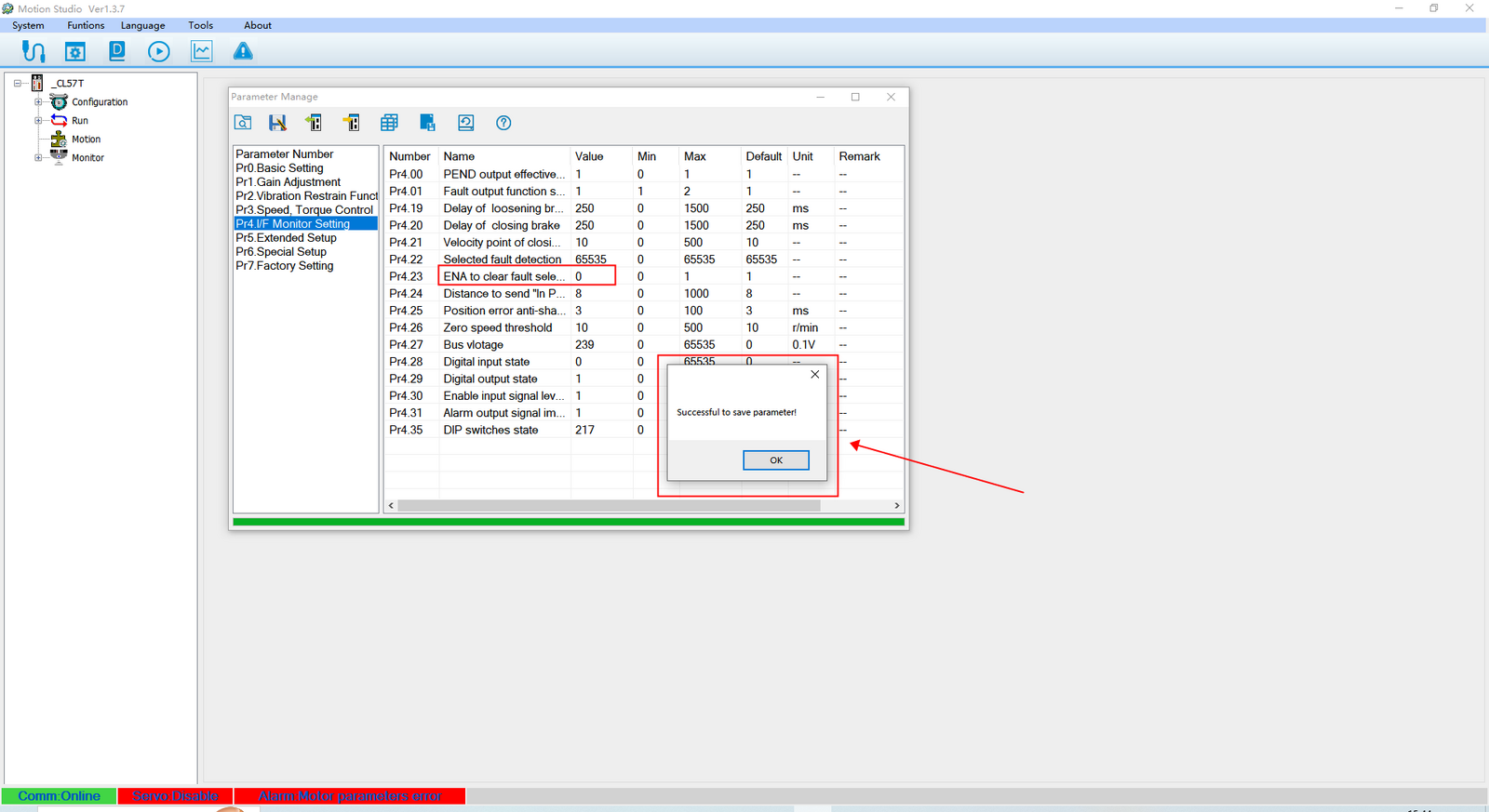
The modification is confirmed as shown above.
These are the detailed steps for configuring key parameters in MotionStudio. If you encounter any other issues while using the software, please feel free to contact us — we are happy to help!