Preparations
-
A connected DSY servo system (motor + driver).
-
DSY Servo Tuning Software. Download link: https://drive.google.com/file/d/1_ta81P9fRqi5ej7bO73Gro6v6OlbH41W/view?usp=drive_link
-
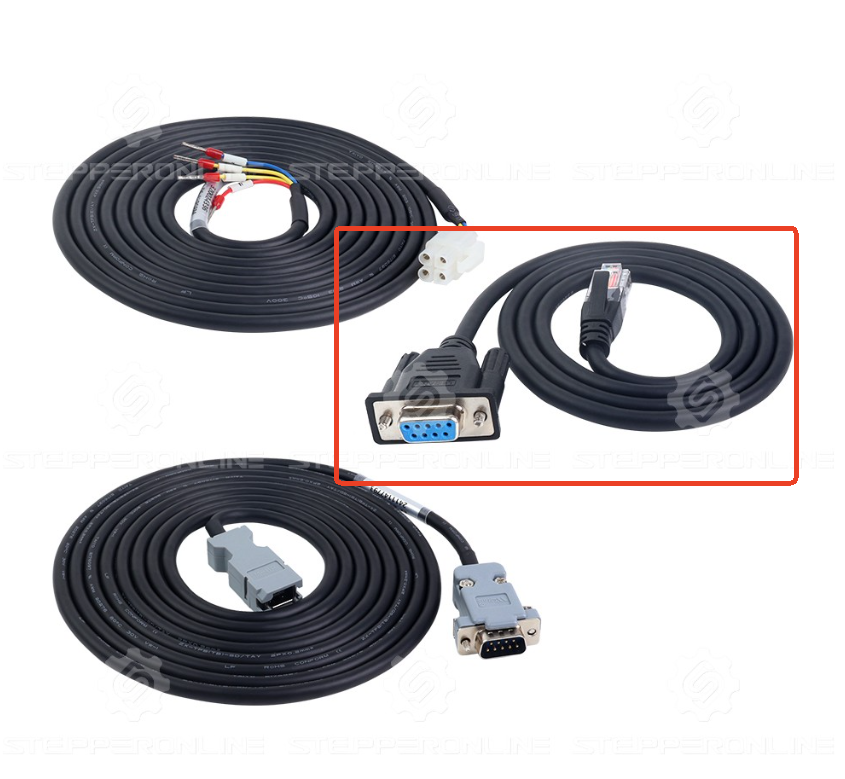
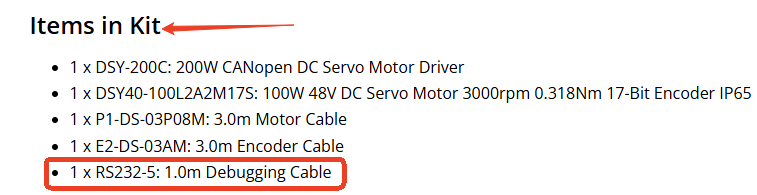
Communication cable (RS232-5) – Included with the servo motor kit.
-
A Windows 10 PC. The DSY Servo Tuning Software by STEPPERONLINE was developed and tested on Windows 10. Using other Windows versions may cause compatibility issues (e.g., garbled text) or affect software functionality.
-
48V DC power supply: The DSY driver supports 24–70V DC input, but 48V is recommended for optimal performance. Other voltages may reduce motor performance (e.g., lower speed/torque).
Connection Steps
1. Connect the Motor and Driver
- Use the motor power extension cable and encoder extension cable to connect the motor to the driver. If you purchased a motor with a brake, also connect the brake extension cable.
2. Connect the RS232-5 Communication Cable
- Insert the RJ45 end of the RS232-5 cable into the CN3 port of the driver.
⚠️ Caution: Do not insert this cable into CN1 or CN2, as this may cause communication failure or damage the port.
- Connect the DB9 end of the cable directly to your PC. Alternatively, you can use a USB-to-RS232 adapter: https://www.omc-stepperonline.com/usb-2-0-to-serial-rs232-adapter-with-1m-cable-converter-c006.
3. Power On
Turn on the 48V DC power supply.
4. Software Installation
- After extracting the downloaded ZIP file, locate the installer.

- Double-click the installer. In the pop-up window, select English as the installation language and click "OK."
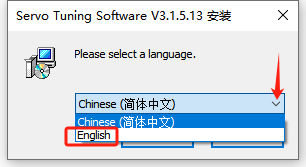
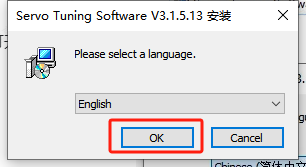
- After installation, open the software folder, locate the main program icon, and double-click it to launch.

- Choose the correct product series for your device and click "OK."
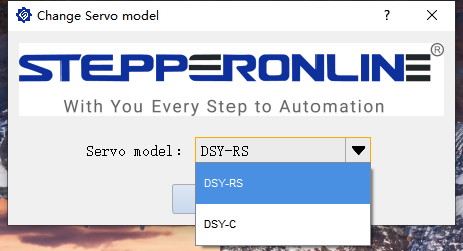
The initial interface is shown below:
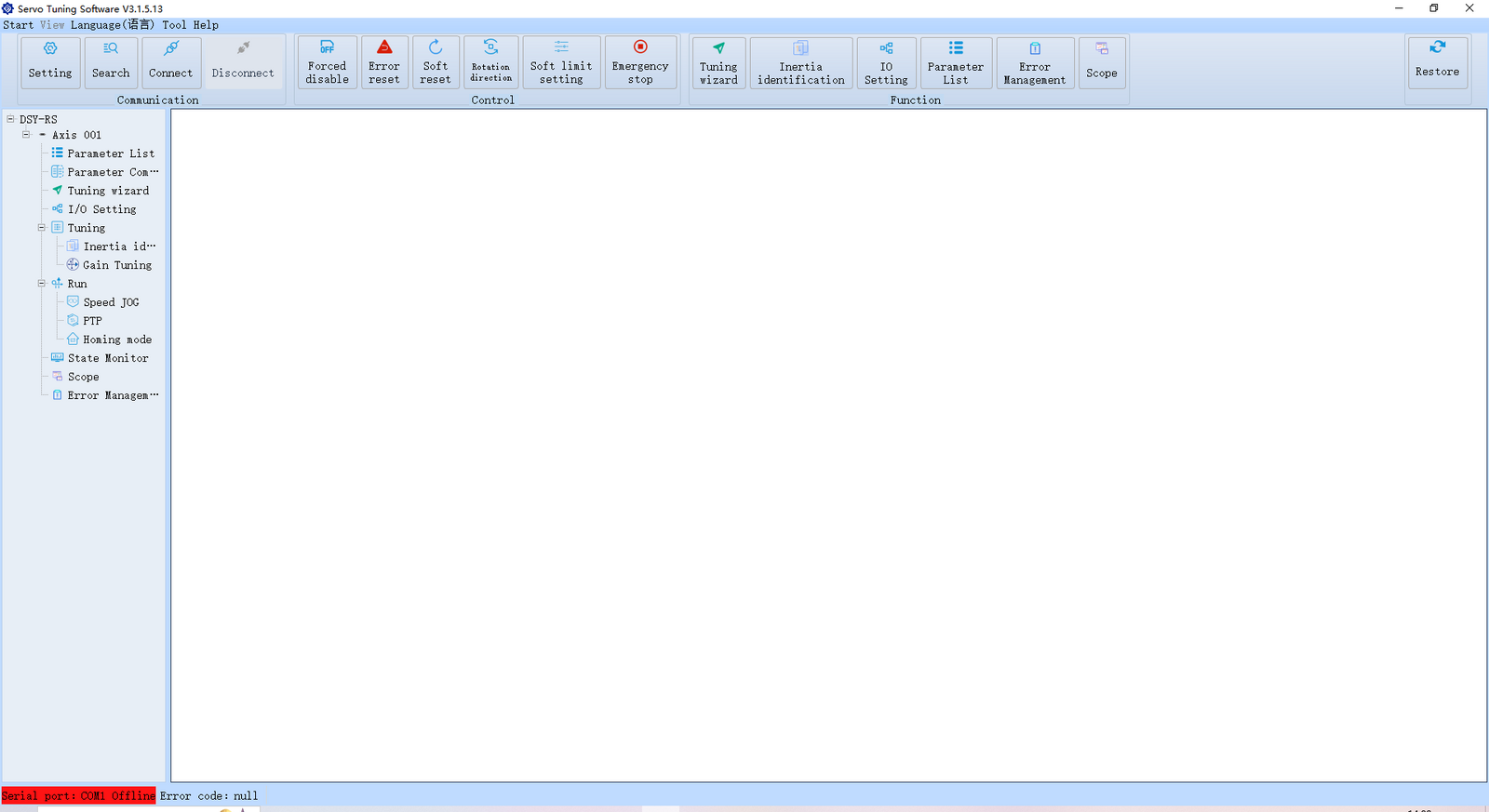
5. Connect to the Software
On first connection, open the Settings window and select the correct COM port (default baud rate is 115200).
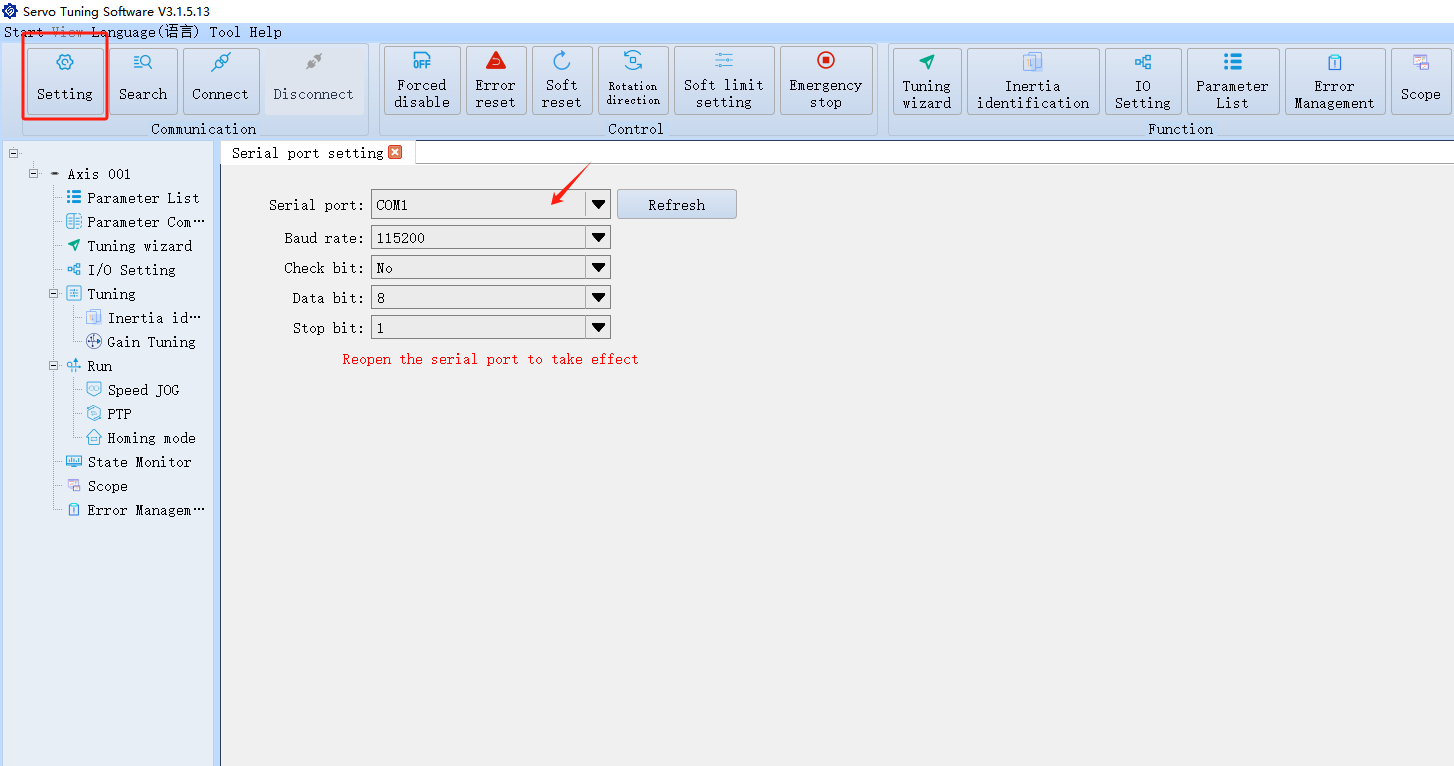
After configuring the settings, click "Connect." Once connected successfully, the interface will appear as shown below.
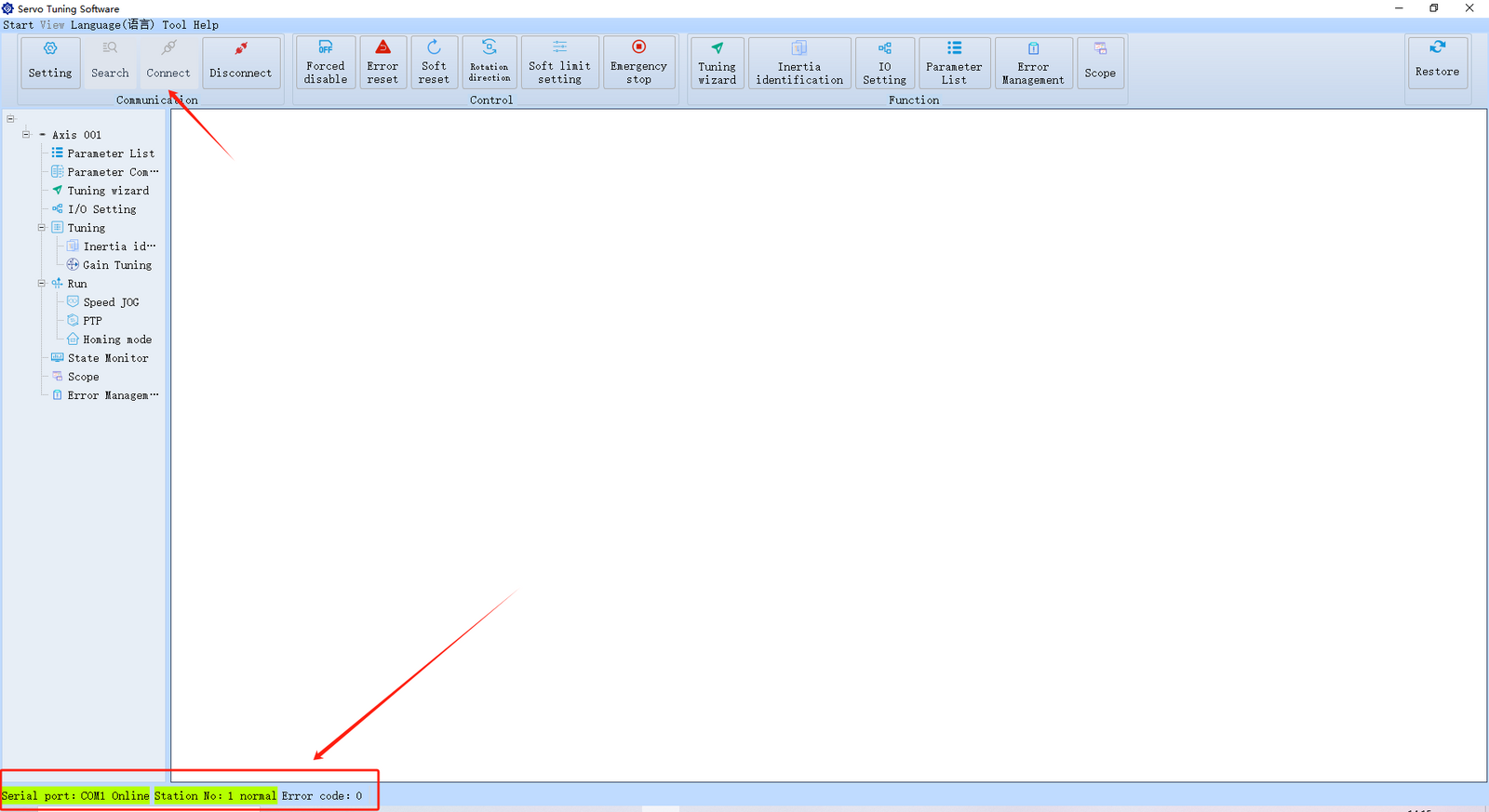
Tip: If you encounter a "CRC Check Error" and the connection fails, verify the serial port settings and cable connections. Try reseating the RS232-5 communication cable and power cycling the drive before attempting to reconnect.
Language Settings
If the interface appears in Chinese when you open the software, click the button shown below to switch the language:
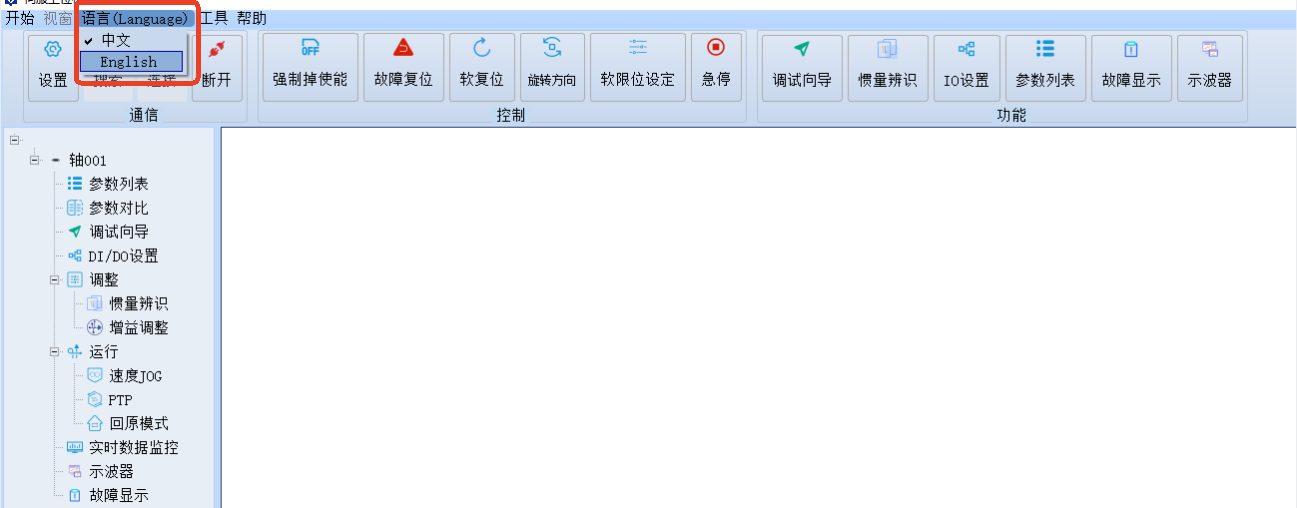
After switching, it is recommended to restart the software.
Software Function Overview
The software is organized into four main sections:
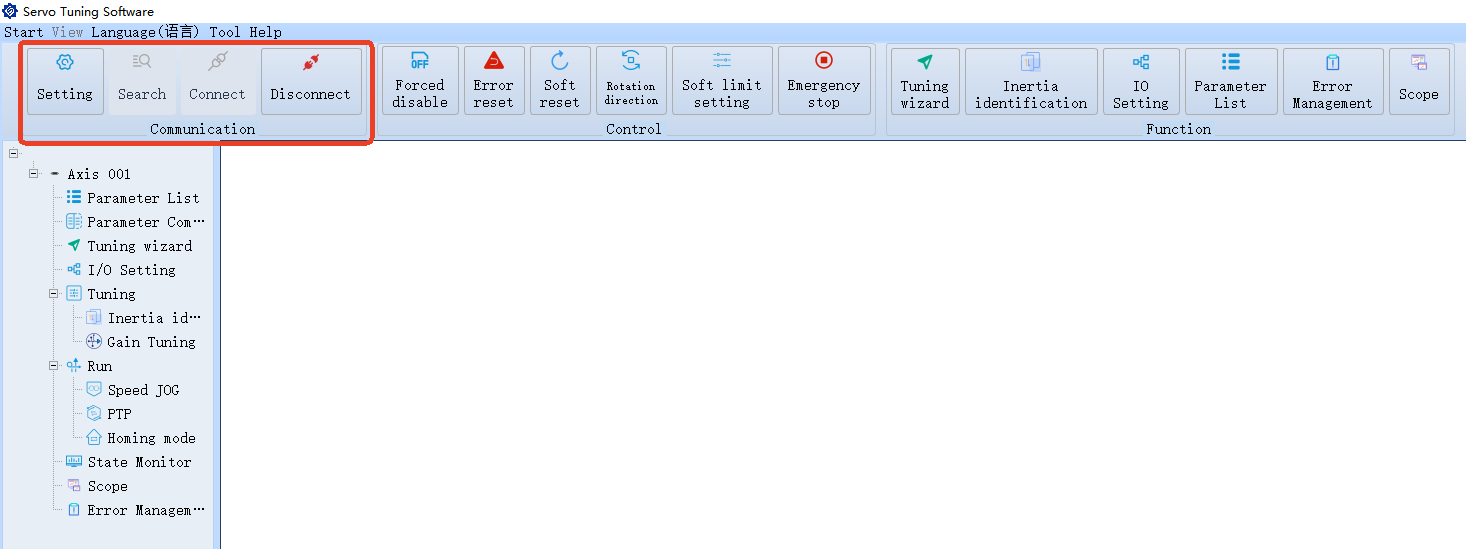
1. Communication
Used for configuring connection settings. These settings cannot be modified while the software is actively communicating with the drive.
2. Control
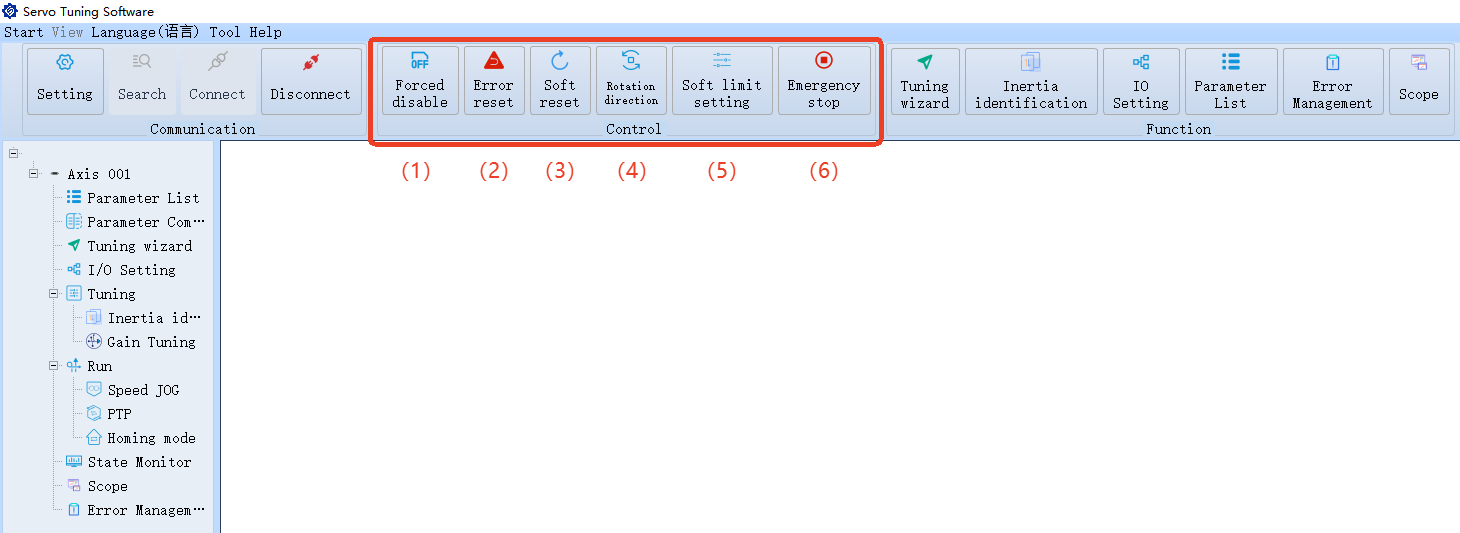
Common control functions:
2.1. Force Disable Motor: Forcibly disables the servo motor.
2.2. Alarm Reset: When the servo motor triggers an alarm, identify and resolve the issue using the troubleshooting guide, then click "Alarm Reset" to clear the fault without restarting the drive.
Note: This only applies to general faults that do not require a power cycle. Some specific faults may still require a restart to reset.
2.3. System Re-initialization: Re-initializes the system via software without cutting off the power supply.
2.4. Change Motor Rotation Direction: Allows you to change the motor's default rotation direction.
Note: This setting cannot be changed while the motor is running.
2.5. Limit Settings: Software-defined constraints that restrict the operational range of the system, helping to prevent it from exceeding safe or functional boundaries. Requires corresponding positive/negative limit switches to be configured through DI ports.
2.6. Emergency Stop: Immediately stops the motor in an emergency.
3. Functions
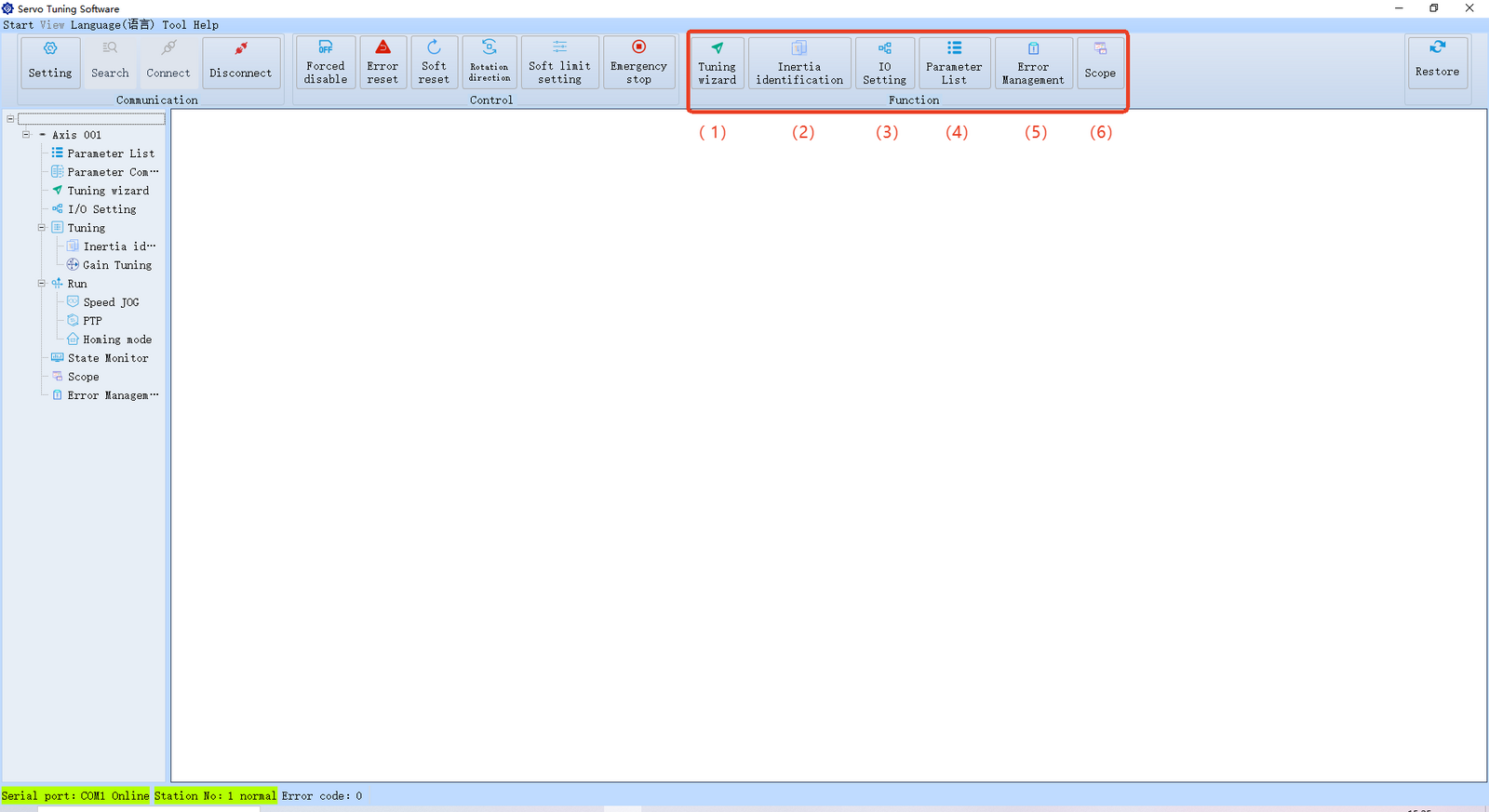
3.1. Basic Parameter Tuning Guide
3.2. Manual Load Inertia Identification Manually identify the current load inertia of the motor.
3.3. DI/DO Interface Configuration Define the functions and enable status for DI/DO ports.
3.4. Drive Parameter Settings Configure and view all parameters of the driver.
3.5. Alarm History & Troubleshooting Check past alarms and recommended solutions.
3.6. Waveform Observation View signal waveforms for diagnosing motor signals and behavior.
4. Basic Debugging
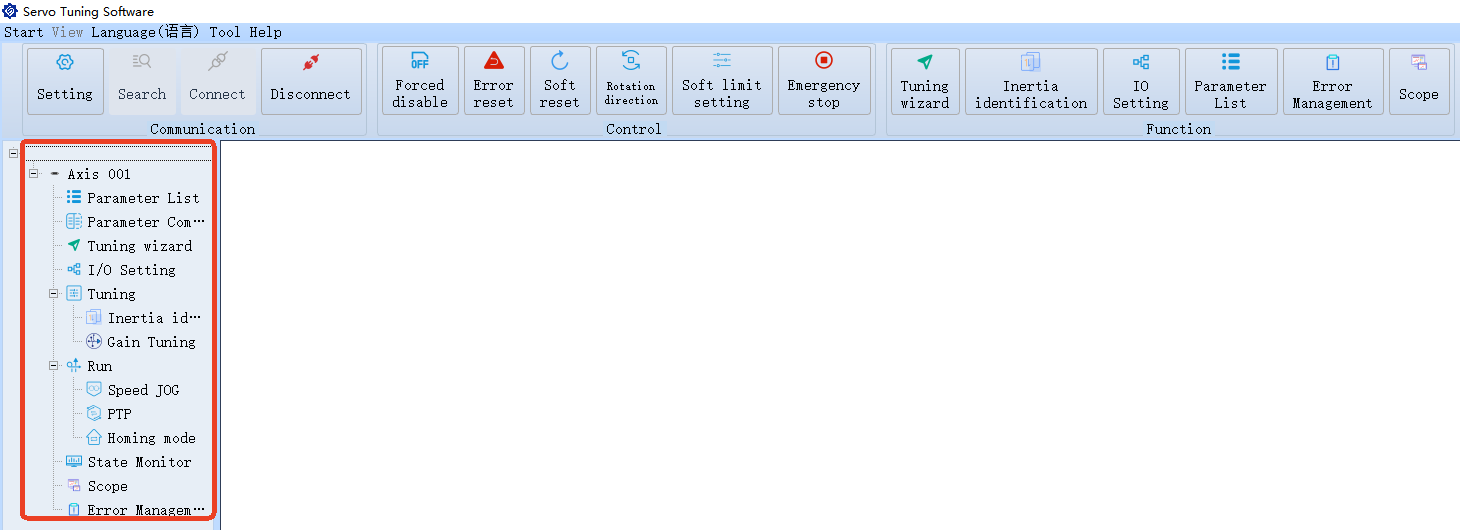
This area allows you to perform common tasks such as:
- Modifying/reading parameters
- Running motor tests
- Monitoring data in real time
Parameter Modification Steps
-
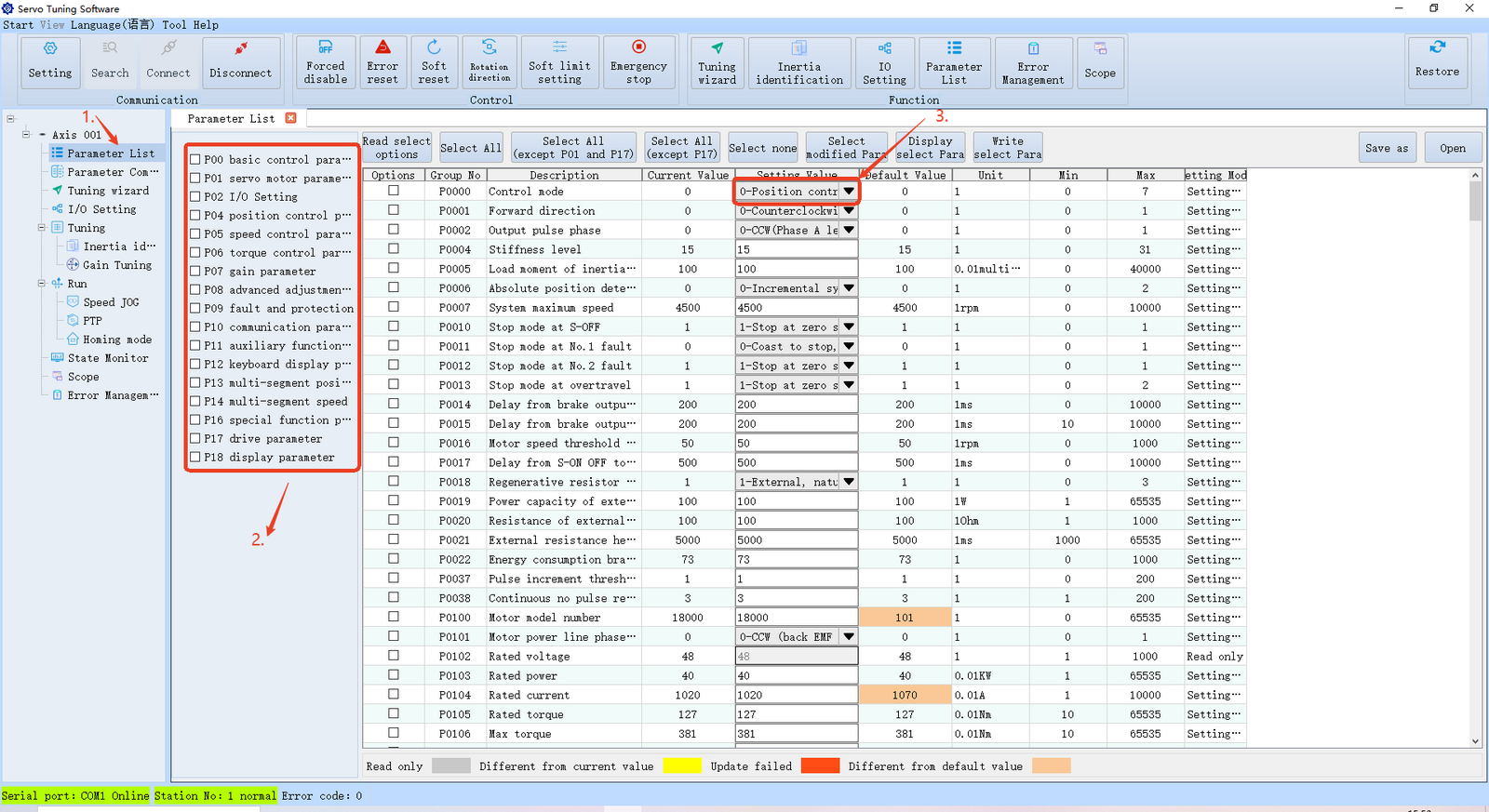
Open the Parameter List.
-
The driver contains a total of 18 parameter groups (as shown on the right side; by default, the P00 group is displayed). Click on a group name to display all parameters in that group.
Note: Some parameters, such as P18, are read-only and cannot be modified.
- For example, to modify P0000, open the detailed view and change the value under the "Set Value" column.
Use the drop-down menu to change the value to 1.
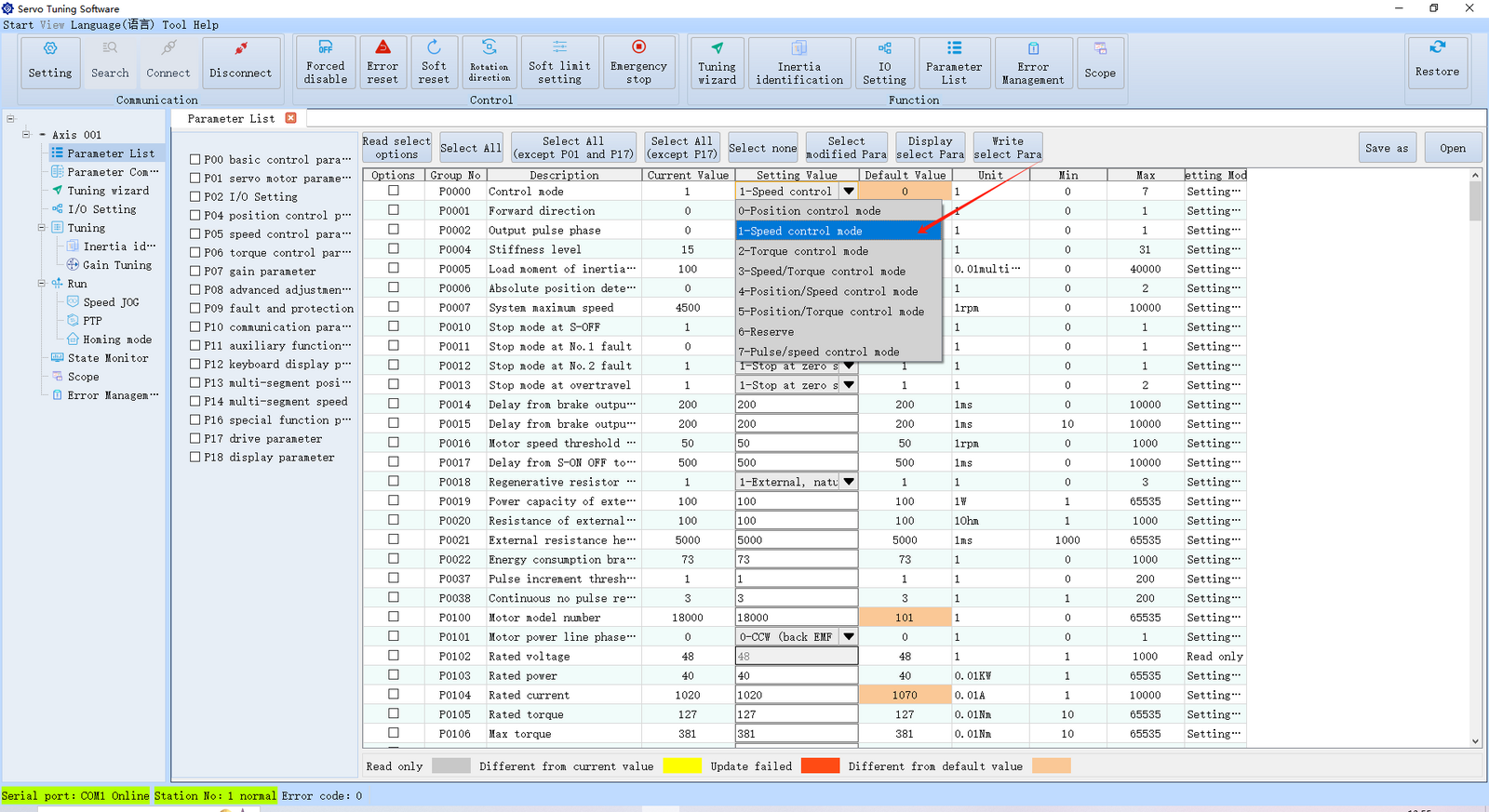
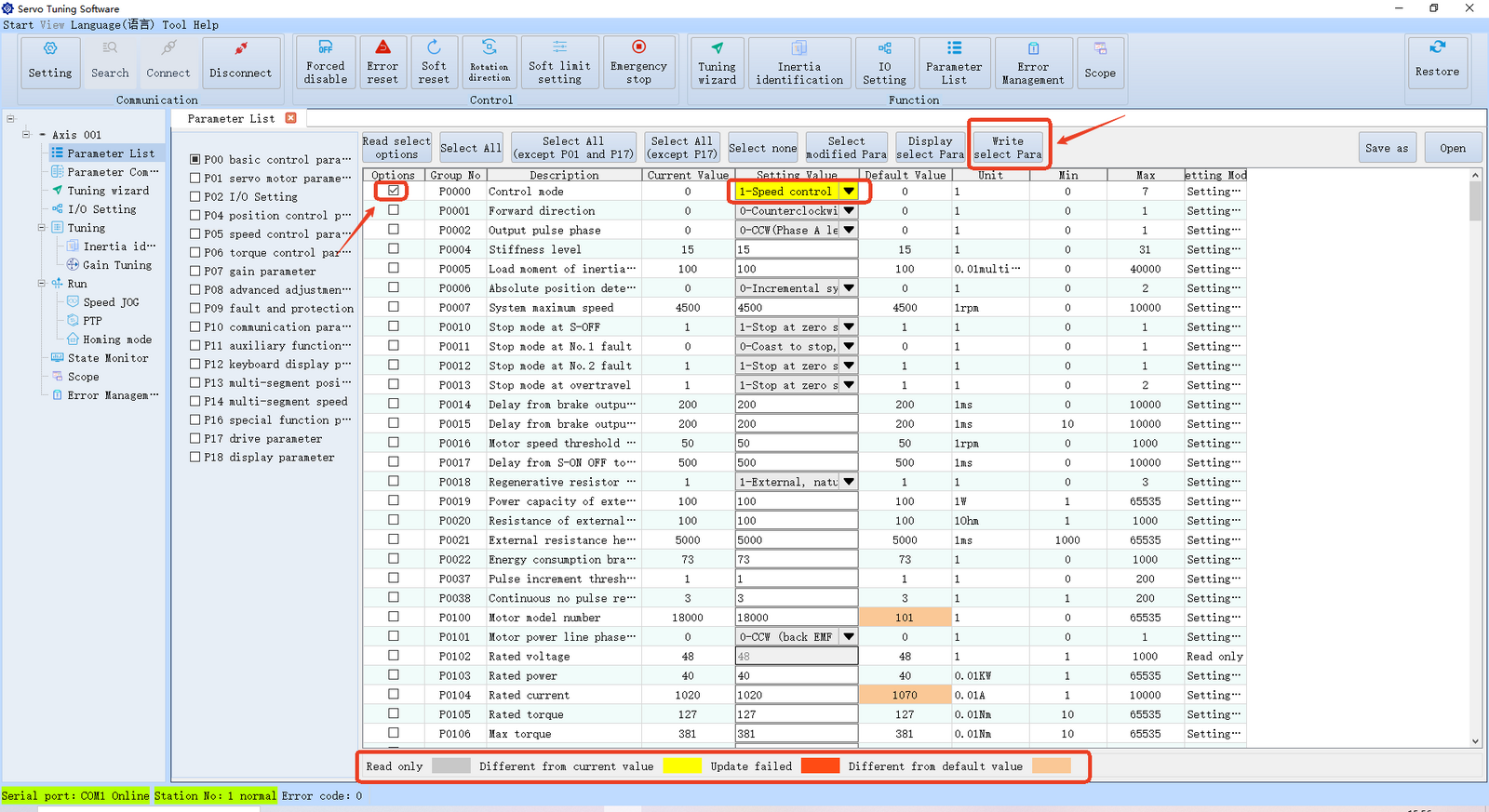
Once selected:
- The value field turns yellow, indicating it has been modified (different colors are used to visually distinguish parameter states—see the color guide at the bottom of the screen).
- Check the box at the beginning of the row, then click "Write Select Para" (Write Selected Parameters) to apply the changes to the drive.
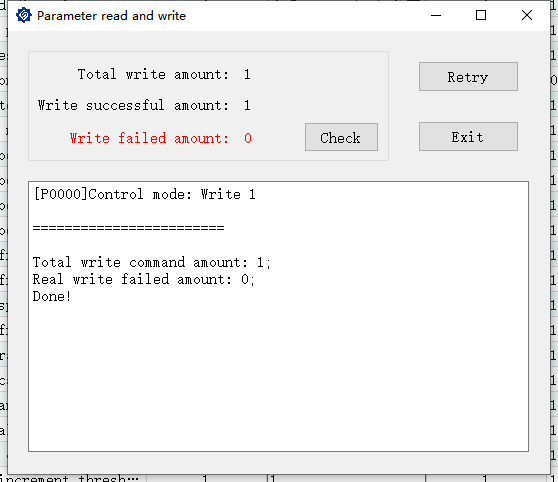
Parameter Comparison
The Parameter Comparison function allows you to view and compare all default parameter values with the current values, as shown below:
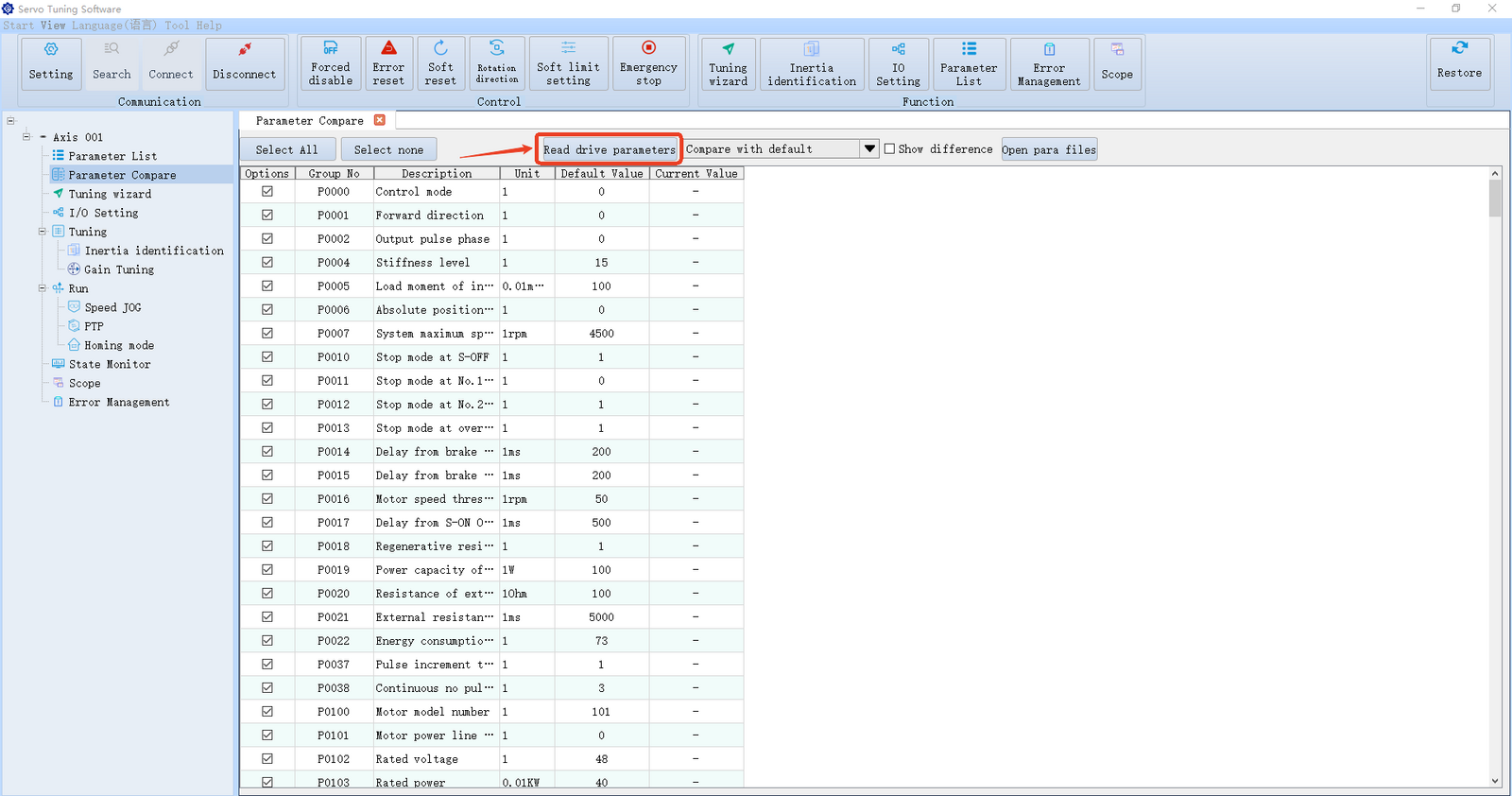
When you open the list, the default values of all parameters are displayed first. Click "Read Drive Parameters," and the last column will display the current values of all parameters. Any value that differs from the default will be shown in orange.
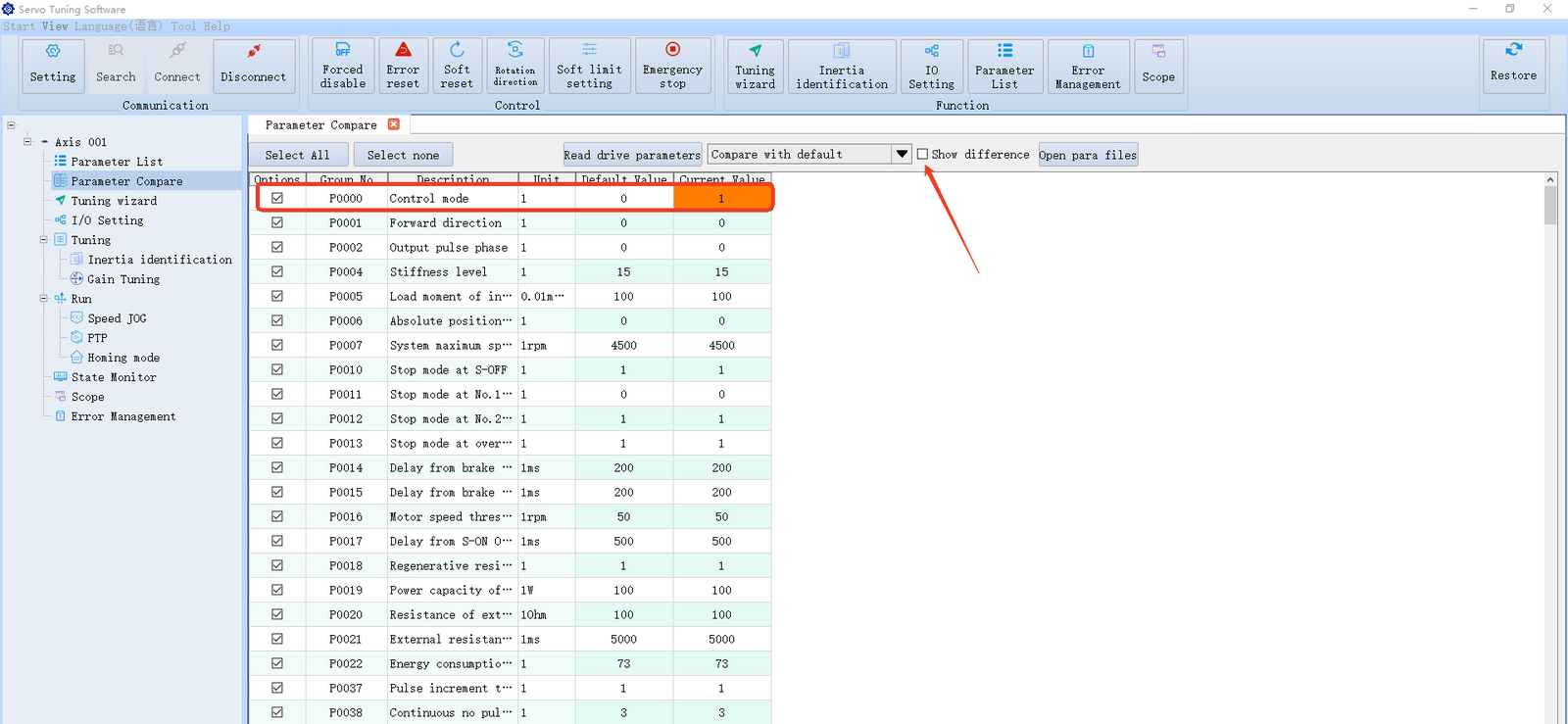
As shown above, this is the P0000 parameter we previously modified.
If you only want to see which parameters have been changed, check "Show Differences," then open the drop-down menu and select "Compare with Default Values" or "Compare with Current Values." Only the modified parameters will be displayed.
Inertia Identification
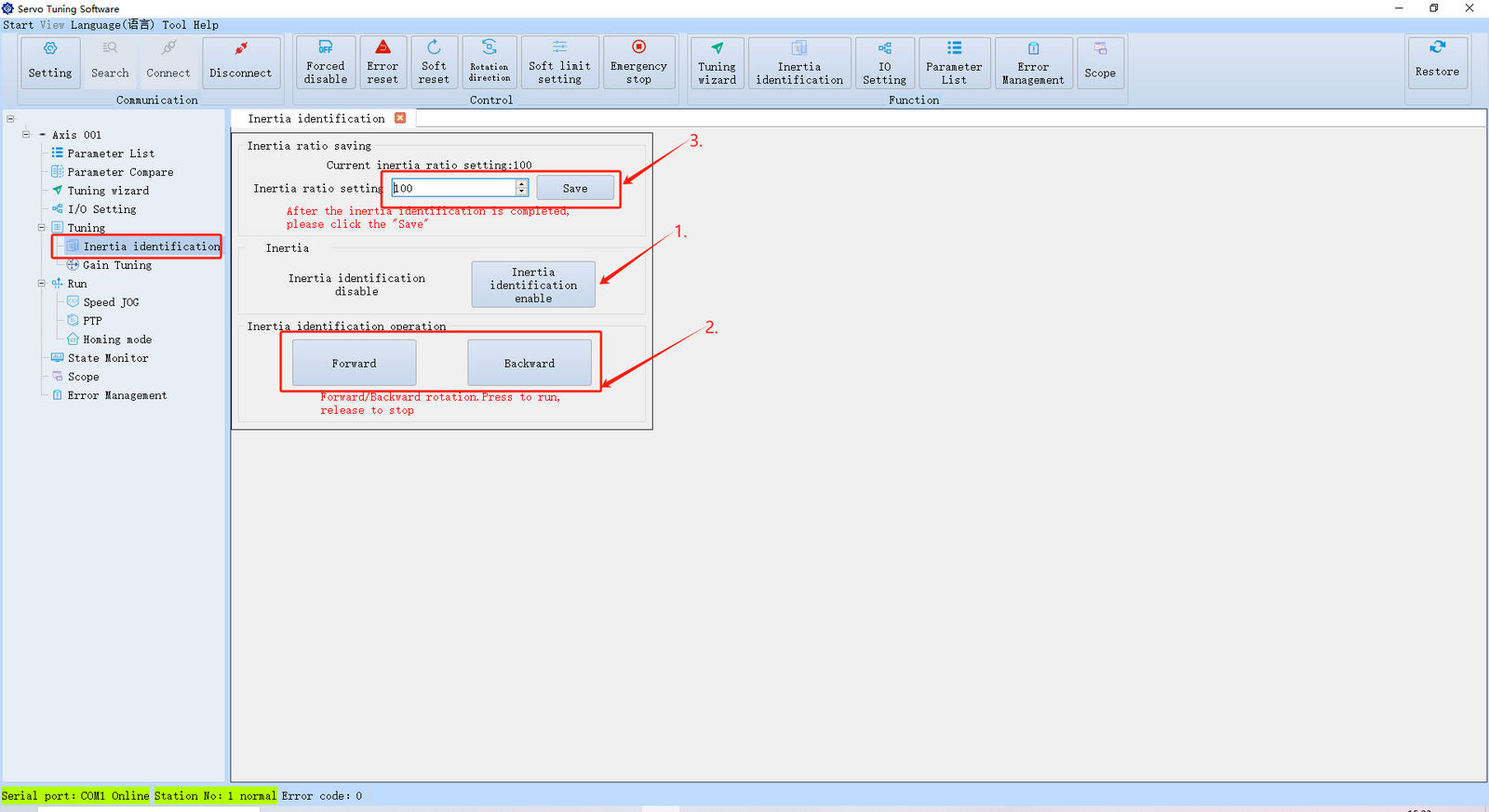
The DSY series servo motors require manual load inertia identification:
-
First, open the Inertia Identification interface and enable the servo (the motor shaft will be locked at this point).
-
Depending on the load size, manually control the motor to rotate forward and backward several times until the inertia ratio displayed above reflects the actual load inertia.
-
Once identification is complete, click "Save" to finish the inertia identification process.
JOG Function
The JOG (jogging mode) function allows you to perform simple speed testing and verification without an external controller:
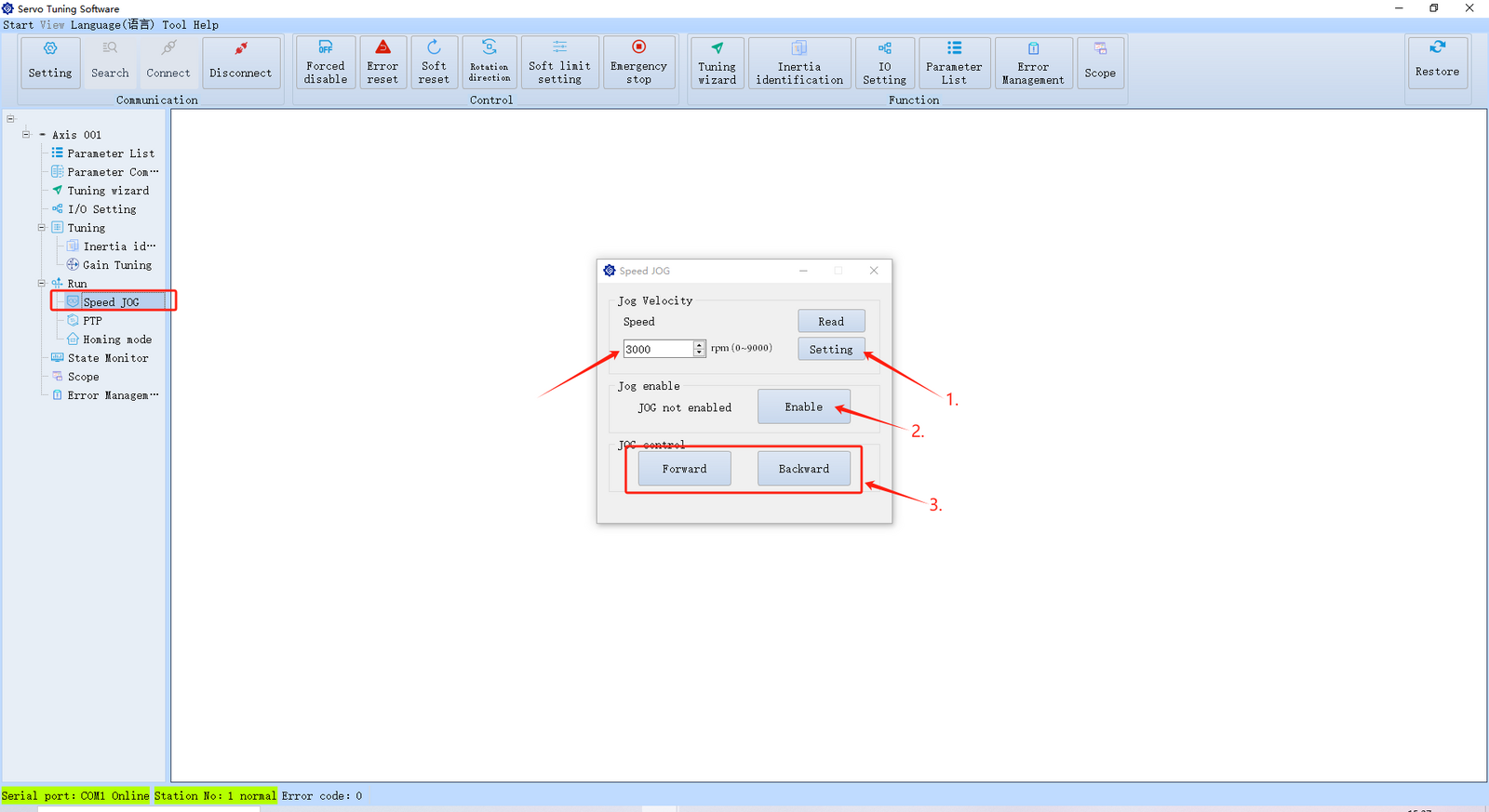
- Open the Speed JOG interface. In the pop-up window, set the desired running speed, then click "Set."
⚠️ Warning: Do not exceed the motor's rated speed of 3000 RPM. Although the software allows values up to 9000 RPM, setting the speed above the rated value may cause motor damage or unsafe operation.
-
Enable the servo.
-
Short-press the Forward or Reverse button to jog the motor incrementally; long-press to run it continuously.
PTP Function
The PTP (Point-to-Point) function is similar to the position JOG test. You can use this mode to check positioning accuracy and perform basic positioning control:
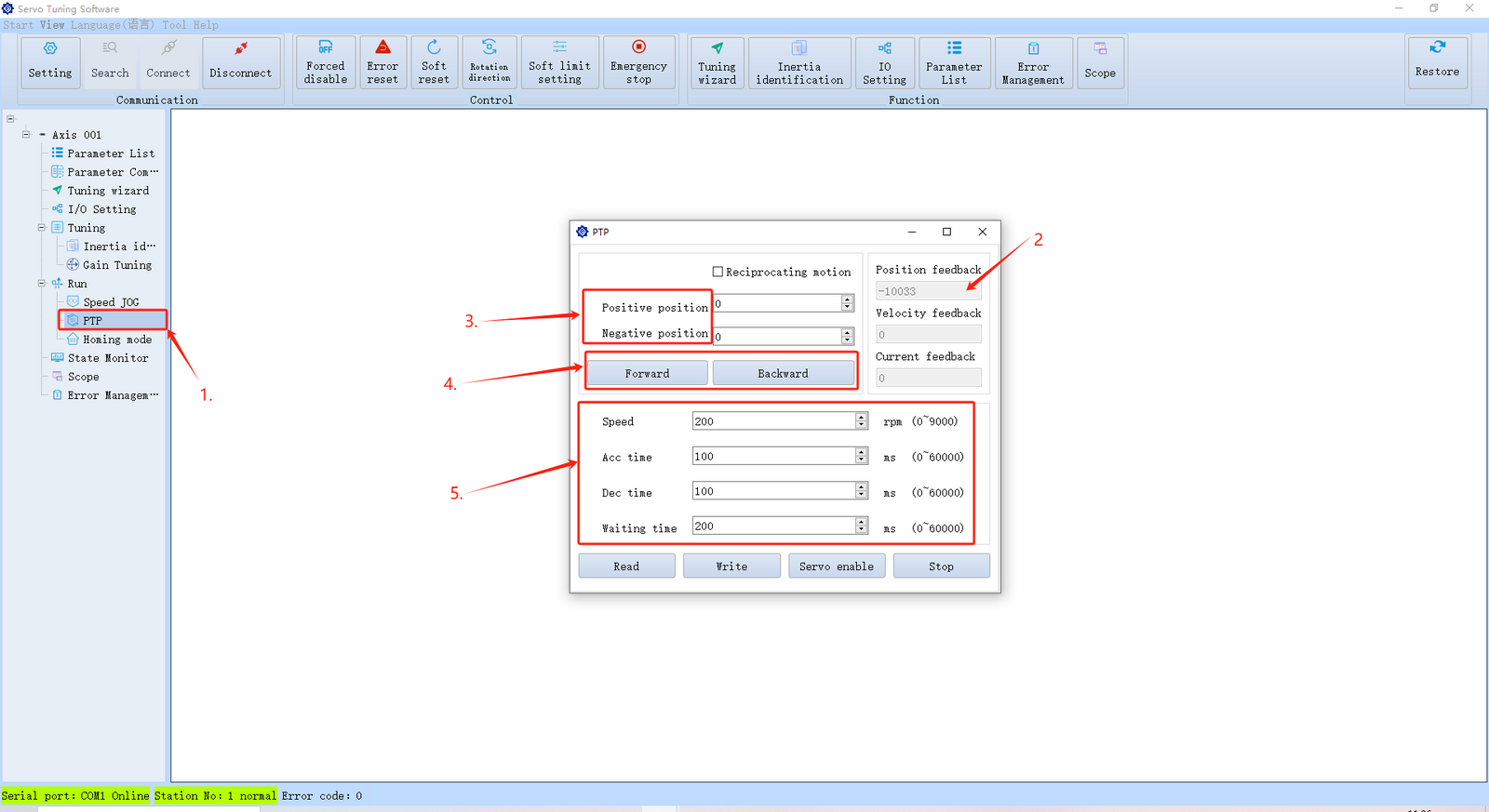
-
Open the PTP interface.
-
The position displayed corresponds to parameter P1807 (absolute position counter, showing the motor's current position).
-
Set the absolute positions for forward and reverse movements. For example, set the forward position to 10000 and the reverse position to 0.
It is recommended to reset the motor position to zero before setting target positions.
-
After enabling the servo, click the Forward or Reverse button to move the motor in the corresponding direction.
-
Set the speed, acceleration/deceleration, and interval time here. Interval time refers to the pause duration when reciprocating motion is enabled.

- Read: Reads the current settings from the drive. It is recommended to do this before making changes.
- Write: After setting all parameters, click "Write" to save them to the drive.
- Servo Enable: Enables the servo. After enabling, proceed with step 4.
- Stop: Immediately stops the motor in an emergency.
Homing Modes
The DSY series supports 35 different homing modes. You can find detailed descriptions of each mode in the drive's user manual. Additionally, timing diagrams are provided on the right side of the software interface for reference:
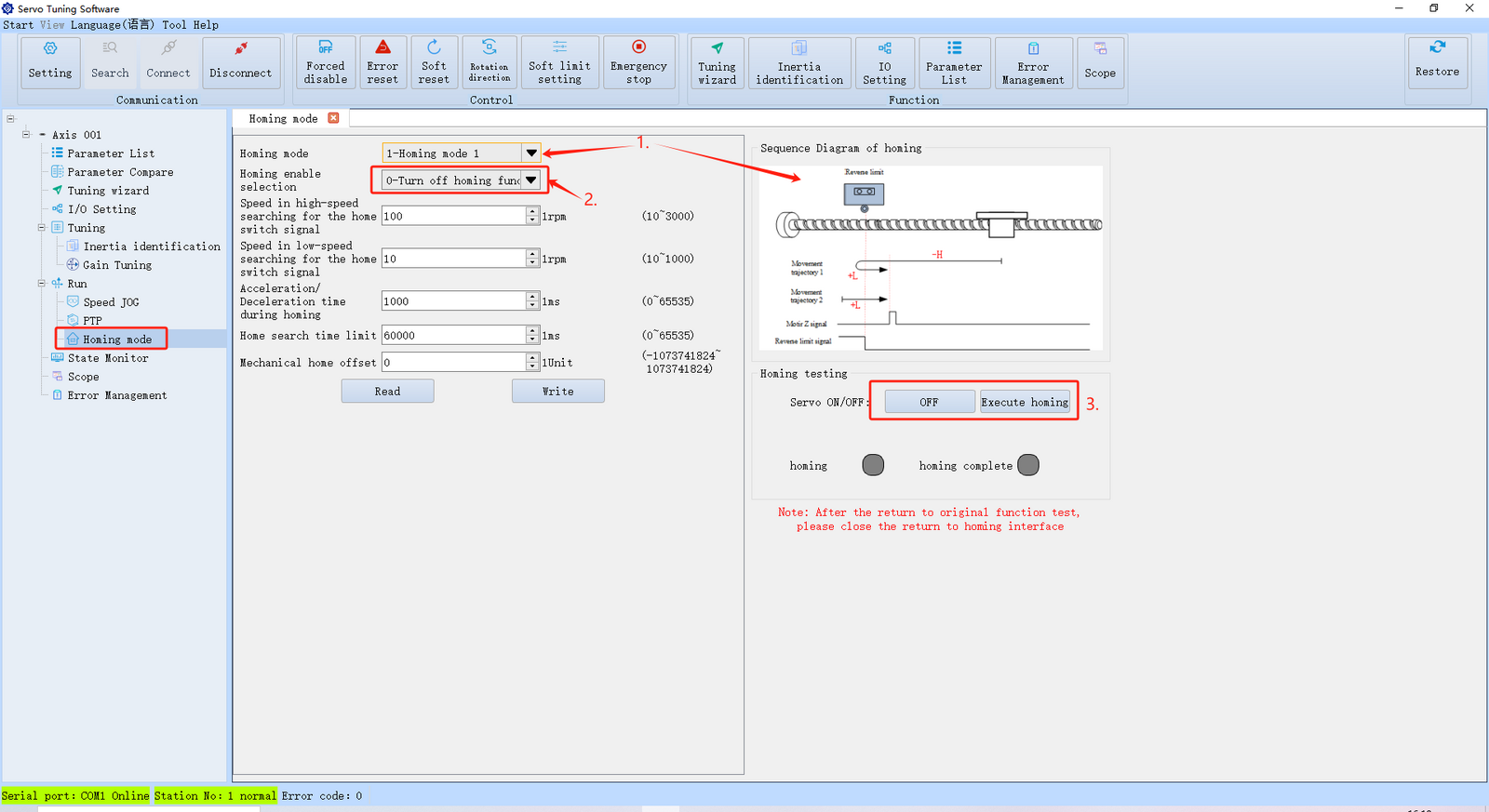
-
Open the Homing interface. Use the drop-down menu to select any of the 35 homing modes. A corresponding schematic diagram will appear on the right side.
-
Configure the homing method, such as immediate homing, automatic homing on power-up, or homing triggered via a DI input.
-
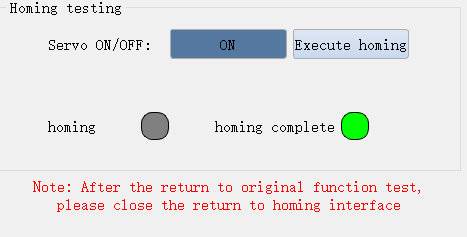
Once homing preparation is complete, enable the servo and click "Execute Homing." After successful homing, the indicator light at the bottom will turn green.
Real-Time Data Monitoring
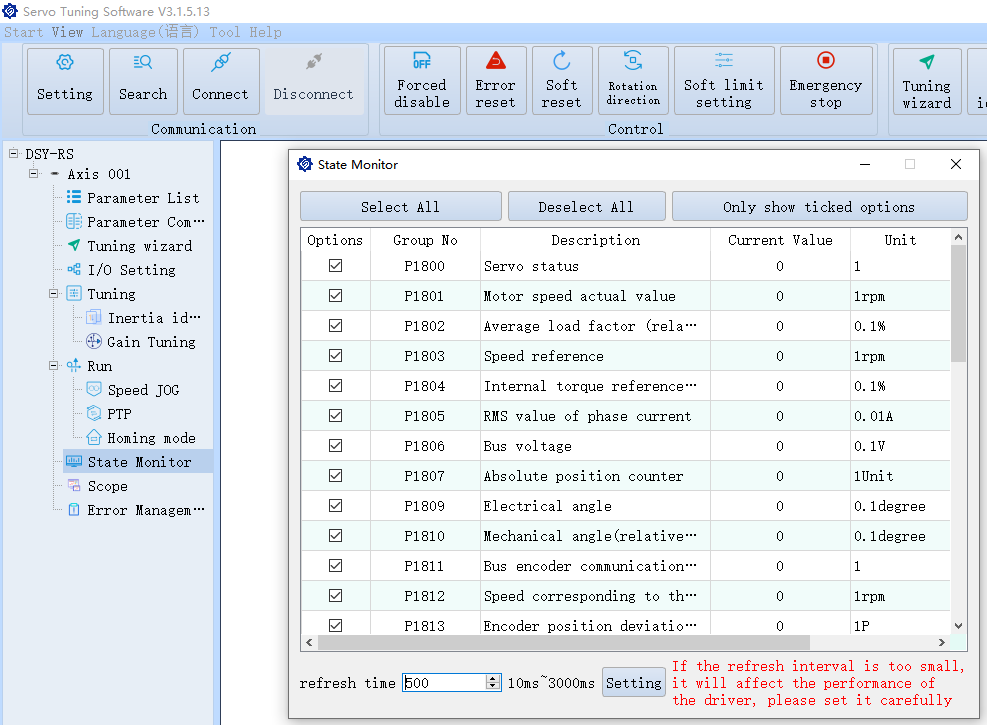
This section displays parameters from group P18. You can monitor the servo motor's speed, torque, voltage, encoder position, and module temperature in real time.
Fault Management
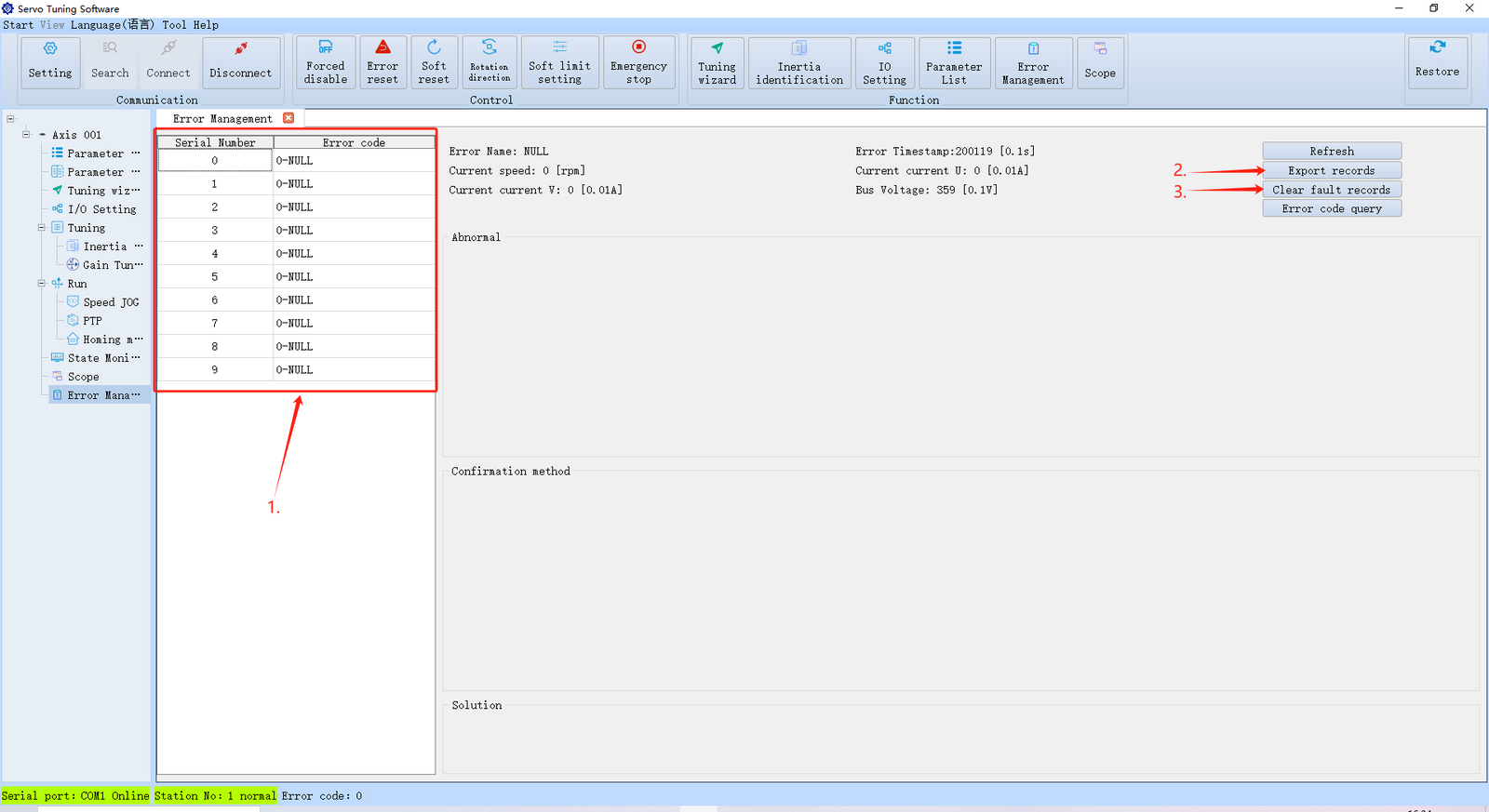
-
Open the Fault Management interface to view all current fault records on the drive.
-
You can export the records as a CSV file for easier documentation and troubleshooting.
-
You may also clear the fault records from the left panel.
A key feature here is Fault Code Lookup. Click the "Fault Code Lookup" button to open the following interface:
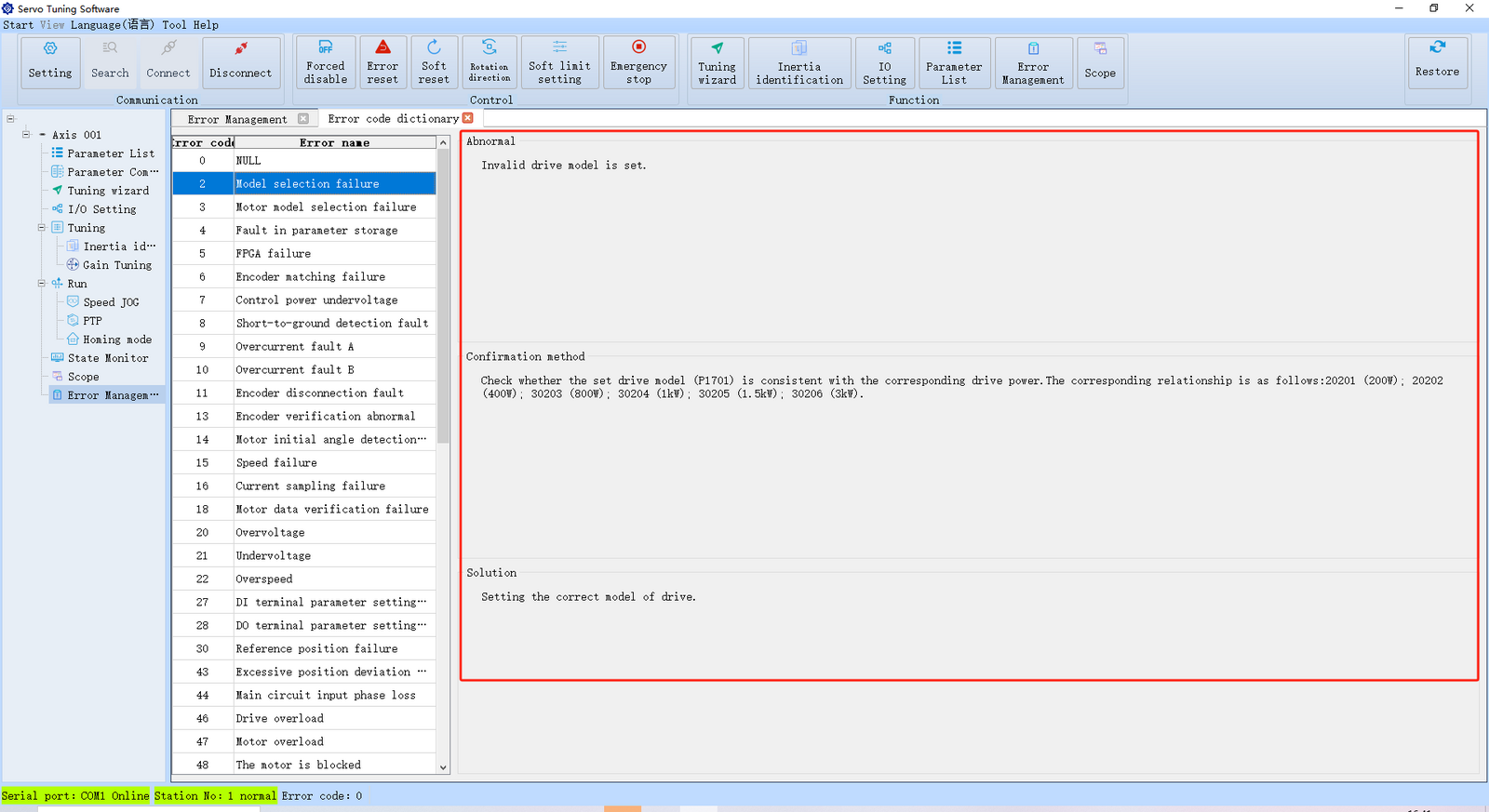
The software includes 99 different fault codes, each accompanied by its possible cause, diagnostic method, and solution.

When a fault occurs, the fault code will be displayed in the lower-left corner of the software. You can use the code to search for solutions.
After resolving the issue, you can clear the fault by either resetting it via the software or power cycling the drive.